The simplest video editor for Mac is iMovie. It’s free, made by Apple, and already installed on most Macs. When you outgrow it, DaVinci Resolve is the free step up with professional tools. If you’d rather pay once and own a pro editor, Final Cut Pro costs $299.99 one time on the Mac App Store.
Your videos are screen recordings?
Then you may not need a video editor at all. CursorClip is a Mac screen recorder that polishes the recording for you: it follows your cursor and adds smooth zooms automatically, and lets you adjust them afterward. It records and polishes screen recordings only. It can’t open videos you shot elsewhere, so for camera footage pick one of the editors below.
Free to record and edit. A license to export, covering up to 3 Macs.
The Simplest Video Editors for Mac at a Glance
| What you need | Best pick | Price |
|---|---|---|
| Free, built-in, genuinely simple | iMovie | Free |
| Free, with room to grow into pro work | DaVinci Resolve | Free (Studio $295 one time) |
| Pay once for a pro editor | Final Cut Pro | $299.99 one time |
| Short social videos with templates | CapCut | Free download, Pro is a subscription |
| Guided edits that teach you as you go | Adobe Premiere Elements | $99.99 (3-year license) |
| Creative effects without the learning curve | Filmora | $79.99 perpetual or yearly plans |
| Multi-camera projects | CyberLink PowerDirector | Subscription on Mac |
| Fast, minimal, drag-and-drop | Movavi | $79.95 lifetime or yearly |
| Screen recordings with zero editing | CursorClip | $70 one time |
This guide compares nine simple, beginner-friendly video editors for Mac in 2026. Each entry covers key features, pros, cons, pricing from the vendor’s own site, and who the tool suits best. Prices were checked on October 6, 2026.
What Is the Video Editor on a Mac?
The video editor on a Mac is iMovie, Apple’s free editor. It comes with new Macs, and if it isn’t on yours you can download it free from the App Store. macOS also has two smaller built-in tools for quick jobs:
- iMovie: a full timeline editor with titles, transitions, music, color correction, green screen and 4K export. This is what most people mean by “the Mac video editor.”
- QuickTime Player: opens almost any video and can trim the start and end, split a clip, rearrange the pieces, and rotate or flip it. Good for cutting a recording down before you share it.
- Photos: can trim a video and apply the same filters, adjustments and crop you use on photos. Good for phone clips already in your library.
If you need more than iMovie, the step up on macOS is either DaVinci Resolve (free) or Final Cut Pro (Apple’s paid pro editor). Both are covered below.
For trimming and tidying a screen recording specifically, see our guide to editing a screen recording on Mac.
What Makes a Video Editor Actually Simple
A video editor is simple when a first-time user can produce a finished video without training. Six criteria separate easy editors from merely popular ones:
- Short learning curve. A simple editor lets you complete a usable video in your first session. iMovie and Movavi are built so beginners can start editing immediately without tutorials.
- Guided workflows. Templates, storyboards, and step-by-step modes remove guesswork. Adobe Premiere Elements includes 26 Guided Edits, and iMovie’s Storyboards provide pre-structured templates for common video types.
- Automation of tedious tasks. The fastest editing is the editing you never do. Smart Trim in Premiere Elements, background removal in Movavi, and automatic captions in Final Cut Pro and CapCut handle work that would otherwise take hours.
- macOS-native performance. A simple editor should run smoothly on your Mac. iMovie and Final Cut Pro are built by Apple for Mac hardware.
- Price transparency. You should know exactly what you pay and when. Clear one-time prices (Final Cut Pro at $299.99, Movavi at $79.95 lifetime) are easier to evaluate than tiered subscriptions with add-on purchases.
- Export presets. A simple editor produces a shareable file without codec knowledge. Auto Reframe in Premiere Elements and Filmora adapts one video to square, vertical, and horizontal formats automatically.
1. iMovie - Apple’s Free Entry Point
iMovie is Apple’s free video editor, included on most Macs, iPhones and iPads, and the natural starting point for beginners. Because it costs nothing, iMovie removes both the money and the technical barriers that stop beginners from trying video editing.
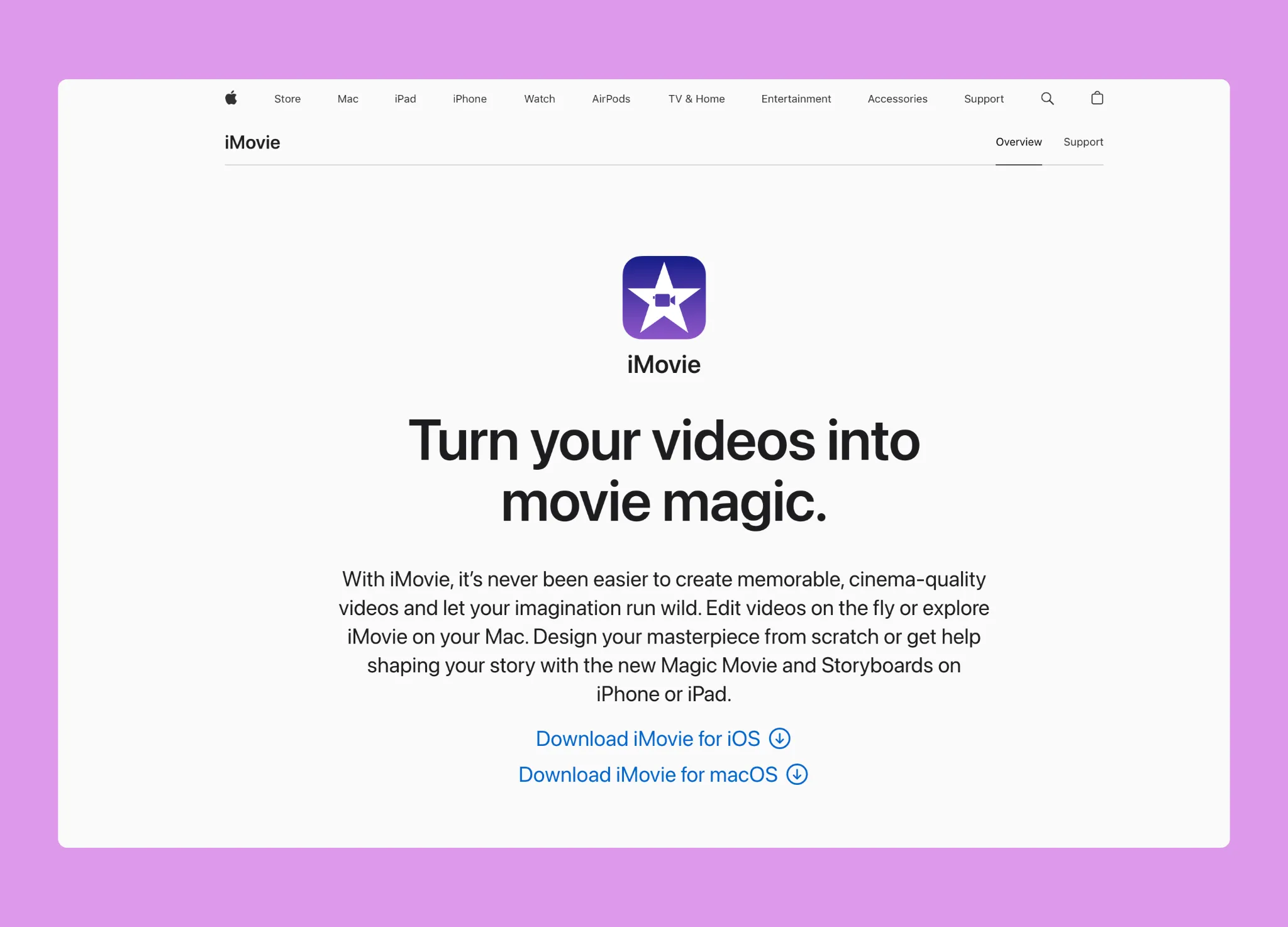
The interface feels familiar if you’ve used other Apple software, with controls that make timeline editing, transitions, and effects approachable from your first project. The magnetic timeline prevents accidental gaps between clips, and Photos and Music integration makes it easy to pull in your own media.
Key Features
Project Modes:
- Magic Movie: Instantly generates a stylized video with titles, transitions, and effects from selected media
- Storyboards: Pre-structured templates for specific video types (tutorials, reviews, announcements) that guide your shooting and editing
Technical Capabilities:
- 4K video support for high-resolution projects
- Color correction and grading tools
- Video stabilization for shaky footage
- Audio enhancement and noise reduction
- Green screen effects
Cross-Device Workflow: Start editing on your iPhone, then finish the project on your Mac.
Pricing
Free - Included with all new Macs, iPhones, and iPads
- No hidden costs or subscription requirements
- All features available from day one
Best For
Best for: first-time editors who want to learn editing fundamentals at zero cost.
iMovie suits family videos, school projects, social media content, and anyone testing whether video editing is something they want to pursue.
Pros:
- Zero cost with full feature access
- Already on most Macs, nothing to set up
- Excellent starting point for learning editing fundamentals
- Supports 4K editing
Cons:
- Lacks advanced features like multi-camera editing
- Limited plugin support
- Exclusive to Apple devices
2. DaVinci Resolve - Professional Power, Free Access
DaVinci Resolve is a professional-grade video editor, used in Hollywood productions, with a free version that rivals many paid competitors. Resolve takes more learning than the other editors in this guide, but it gives you a direct path from novice to professional editor.
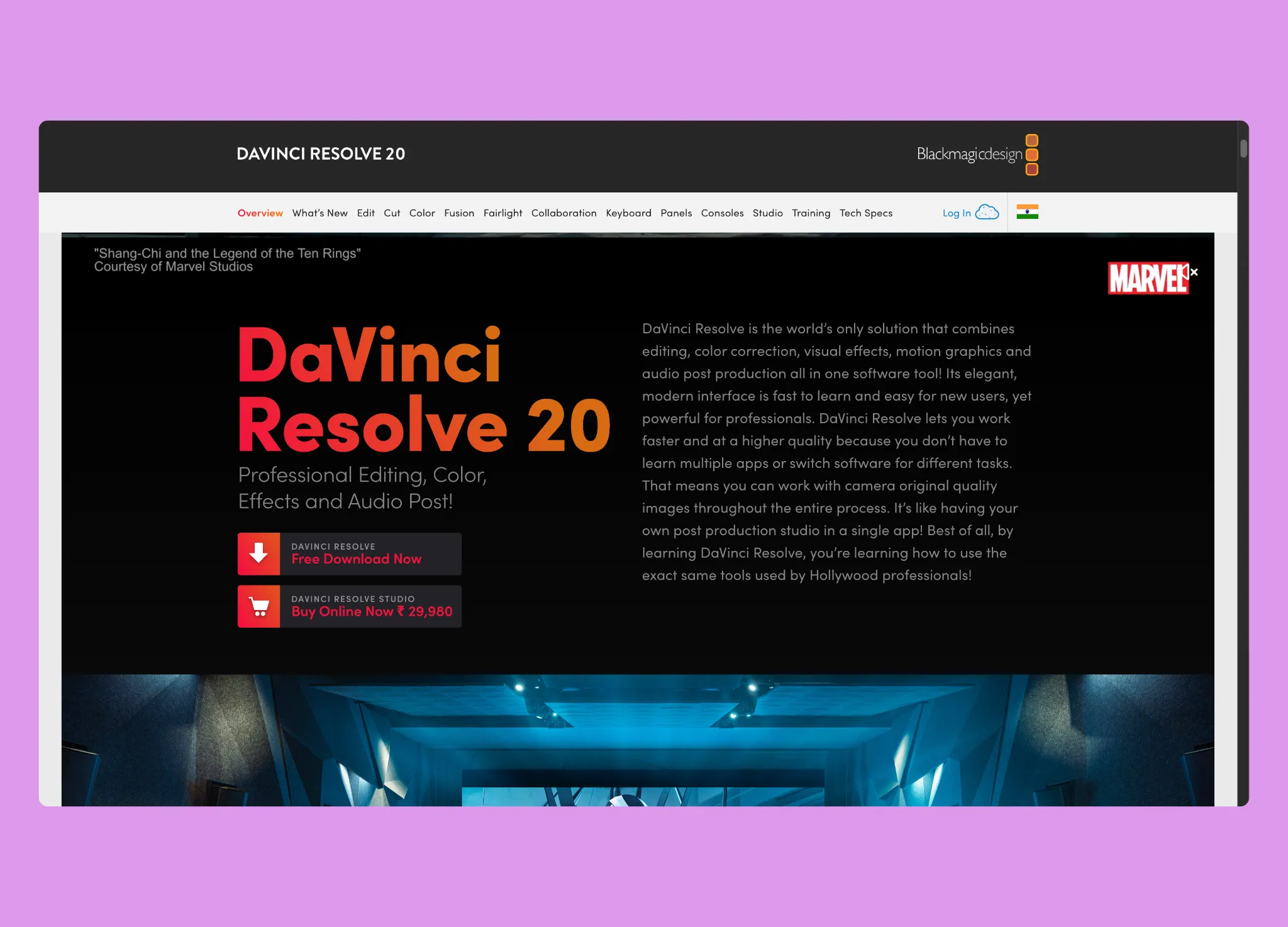
Developed by Blackmagic Design, Resolve combines editing, color correction, visual effects, motion graphics, and audio post-production in one app, so you never need to export between different applications.
Interface Organization
The software uses specialized “pages” for different tasks:
- Media: Asset organization and import
- Cut: Streamlined interface for quick edits
- Edit: Traditional timeline for detailed control
- Fusion: Visual effects and motion graphics
- Color: Industry-leading color grading
- Fairlight: Professional audio mixing
- Deliver: Export and rendering
Is DaVinci Resolve Good for Beginners?
Yes, if you start on the Cut page, which offers a simplified dual-timeline interface designed for quick edits. Once you’re comfortable, move to the Edit page for more control, then expand into color grading, effects, and audio as your skills develop. Expect a steeper first week than iMovie.
Pricing
DaVinci Resolve (Free):
- Cost: $0
- Includes extensive professional features
- No watermarks or time limits
DaVinci Resolve Studio:
- Cost: $295 (one-time purchase)
- Adds advanced AI tools, additional effects, and enhanced performance
- Includes neural engine features and HDR grading
Best For
Best for: beginners who plan to grow into professional editing and want free industry-standard tools from day one.
Pros:
- Professional-grade tools at no cost
- Complete post-production suite in one application
- Skills transfer directly to professional work
- Cross-platform support (Windows, macOS, Linux)
Cons:
- Steeper learning curve than simpler alternatives
- Requires more powerful hardware for smooth operation
- Interface can feel overwhelming at first
3. Final Cut Pro - The One-Time Pro Upgrade From iMovie
Final Cut Pro is Apple’s professional video editor and the natural next step for iMovie users. It uses the same magnetic timeline idea, so your iMovie habits carry over, and Apple describes it as intuitive enough for editors who are just starting out.
Key Features
- Magnetic Timeline: move and trim clips while everything stays in sync, with no gaps to clean up
- Automatic captions: Final Cut Pro analyzes spoken audio and creates captions for you
- Magnetic Mask: separate people and objects from the background without a green screen
- Mac-native: built by Apple for Mac hardware
Pricing
- One-time purchase: $299.99 on the Mac App Store
- Subscription: also included in Apple Creator Studio at $12.99 per month or $129 per year, with a free trial for new subscribers
- The current Mac App Store version (12.4) lists macOS 26.6 or later, so check your macOS version before you buy
Best For
Best for: iMovie users who want professional tools and prefer to pay once instead of subscribing.
Pros:
- One-time price with no subscription required
- Easy step up from iMovie
- Professional features you won’t outgrow
Cons:
- $299.99 is a big upfront cost for a first editor
- Mac only
- Requires a recent version of macOS
4. CapCut - Free, Template-Driven Editing for Social Clips
CapCut is a free video editor from ByteDance, best known on phones, with a desktop app for Mac. It is built around templates, trending effects, and quick vertical videos, which makes it one of the fastest ways to make a short social clip.
Key Features
- Templates, transitions, and effects you drag onto the timeline
- Auto captions and transcription
- Basic AI tools in the free version, more in CapCut Pro
- Same editing style as the CapCut phone app
Pricing
- Free: the desktop app is a free download
- CapCut Pro: a monthly or yearly subscription for extra effects and tools; the price varies by region
Best For
Best for: creators making short vertical videos for TikTok, Reels, and Shorts.
Pros:
- Free to download and start
- Fast template-based workflow
- Familiar if you already use CapCut on your phone
Cons:
- Some features are locked behind a subscription
- Built for short social clips more than long videos
5. Adobe Premiere Elements - Guided Learning
Adobe Premiere Elements is the beginner-friendly alternative to Premiere Pro. Built on the same Adobe technology, Elements focuses on guided learning and automated assistance rather than every possible feature.
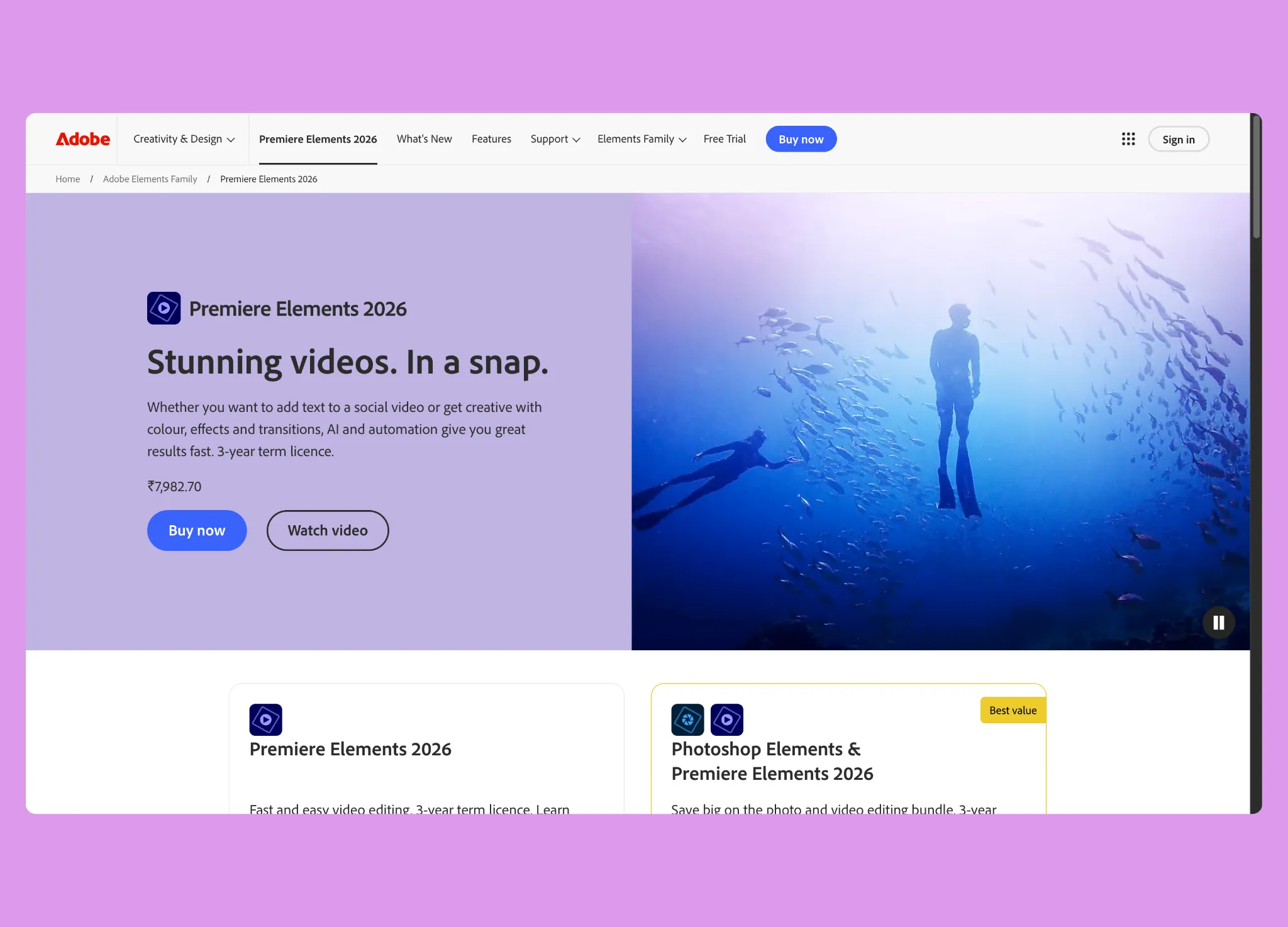
The defining feature is Guided Edits: interactive tutorials that walk you through creative techniques step by step inside your actual project. Instead of watching separate tutorial videos, you learn by doing.
Editing Modes
- Quick Mode: Simple drag-and-drop for basic edits
- Guided Mode: 26 step-by-step creative tutorials
- Expert Mode: Full timeline control for advanced users
AI Automation
- Auto Reframe: Adapts footage for different aspect ratios (square, vertical, horizontal)
- Smart Trim: Analyzes footage and suggests the best moments
- Face Detection: Keeps subjects in frame automatically
- Video Noise Reduction: Improves quality of low-light footage
Pricing
Elements uses an upfront payment rather than a monthly subscription, but note the fine print: since the 2024 release, Adobe sells Premiere Elements as a 3-year term license, not a perpetual one-time purchase.
- Premiere Elements: $99.99 (license valid for 3 years)
- Elements Bundle (Photoshop + Premiere): $149.99 (same 3-year term)
Best For
Best for: beginners who learn best by doing and want step-by-step coaching built into the editor.
Pros:
- Interactive guided learning system
- AI-powered automation saves time
- Pay upfront, no monthly subscription
Cons:
- License expires after 3 years
- Less advanced than Premiere Pro
- Limited color grading capabilities
6. Filmora by Wondershare - Creative Simplicity
Wondershare Filmora balances approachability with creative power. It is designed for users who want to move beyond iMovie but aren’t ready for professional-grade complexity. Drag-and-drop editing runs through the whole app.

A key advantage is the large built-in library of creative assets: royalty-free music, sound effects, animated titles, transitions, and visual effects, so you don’t have to source them elsewhere.
Key Features
- Simple timeline: most functions are a few clicks away
- Effect library: hundreds of built-in filters, overlays, transitions, and animated elements
- AI Portrait: remove video backgrounds without a green screen
- Auto Reframe: adapt content for different social platforms
- Speech-to-Text: automatic caption generation
- Motion tracking, color grading, keyframing, and audio mixing presented in beginner-friendly ways
Pricing
- Perpetual plan (Mac): $79.99 one time. It covers updates within Filmora 16; future major versions cost extra.
- Yearly plans: cross-platform annual plans, with the Advanced plan at $59.99 per year at the time of writing
The free trial adds a watermark to exports until you buy a license.
Best For
Best for: social media creators and marketers who want a large template and asset library with drag-and-drop simplicity.
Pros:
- Intuitive drag-and-drop interface
- Large built-in asset and effect library
- Choice of yearly plan or one-time purchase
Cons:
- Perpetual plan doesn’t include the next major version
- Some premium effect packs cost extra
- Less professional color grading than high-end alternatives
7. CyberLink PowerDirector - Feature-Rich Performance
CyberLink PowerDirector sits between consumer and professional video editing software. It offers features usually found in expensive applications while staying accessible to motivated beginners.

Express Projects offer template-based editing for quick results, while the full timeline editor gives you detailed control when you’re ready.
Key Features
- MultiCam Designer: sync and switch between multiple camera angles, useful for interviews, events, and multi-angle tutorials
- AI tools: sky replacement, object detection, speech enhancement, and scene detection
- Express Projects: templates for intros, outros, and complete video structures
Pricing
On Mac, PowerDirector is subscription only. CyberLink’s store states there is no perpetual or one-time-purchase Mac version.
- PowerDirector 365 for Mac: $79.99 per year or $24.99 per month
- A free download is available to try it
Best For
Best for: ambitious beginners producing interviews or multi-angle tutorials who want room to grow.
Pros:
- Multi-camera editing
- Powerful AI automation features
- Optimized for Apple Silicon
Cons:
- No one-time purchase on Mac
- Interface can feel dense at first
8. Movavi Video Editor - Speed and Simplicity
Movavi Video Editor prioritizes one thing: getting you from raw footage to finished video as quickly as possible. If you care more about speed than detailed control, Movavi’s streamlined approach fits.
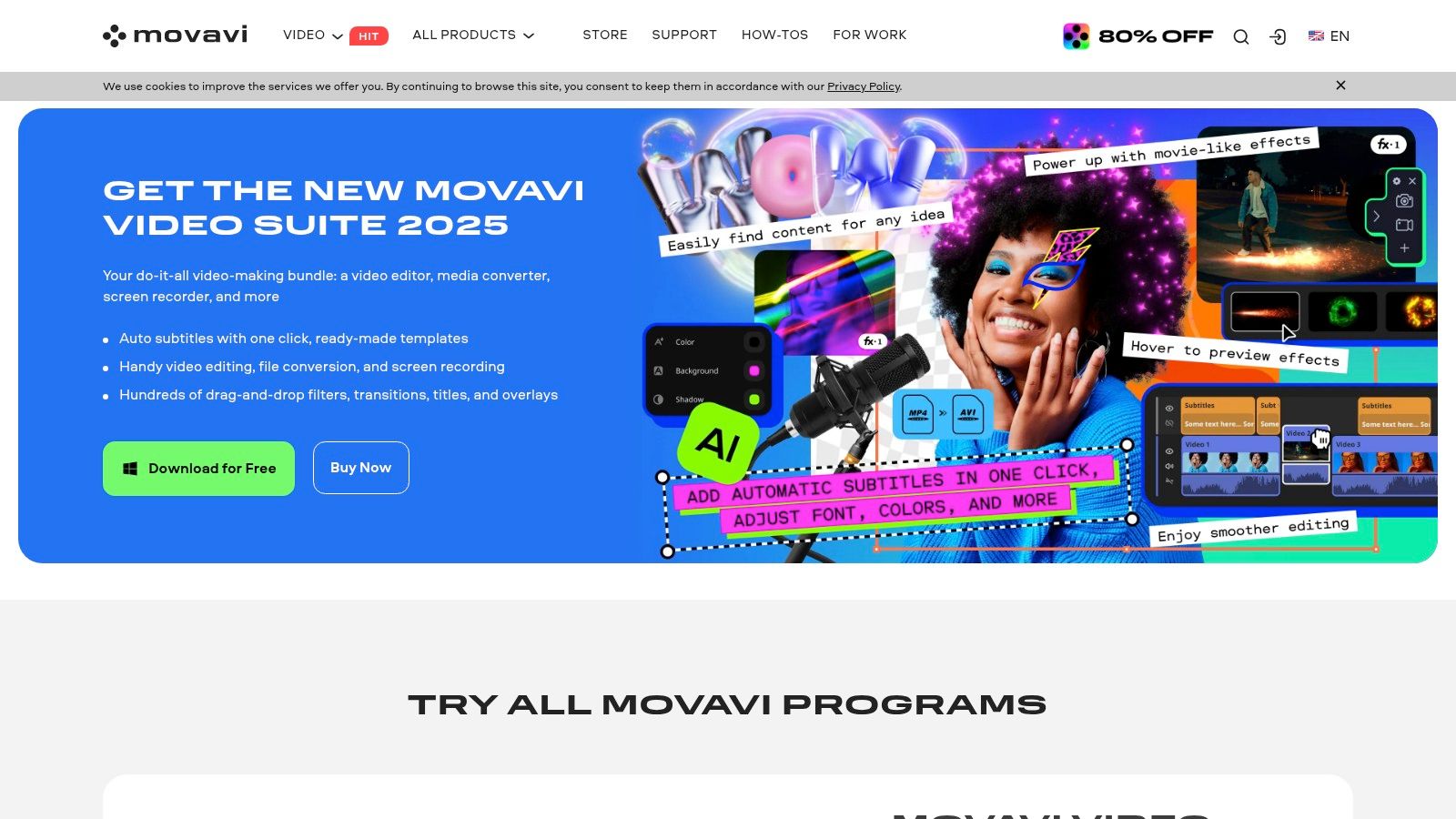
The interface is deliberately minimal, with a simple drag-and-drop timeline and creative tools that are easy to find.
Key Features
- Clean interface: everything is visible without searching through nested menus
- Built-in assets: filters, transitions, titles, and effects included from the start
- AI tools: background removal, noise reduction, stabilization, and upscaling
Pricing
- Lifetime license: $79.95 one time, covering minor updates within the version you buy
- Yearly subscription: $54.95 per year
Movavi notes that prices vary by location. The free version adds watermarks to exports.
Best For
Best for: creators on tight deadlines and anyone editing on an older Mac.
Pros:
- Fast workflow with a minimal learning curve
- Stays responsive on older Mac hardware
- Affordable lifetime option
Cons:
- Limited advanced color grading
- May feel restrictive for complex projects
9. CursorClip - For Screen Recordings Only
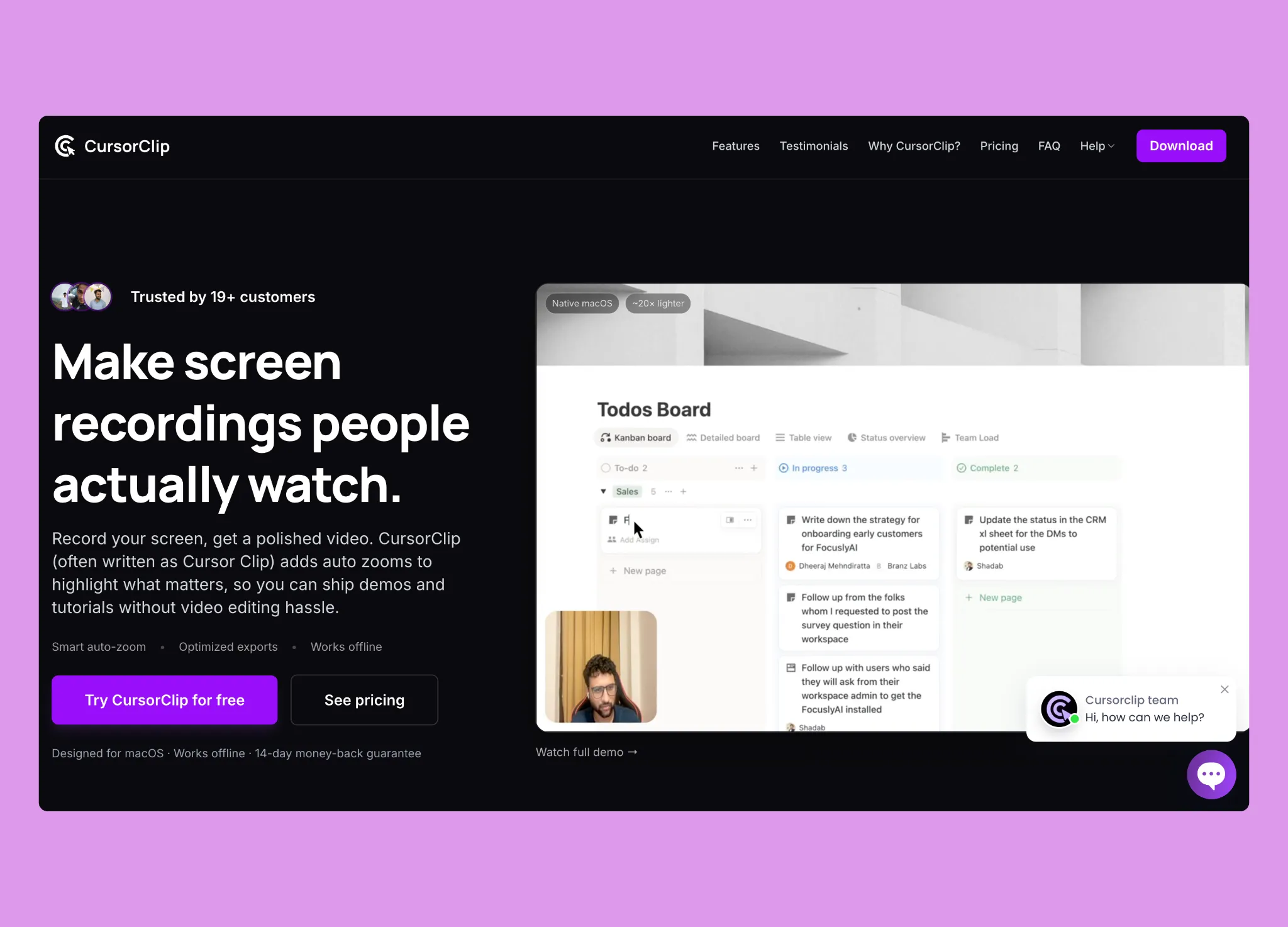
CursorClip is not a general video editor, and it can’t open videos you recorded elsewhere. It is a native macOS screen recorder that does the editing a screen video usually needs while you record: it follows your cursor and adds smooth zooms automatically. Learn more in our guide to auto-zoom screen recording.
Key Features
- AutoZoom: follows your clicks and adds zoom effects without manual keyframing
- Webcam: record your face alongside your screen
- Backgrounds and cursor styling: adjust cursor size and style, and replace your desktop background
- Built-in editor: fine-tune zoom timing, intensity, and position without switching apps
- Lightweight: about 46 MB installed
Pricing
- Free to record and edit. A license to export.
- One-time license: $70, covering up to 3 Macs
- Also available yearly ($29) or monthly ($9)
- Unlimited 4K exports at 60fps
- 14-day refund policy
- Requires macOS 13.5 (Ventura) or later
Best For
Best for: Mac users who record software tutorials, product demos, or course lessons and want a finished video without a timeline. For more options in this category, see our best screen recorders for Mac, screen recorders for Mac with audio, and Screen Studio alternatives.
Best One-Time Purchase Video Editors for Mac
The best one-time purchase video editor for Mac is Final Cut Pro at $299.99 if you want a pro editor you won’t outgrow. On a smaller budget, Filmora ($79.99) and Movavi ($79.95) are the cheapest simple editors you can own outright, with the catch that each license covers one major version. Prices checked on the vendor sites on October 6, 2026.
| Editor | One-time price | What you get | Watch out for |
|---|---|---|---|
| Final Cut Pro | $299.99 | Apple’s pro editor from the Mac App Store | Version 12.4 lists macOS 26.6 or later |
| DaVinci Resolve Studio | $295 | AI tools, HDR grading, more effects over free Resolve | The free version is enough for most beginners |
| Filmora (perpetual) | $79.99 | Filmora 16 plus its updates | Next major version costs extra |
| Movavi (lifetime) | $79.95 | The version you buy plus minor updates | Prices vary by location |
| PowerDirector | Not available on Mac | - | Mac version is subscription only ($79.99/year) |
| Premiere Elements | $99.99 | Paid upfront | 3-year term license, not perpetual |
| CursorClip | $70 | Screen recorder with automatic zoom, up to 3 Macs | Screen recordings only, can’t open other videos |
If you only need a free editor, skip this table: iMovie and DaVinci Resolve cost nothing and never watermark exports.
Lightweight Video Editors for a MacBook Air
The lightest editors for a MacBook Air are the ones that don’t ask your Mac to do much:
- iMovie: made by Apple for Apple hardware and often already installed, so there is nothing extra to download. The first choice for most MacBook Air owners.
- QuickTime Player: already on every Mac, with nothing to install. It trims, splits and rearranges clips, which covers many quick edits.
- Movavi: a minimal interface that stays responsive on older Mac hardware.
DaVinci Resolve is free but asks more of your hardware, so on an older or base-model MacBook Air, start with iMovie and move to Resolve or Final Cut Pro when your projects need it.
Comparison Overview
| Software | Complexity | Best For | Pricing | Key Advantage |
|---|---|---|---|---|
| iMovie | Very Low | Apple ecosystem beginners | Free | Zero cost, easy start |
| DaVinci Resolve | High | Aspiring professionals | Free / $295 | Professional power free |
| Final Cut Pro | Moderate | iMovie graduates | $299.99 once or Creator Studio | Pro tools, pay once |
| CapCut | Low | Short social clips | Free / Pro subscription | Templates and trends |
| Premiere Elements | Low | Guided learning | $99.99 (3-year license) | Step-by-step tutorials |
| Filmora | Low-Moderate | Creative social content | $79.99 once or yearly | Large asset library |
| PowerDirector | Moderate | Multi-camera projects | $79.99/yr (Mac) | Performance and features |
| Movavi | Very Low | Quick results | $79.95 once or $54.95/yr | Speed and simplicity |
| CursorClip | Very Low | Screen recordings only | $70 once | Automatic zoom while you record |
How to Choose a Simple Video Editor for Mac
Answer these four questions in order and you will land on one or two tools from this list.
1. Are your videos screen recordings?
- Yes: try CursorClip first. AutoZoom handles the zoom editing screen demos normally need. Our tutorial video guide walks through the whole process.
- No: continue to the next question.
2. Do you want to spend nothing at all?
- Yes, with the easiest possible start: choose iMovie. It is free, already on most Macs, and covers 4K editing.
- Yes, but you want professional tools to grow into: choose DaVinci Resolve. The free version has no watermarks or time limits.
- Yes, for short social clips: choose CapCut.
- No, a paid tool is fine: continue to the next question.
3. Do you prefer a one-time purchase or a subscription?
- One-time purchase: Final Cut Pro ($299.99), Filmora ($79.99 perpetual), or Movavi ($79.95 lifetime). Premiere Elements ($99.99) is upfront but expires after 3 years.
- Subscription with ongoing updates and stock libraries: Filmora yearly plans, Movavi ($54.95/year), PowerDirector 365 ($79.99/year), or Final Cut Pro through Apple Creator Studio ($12.99/month).
4. How do you want to learn?
- Step-by-step coaching inside the app: Premiere Elements, with 26 Guided Edits.
- Minimal learning, fast results: iMovie or Movavi.
- Willing to invest time in professional skills: DaVinci Resolve (start on the Cut page) or Final Cut Pro.
- Templates now, multi-camera projects later: PowerDirector.
Start with a free option, learn what you actually need, then try two or three paid tools before you commit. Storytelling and clear messaging matter more than which app you pick.
Use-Case Cheat Sheet
| Scenario | Best choice | Why |
|---|---|---|
| Family videos or school projects | iMovie | Free, already on most Macs, and the magnetic timeline prevents mistakes |
| Aiming to become a professional editor | DaVinci Resolve | Free industry-standard color, effects, and audio tools |
| Paying once for a pro editor | Final Cut Pro | $299.99 one time, the natural step up from iMovie |
| TikTok, Reels, and Shorts | CapCut | Free templates and trending effects |
| Learning editing techniques by doing | Premiere Elements | 26 Guided Edits coach you inside your project |
| Social content with consistent branding | Filmora | Large template and royalty-free asset library |
| Multi-angle interviews or events | PowerDirector | MultiCam Designer syncs and switches between camera angles |
| Editing on an older Mac or MacBook Air | iMovie or Movavi | Light on resources and quick to learn |
| Software tutorials or product demos | CursorClip | Records your screen and adds zooms automatically, no timeline needed |
Frequently Asked Questions
Basics
What is the easiest video editor for Mac?
iMovie is the easiest video editor for Mac. It is free from Apple, already installed on most Macs, and its magnetic timeline closes gaps between clips so beginners don’t break their edit. Magic Movie and Storyboards can build a first cut for you.
Does Mac have a built-in video editor?
Yes. iMovie is Apple’s free video editor and comes with most Macs. For quick fixes you don’t even need iMovie: QuickTime Player can trim, split, rearrange and rotate clips, and the Photos app can trim a video and apply filters, adjustments and crops.
Free Options
What is the easiest free video editor on Mac?
iMovie is the easiest free video editor on Mac. If you want a free editor you can grow into, DaVinci Resolve’s free version has no watermarks or time limits, and its Cut page keeps the interface simple while you learn. CapCut is a free download for short social videos, with paid Pro features.
Is iMovie free?
Yes. iMovie is free from Apple, with no subscription and no watermark. It is included with new Macs, iPhones and iPads, and you can download it from the App Store if it isn’t installed.
Is DaVinci Resolve good for beginners?
Yes, if you start on its Cut page. DaVinci Resolve is a professional editor with a steeper learning curve than iMovie, but the free version has no watermarks or time limits, and the skills you learn carry straight into professional work. The paid Studio version costs $295 one time.
Is CapCut free on Mac?
CapCut’s desktop app is a free download for Mac with templates, transitions and auto captions. Some effects and tools need a paid CapCut Pro subscription, and the price varies by region.
Do free video editor trials add watermarks?
Some do. Filmora’s free trial and Movavi’s free version both add watermarks to exports until you purchase a license. iMovie and the free version of DaVinci Resolve never watermark exports.
Buying
What is the best one-time purchase video editor for Mac?
Final Cut Pro is the best one-time purchase video editor for Mac: $299.99 on the Mac App Store, made by Apple, and built around the same magnetic timeline as iMovie. On a smaller budget, Filmora’s perpetual plan costs $79.99 and Movavi’s lifetime license costs $79.95, though both cover one major version.
Which simple Mac video editors are a one-time purchase?
Final Cut Pro costs $299.99, DaVinci Resolve Studio costs $295, Filmora’s perpetual plan costs $79.99, and Movavi offers a lifetime license at $79.95. For screen recordings only, CursorClip costs $70 one time. PowerDirector has no one-time Mac version, and Adobe Premiere Elements ($99.99) is a 3-year term license rather than a perpetual purchase.
What is the best lightweight video editor for Mac?
iMovie is the best lightweight video editor for most Macs, including a MacBook Air: it is made by Apple for Apple hardware and is often already installed. For quick trims, QuickTime Player is already on every Mac, and Movavi stays responsive on older Macs.
What is the best simple editor for screen recordings on Mac?
CursorClip is the simplest option for screen recordings on Mac. It records your screen, tracks your cursor and adds smooth zoom effects automatically, so there is little left to edit. It can’t open videos you recorded elsewhere. It is free to record and edit, and a $70 one-time license unlocks export on up to 3 Macs.
Recording Your Screen Instead?
If the videos you want to make are screen recordings, such as tutorials, demos or course lessons, CursorClip records them already zoomed and polished, so you skip most of the editing in the tools above.
Related Articles
- How to Edit a Screen Recording on Mac - Trim, cut and polish a recording with built-in tools or CursorClip
- How to Make Tutorial Videos on Mac - From script to finished tutorial
- Screen Recorders for Mac With Audio - Record system sound and your mic together
- 13 Best Screen Recorders for Mac - Comprehensive roundup of screen recording tools
- Top Screen Studio Alternatives for macOS - Compare screen recorders with automatic zoom
- CursorClip vs Screen Studio - Detailed comparison of two auto-zoom recorders
- The Mac Creator’s Guide to Pro Video - Improve your webcam, lighting, and audio setup