Getting started • Guide
Activating your CursorClip license
Redeem your lifetime key, verify ownership, and finish activation so CursorClip is ready across every Mac you own.
Locate Your License Email
Wherever you purchased CursorClip, your license key is delivered alongside your receipt. Use the path below that matches how you bought the app.
Didn’t get it yet? Give it a few minutes, check spam/promotions, and if you purchased via a lifetime deal platform, open their receipt or orders page.
Search your inbox for “CursorClip” or log into the deal platform to surface the key quickly.
- Bought through a lifetime deal platform? Check their confirmation email or account dashboard. The license key is included there.
- Purchased from cursorclip.com? Look for an email from updates@cursorclip.com titled “Welcome to CursorClip! You're in. 🎉”.
- Keep the license key handy, you’ll paste it into the app in the next step.
- If your team purchased for you, ask them to forward the license email.
- Need support? Just send us an email at support@cursorclip.com and we’ll help right away.
Download CursorClip and Launch the App
Install the latest CursorClip build, then open the app.
Click
Settings Icon → Preferences... to open
the CursorClip Settings modal. Inside that window, select the
Activate License... button to move
to the license input form.
Menu Path
Menubar → Settings Icon → Preferences
Need the app?
Download the latest versionStill installing CursorClip?
Walk through every step in the full installation guide if you hit any installation roadblocks.
Look for the CursorClip icon in the menu bar and choose the Settings gear:
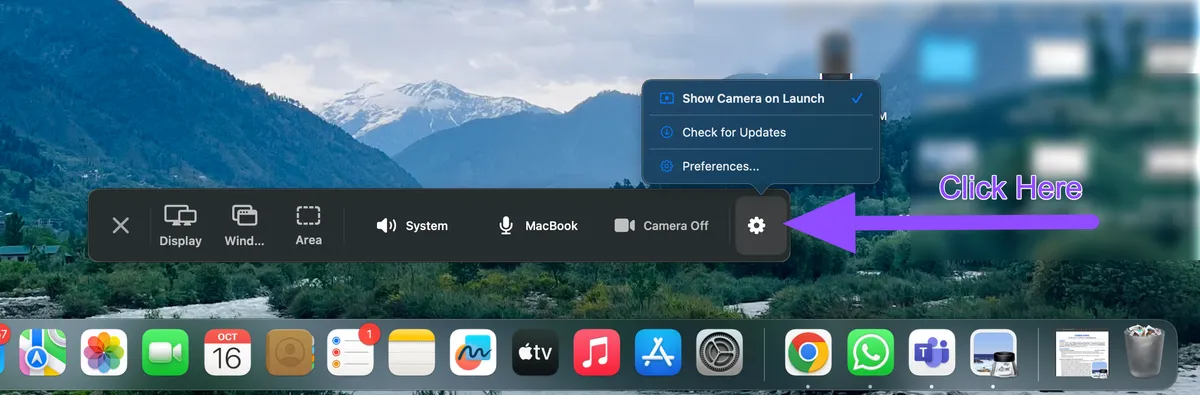
The CursorClip settings modal includes a dedicated Activate License button:

Verify Your License in the App
Activation now happens in three quick screens. Start by entering your license code, confirm the email that should receive the verification code, then paste the code from your inbox to finish.
Activation Tips
- Use the same email that received the license key or deal receipt.
- Make sure you’re online during activation.
- Trim spaces before or after the license key and verification code.
- The activation unlocks the full app instantly when your code is verified.
Once verified, you’ll see the activation success modal and can start recording immediately.
1. Enter the license code that was sent to you, then press Continue:

2. Confirm the email that should receive the verification code and click Send Code:

3. Look for the email titled “Verify your CursorClip license” and copy the six-digit code:

4. Paste the code, click Verify, and you’ll see this success screen. Hit Continue to start recording:

Activation Successful
Great! CursorClip is now fully unlocked. You will see a green badge and a title "Pro License Active". Now you can close the modal & start making amazing demos and tutorials.

All Set to Capture Beautiful Clips
With your license activated, you can export unlimited watermark-free recordings, enable system audio, and enjoy every CursorClip update.
Troubleshooting & FAQs
Quick fixes for the most common activation questions
License Key Not Accepted
Double-check for stray spaces before or after the key and verify you copied the full string from the email.
Didn’t Get a License Email
Search for “Gumroad” or “CursorClip”. Still nothing? Contact us and we can resend instantly.