Example 1
Client demo (MOV)
Before: 58 MB
After: 20 MB (65% smaller)
Compress MOV, MP4, MKV, WebM, and AVI files directly on your Mac with CursorClip Video Compressor. It uses a local FFmpeg pipeline to reduce file size without sending your videos to the cloud.
Privacy-first processing · Free tool · Works offline
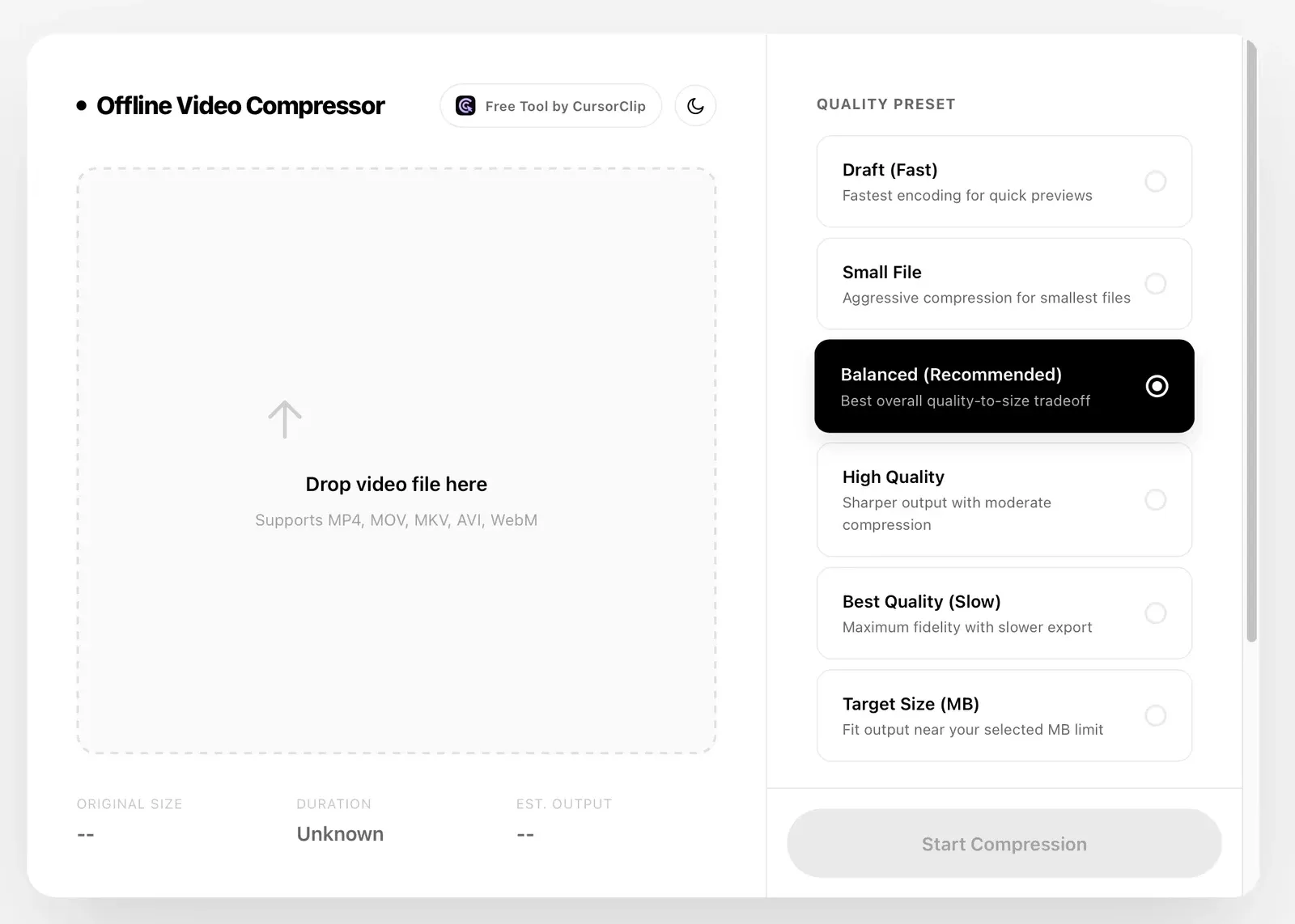
Typical results from CursorClip Video Compressor using balanced presets. Actual output depends on source resolution, frame rate, codec, and motion.
Example 1
Before: 58 MB
After: 20 MB (65% smaller)
Example 2
Before: 124 MB
After: 46 MB (63% smaller)
Example 3
Before: 36 MB
After: 13 MB (64% smaller)
Also from CursorClip
CursorClip is our Mac screen recorder. It zooms in on your clicks automatically and records system audio and your mic together, so walkthroughs are easy to follow without keyframing zooms by hand.
Free to record and edit. A license to export.
Compress video on macOS without uploading files, so sensitive recordings stay local.
Start with presets, then fine tune output quality for better control over file size.
Pick file, choose quality, export. A simple compression flow for quick sharing.
Step 1
Import MOV, MP4, or another supported source file from your Mac.
Step 2
Select a preset for email, sharing, or balanced quality and pick your output format.
Step 3
Process the file on-device and export a smaller video ready to send.
Need setup help? Read the CursorClip install guide and check system requirements.
Compress recordings quickly before sharing clips to clients or publishing workflows.
Reduce file size for email campaigns, social uploads, and asset handoff without quality shock.
Shrink screen recordings for faster ticket replies and easier customer file sharing.
Reduce `.mov` file size for client delivery, Slack, or cloud storage limits.
Create smaller files that are easier to attach and send without quality shock.
Compress video without losing quality by choosing balanced presets for practical visual clarity and file size.
Need a browser-based option for quick smaller jobs? Use the free video compressor online when you want to compress without installing anything first.
Compression happens locally for better privacy and control.
Export in popular video formats with practical presets.
Built by the same team focused on fast, native macOS video workflows.
Looking for walkthroughs? Visit the help center or download the app.
CursorClip Video Compressor supports common formats including:
Install CursorClip Video Compressor, select your video, choose compression quality, and export locally. No upload is required because compression runs directly on your Mac.
Choose a smaller-file preset, then export to MP4 or MOV. Video Compressor reduces MOV file size while keeping visual quality practical for email and sharing.
Yes. CursorClip Video Compressor runs offline on your Mac, so files stay on your device during compression.
Video Compressor supports common output formats including MP4, MOV, MKV, WebM, and AVI, with presets for smaller file size and balanced quality.
No. Video Compressor is a separate free app that shrinks videos you already have. CursorClip is our screen recorder: it records new videos with automatic zoom and cannot open videos it did not record. Both run on your Mac.


226+ CursorClip licenses sold
CursorClip records your Mac screen and adds smooth zooms that follow your clicks. Add your camera, record system audio and your mic, then export MP4 up to 4K, or a GIF for clips under 10 minutes.
Free to record and edit. A license to export. Runs on Apple Silicon and Intel Macs.