The best screen recorder for Mac depends on what you make. Here is the short answer, with every price re-checked on the vendor’s own site on 2 October 2026:
- Polished demos and tutorials, paid once: CursorClip ($70 one-time). Automatic zoom, camera layouts and a teleprompter in a 27.4 MB native app.
- Automatic zoom plus captions and share links, on a subscription: Screen Studio ($9 a month billed yearly, or $29 monthly).
- Best free: OBS Studio for power, or the built-in Screenshot toolbar (Shift + Command + 5) for zero setup.
- Open source on Mac, Windows and Linux: Cap (free for personal use).
- Course creators who need quizzes and a full timeline: Camtasia.
- Editing by transcript: Descript.
- Team updates with share links: Loom.
We make CursorClip, so weigh our pick with that in mind. Every other entry below is written from the vendor’s own pricing, download and requirements pages, and each review says plainly where a rival does something CursorClip can’t.
Free to record and edit. A license to export. Every plan has a 14-day money-back guarantee.
Jump to: At a glance | How we checked | Free picks | Course creators | MacBook Air and Pro | System audio | Full list | How to choose | FAQ
All 13 Mac screen recorders at a glance
| App | Price (checked 2 Oct 2026) | How you pay | Runs on | Automatic zoom | Best for |
|---|---|---|---|---|---|
| CursorClip | $70 once, or $29/yr, $9/mo | One-time or subscription | macOS 13.5+ | Yes | Demos and tutorials without a subscription |
| Screen Studio | $108/yr or $29/mo | Subscription only | macOS 13.1+ | Yes | Auto zoom plus captions and share links |
| Cap | Free (personal), $58 once or $29/yr (commercial) | Free, one-time or subscription | macOS 13.1+, Windows, Linux | Yes | Open source, cross-platform |
| ScreenKite | Free with watermark, Pro $79.99 once | One-time | macOS 15+, Windows beta | Yes | Editing with an AI agent |
| Screen Charm | $79 once | One-time | macOS 14+ recommended, Apple silicon | Yes | Captions and vertical clips, paid once |
| ScreenFlow | From $199 once | One-time | macOS 15+ | No | Full timeline editing on a Mac |
| Camtasia | $39 to $599/yr (US) | Yearly subscription | macOS 14+, Windows | Yes (SmartFocus) | Training videos with quizzes |
| OBS Studio | Free | Free, open source | macOS 13+, Windows, Linux | No | Streaming and full manual control |
| Loom | Free, Business $18/user/mo | Free tier or subscription | Mac, Windows, iOS, Android | No | Team updates with share links |
| Descript | Free, paid from $16/mo billed yearly | Free tier or subscription | macOS 14+, Windows 11 | No | Editing video by editing text |
| Filmora | From $49.99/yr, or $79.99 once | Subscription or one-time | macOS, Windows | No | YouTube editing with effects |
| ScreenPal | Free, paid from $4/mo billed yearly | Free tier or subscription | Mac, Windows, Chromebook, mobile | No | Classroom videos with hosting |
| macOS built-in | Free | Included with macOS | Every Mac | No | Quick captures with no install |
How we checked these apps
This list was rebuilt on 2 October 2026. For every app we opened the vendor’s own pricing, download and system-requirements pages that day and noted:
- Price in US dollars. TechSmith’s store page showed us rupees, so Camtasia’s US prices are the US dollar prices TechSmith publishes in the product data on its own all-products page. Our Camtasia pricing breakdown has every plan in detail.
- Platform and macOS floor, from the vendor’s requirements page.
- Whether it is still maintained, from the latest release we could see (for example Screen Studio 4.0.1 on 1 October 2026, OBS Studio 32.2.2 on 14 August 2026 and Cap 0.6.0 on 15 September 2026).
We did not run our own speed or quality benchmarks, and we have not used every app on this list for real projects, so the reviews describe what each vendor offers rather than how it performed for us. Prices change often, so check the vendor’s page before you buy.
Four apps from the earlier version of this page left the numbered list. CyberLink Screen Recorder 4 lists only Windows in its requirements, so it does not belong in a Mac list. Adobe Captivate is an e-learning authoring tool rather than a screen recorder. Bandicam and Movavi moved to Also considered. Cap, ScreenKite and the macOS built-in recorder joined the list.
What to look for in a Mac screen recorder
- Automatic polish or manual editing. Apps like CursorClip, Screen Studio, Cap, ScreenKite and Screen Charm zoom in on your clicks for you. Camtasia gives you a full timeline, and its SmartFocus effect can add zooms and pans for you. ScreenFlow and Filmora give you a full timeline and leave zooms to you. OBS Studio records and leaves editing to another app.
- System audio. The built-in recorder captures your Mac’s own sound only on macOS 27 or later, where Apple added an Include System Audio option (Apple Support, published 14 September 2026, checked 6 October 2026). Most dedicated recorders handle it on older macOS too, with no extra driver (see the system audio table).
- Camera. Check whether you can switch between screen, camera and side-by-side views, or only place a small bubble in the corner.
- Sharing. If your team reviews videos in a browser, share links (Loom, Screen Studio, Cap, Screen Charm, ScreenKite, ScreenPal) save a step. If you upload to YouTube, a course platform or your docs, a good exported file is what matters.
- How you pay. A one-time license costs less than a subscription after a year or two of regular use. Several apps here sell one. Screen Studio now sells only subscriptions to new buyers, and TechSmith’s own store sells Camtasia only by the year.
- Your Mac. Check the macOS floor. ScreenKite and ScreenFlow need macOS 15, Camtasia and Descript need macOS 14, and Screen Charm recommends macOS 14 and offers an Apple silicon download only.
Best free screen recorders for Mac
| Tool | What is free | Main limit |
|---|---|---|
| OBS Studio | Everything, open source | Steeper setup, no editor |
| macOS built-in (Shift + Command + 5) | Everything | System audio on macOS 27+ only, no zoom, basic trim only |
| Cap | Recording and editing for personal use | Commercial use needs a paid license |
| Loom Starter | 25 videos per person | 5-minute recordings |
| ScreenPal Free | Recording and basic editing | 15-minute recording limit, 10 hosted videos |
| ScreenKite Free | Every editing feature | Exports carry a watermark |
| Descript Free | Text-based editing to try it out | Paid plans needed for watermark-free export |
For no cost and no catches, OBS Studio gives you scenes, sources and live streaming, and the built-in macOS recorder needs no install at all. Cap is a strong free choice for personal videos.
CursorClip is different again: recording and editing are free with no account and no time limit, and you buy a license only when you want to export. That lets you finish a real project before you pay.
Best screen recorder for course and tutorial creators
Course and tutorial creators usually want two things: lessons that are easy to follow, and as little editing time as possible.
- Pick CursorClip if you want lessons that look edited without editing them. It zooms in on each click, lets you switch between screen, camera, picture-in-picture, side-by-side and stacked layouts, and has a teleprompter that stays out of the recording. Saved Looks keep every lesson in the same style, and the license is paid once. Our guide to recording your screen and face on a Mac shows the setup step by step.
- Pick Camtasia if your course platform expects quizzes or SCORM packages, or you want captions generated for you. Its Essentials plan ($179.88 a year in the US) includes quizzes, SCORM export and caption generation, and its SmartFocus effect can add zooms for you.
- Pick ScreenFlow if you enjoy editing and want a full multi-track timeline on a Mac, paid once.
- Pick Screen Studio if you want automatic polish plus captions, transcript editing, voice cleanup and on-screen speaker notes in one app, and a subscription is fine.
For a longer comparison, see our guide to the best screen recorder for YouTube tutorials on Mac and the screen recorder for educators guide.
Best screen recorder for MacBook Air and MacBook Pro
Every app on this list runs on an Apple silicon MacBook Air or MacBook Pro. The real differences are how heavy the app is and how much editing you plan to do.
On a MacBook Air, which has no fan, a light app is a sensible default for long recordings. Download sizes give a rough idea of weight (checked 2 October 2026): CursorClip 27.4 MB, OBS Studio 188 MB, Screen Charm 237 MB and Screen Studio 729 MB for its Apple silicon build. The built-in recorder installs nothing. Screen Studio, Screen Charm, Loom and Descript are built on Electron, which puts a copy of the Chromium browser engine inside each app. CursorClip and ScreenKite are native Swift apps on the Mac.
On a MacBook Pro, pick by workflow instead. CursorClip and Screen Studio suit fast, polished demos. ScreenFlow, Camtasia and Filmora suit long-form editing.
If you are on an Intel Mac, check requirements first. CursorClip, Screen Studio, Cap, ScreenKite, ScreenFlow and OBS Studio list Intel support. Screen Charm offers an Apple silicon download only.
Which Mac screen recorders record system audio?
Recording what your Mac plays alongside your microphone is a common setup problem on macOS. Here is how each app handles it, from the vendors’ own pages:
| Tool | System audio | Notes |
|---|---|---|
| CursorClip | Built in | System audio and mic, recorded separately or mixed |
| Screen Studio | Built in | Mic and your Mac’s sound together |
| Cap | Built in | Listed as “Record System Audio” |
| Screen Charm | Built in | Screen, mic, webcam and system audio in one session |
| Camtasia | Built in | System audio on its own track |
| OBS Studio | Built in (version 30+, macOS 13+) | All desktop audio or a single app |
| Loom | Built in | Listed on every plan |
| macOS built-in / QuickTime | Built in on macOS 27+; earlier needs a driver | Include System Audio in the Screenshot toolbar’s Options on macOS 27 or later; macOS 26 and earlier need a third-party virtual audio device |
For step-by-step setup on every macOS version, see how to screen record on a Mac with audio.
1. CursorClip
CursorClip is a native Mac screen recorder built around one idea: your recording should look edited when you stop. It zooms in on your clicks automatically, and every zoom stays editable. Version 2.0 (September 2026) added camera layouts, a teleprompter, crop, saved Looks and portrait and square versions from one recording.
Best for: founders, educators and course creators who want polished demos and tutorials without a timeline editor or a subscription. If product demos are your main use, see CursorClip as a product demo video maker.
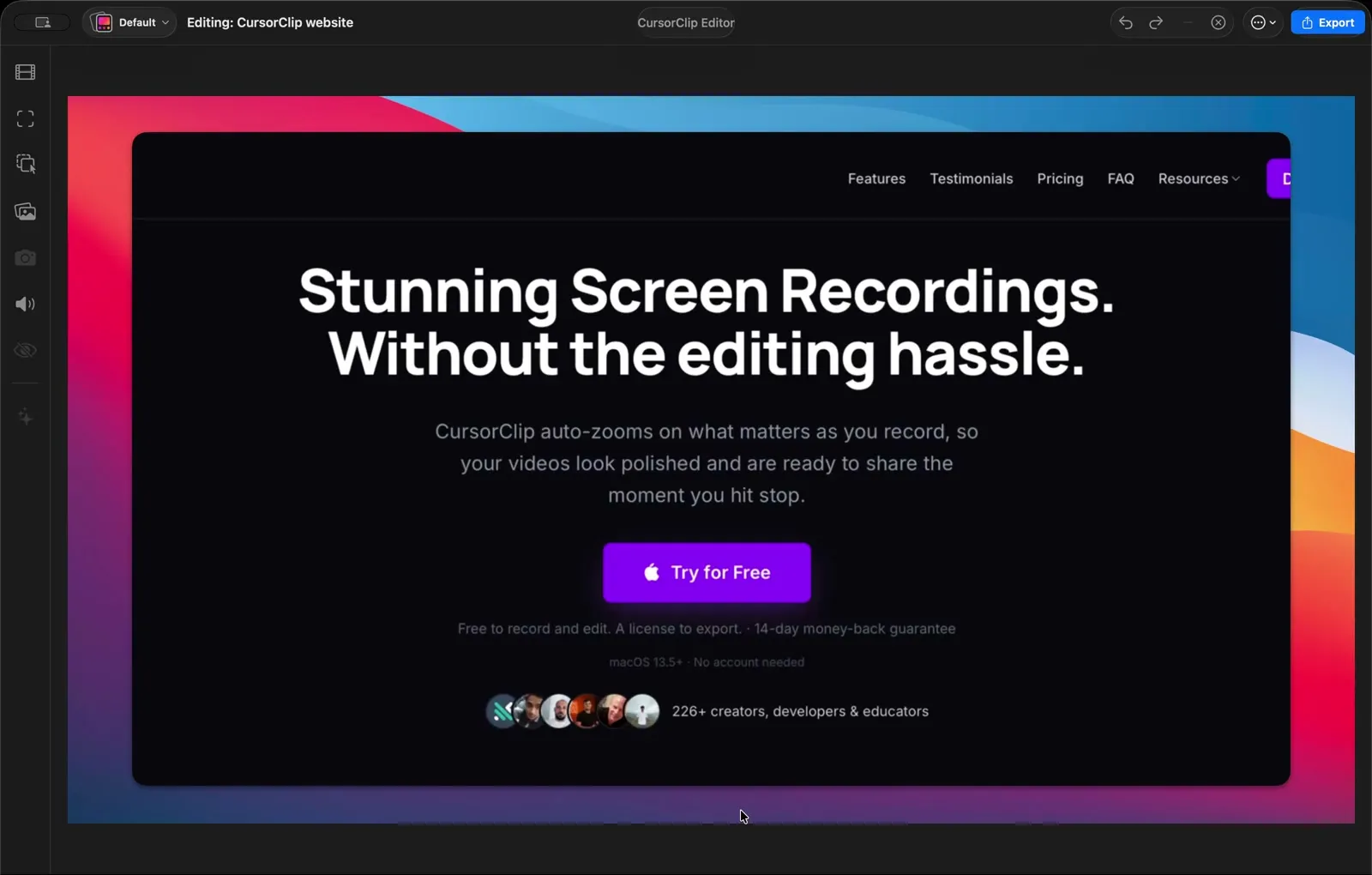
Price (checked 2 October 2026): $70 once, or $29 a year, or $9 a month. Free to record and edit; a license unlocks export. 14-day money-back guarantee, up to 3 Macs per license. Runs on: macOS 13.5 or later, Apple silicon and Intel. 27.4 MB download.
What it does well
- Automatic zoom on every click, with custom zoom areas and Responsive, Balanced or Steady camera follow.
- Layouts for screen, camera, picture-in-picture, side by side and stacked, with Cut, Fade and Morph transitions.
- Landscape, portrait and square versions from one recording, sharing the same cuts.
- A floating teleprompter built to stay out of the capture, plus crop after recording and saved Looks.
- Cursor styles, click ripples, keyboard-shortcut overlays and optional motion blur.
- Export to MP4 or MOV up to 4K at 60fps, or GIF for recordings under 10 minutes.
Where it falls short
- No captions, transcript editing or voice cleanup. Screen Studio, Cap, ScreenKite, Screen Charm and Descript have some or all of these.
- No share links. You export a file and upload it wherever you like.
- It only edits recordings made in CursorClip; it cannot open an existing video file.
- Mac only.
Compare it head to head: CursorClip vs Screen Studio, vs Screen Charm, vs Camtasia and vs Loom.
2. Screen Studio
Screen Studio is a Mac-only recorder that zooms in on your clicks for you. It is built on Electron and offers separate Apple silicon and Intel downloads. As of version 4.0 it includes automatic zoom, smooth cursor and motion blur, camera layouts with background removal, transcript editing, on-device captions, voice cleanup, iPhone and iPad recording, masks for private data, and share links with comments.
Best for: creators and teams who want automatic polish, captions and share links in one app and are happy to pay a subscription.
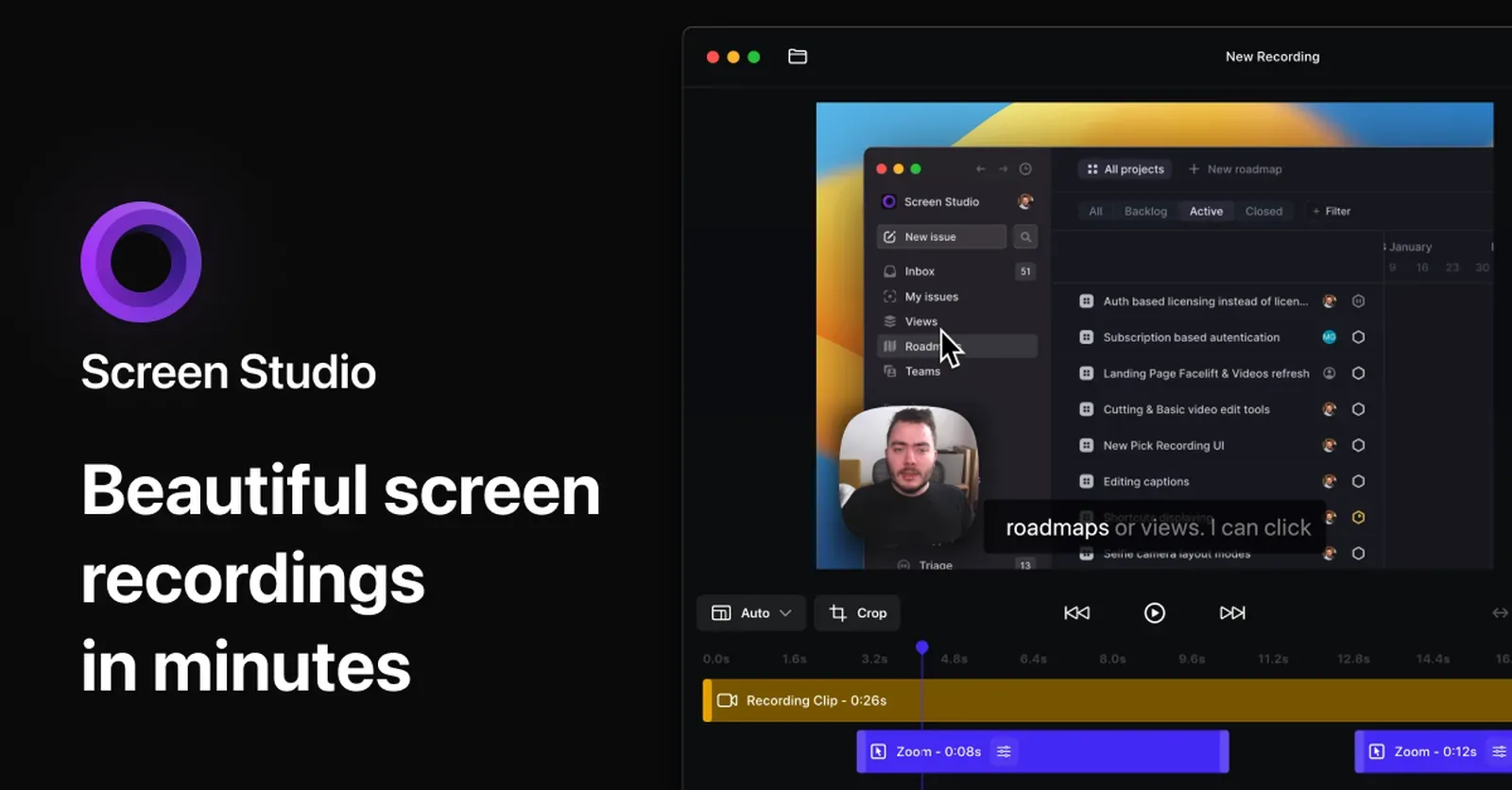
Price (checked 2 October 2026): $9 a month billed yearly ($108 a year), or $29 monthly. Every feature is in both plans. One-time licenses are no longer sold to new buyers. Students and educators get 40% off. Runs on: macOS 13.1 or later recommended, Apple silicon and Intel (MacBook Pro 2018 or later, MacBook Air 2020 or later).
What it does well
- Captions, transcript editing and voice cleanup in the same app as automatic zoom, plus iPhone and iPad recording with device frames.
- Classic and loupe zoom styles, plus camera cutout, face tracking and a camera that hides when you stop talking.
- Speaker notes with a scrolling prompter that stays out of the recording.
- Share links up to 30 minutes, with comments and view counts.
- Can import an existing MP4 and add zooms and backgrounds to it.
Where it falls short
- Subscription only for new buyers. Three years on the yearly plan costs $324.
- Its terms say fees are non-refundable.
- Built on Electron: its 4.0.1 update archive contains Electron Framework (checked 2 October 2026). The Apple silicon download is 729 MB.
For pricing detail, see Screen Studio pricing and the CursorClip comparison. For more options, read Screen Studio alternatives.
3. Cap
Cap is an open-source screen recorder for Mac, Windows and Linux. Instant Mode uploads as you record so a link is ready when you stop. Studio Mode records locally in up to 4K and opens an editor with backgrounds, automatic zoom, cursor effects, captions and motion blur.
Best for: people who want open source, need Windows too, or want a free recorder for personal videos.
Price (checked 2 October 2026): free for personal use with no time limit on local recordings. A Desktop License for commercial use is $29 a year or $58 once. Cap Pro, with unlimited cloud sharing and AI features, is $12 per user a month or $8.16 billed annually. Runs on: macOS 13.1 or later (Apple silicon and Intel), Windows 10 or later, and Linux. Latest release: 0.6.0, 15 September 2026.
What it does well
- Open source, with self-hosting for shared videos.
- Both instant share links and a polished local editor in one app.
- A $58 one-time license for commercial use, below CursorClip’s $70.
Where it falls short
- Commercial use needs a paid license, so the free version is not for client or company work.
- The Desktop License includes only 20 cloud share links a month, up to 5 minutes each.
4. ScreenKite
ScreenKite is a native Mac recorder written in Swift that zooms in on clicks and keystrokes as you record. Its twist is editing with an AI agent: you connect Claude Code, Codex, Gemini CLI, Grok or Kimi, type something like “cut the pauses and export for YouTube”, and the agent edits inside ScreenKite.
Best for: people who already use an AI coding agent and want it to do their cuts.
Price (checked 2 October 2026): free with every editing feature, but exports carry a watermark. ScreenKite Pro removes the watermark for $79.99 once (a founder price that ScreenKite says will rise to $99.99), on up to 3 Macs, with a 14-day refund. A regional offer may appear in some countries. Runs on: macOS 15 or later, Apple silicon and Intel. On-device transcription needs Apple silicon. A Windows beta is also offered.
What it does well
- Transcript cuts, captions and link sharing.
- A teleprompter that follows your voice.
- Agent editing billed to your own AI plan, with no separate AI fee.
Where it falls short
- Needs macOS 15, so older Macs are out.
- Free exports are watermarked.
- Agent editing assumes you already pay for and use one of the supported agents.
5. Screen Charm
Screen Charm is a Mac recorder with automatic zoom after every click, captions from your narration, camera layouts, device frames and a vertical layout for Shorts. For a head-to-head look, see CursorClip vs Screen Charm.
Best for: makers who want captions and vertical clips from an auto-zoom recorder, paid once.
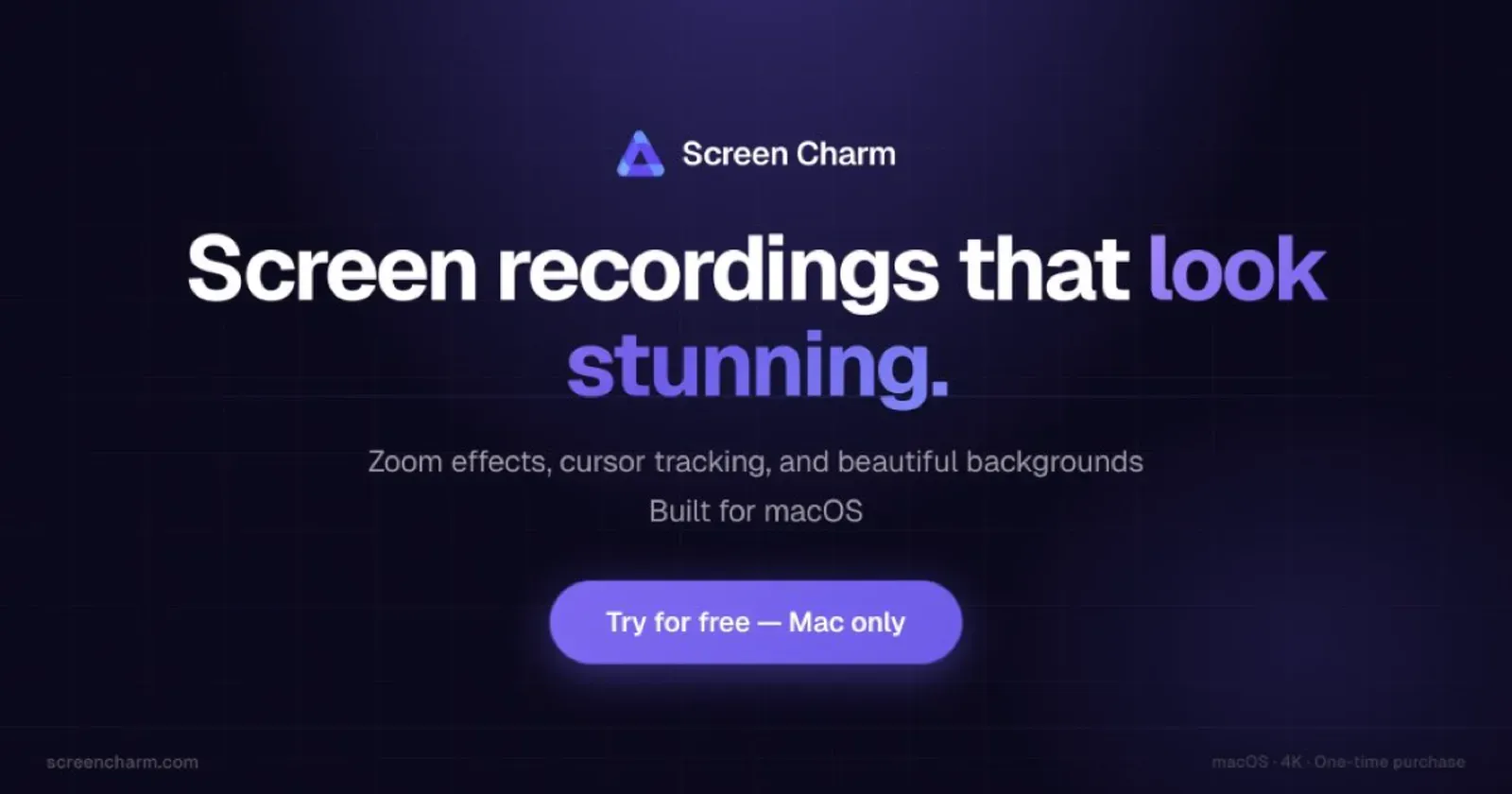
Price (checked 2 October 2026): $79 once, with lifetime updates, use on up to 3 devices, share links and a 14-day refund. Runs on: macOS 14 (Sonoma) or later recommended. The download is offered for Apple silicon only.
What it does well
- Captions, device frames and share links that CursorClip does not have.
- One price, no subscription.
Where it falls short
- No Intel download.
- Built on Electron: its 1.11.4 update archive contains Electron Framework (checked 2 October 2026). The current download is 237 MB.
6. ScreenFlow
ScreenFlow, from Telestream, has been the classic Mac screencasting editor for years: record your screen, camera and audio, then edit on a full multi-track timeline with transitions, text and annotations.
Best for: Mac users who want a traditional timeline editor and are happy to edit by hand.
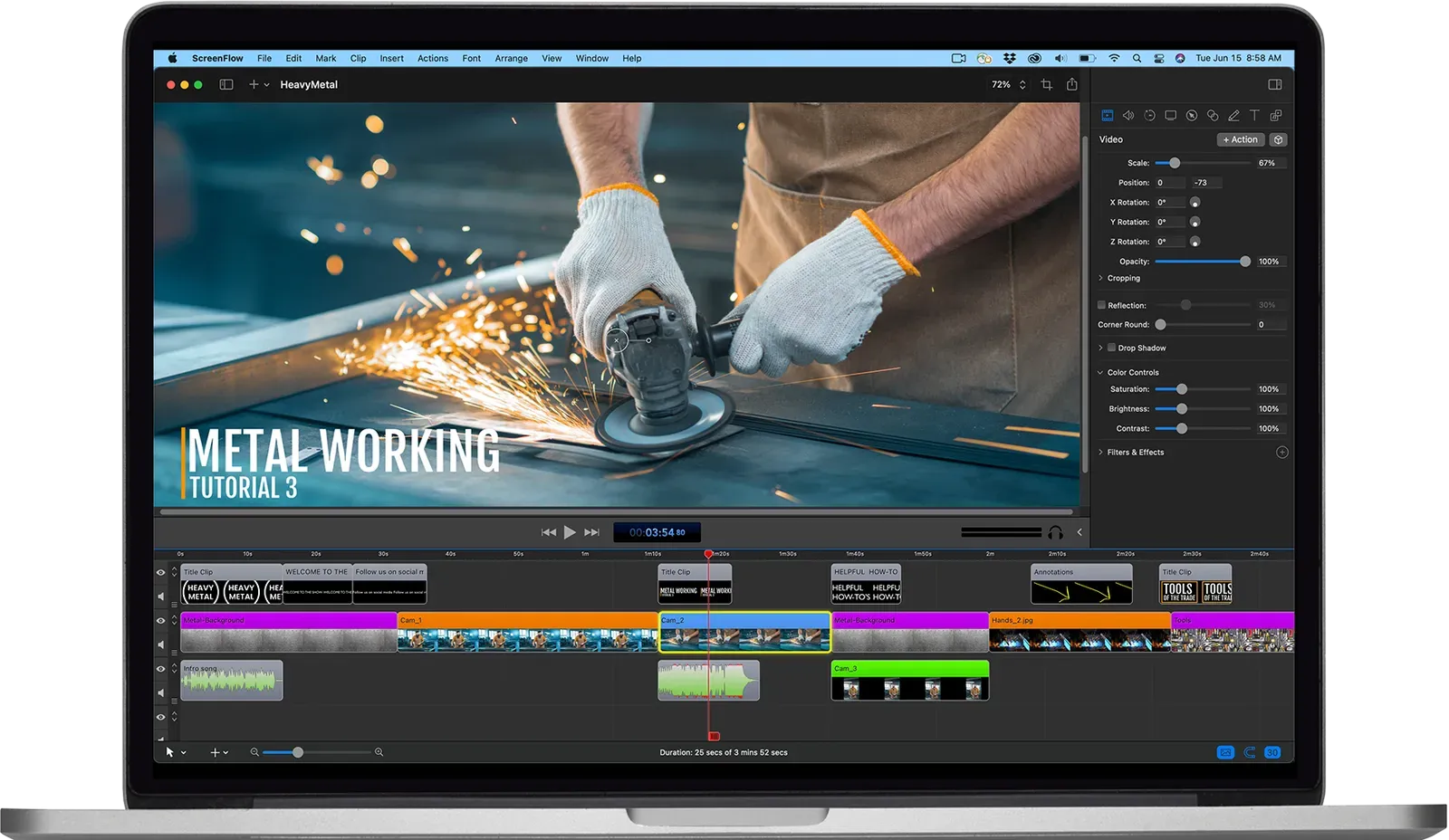
Price (checked 2 October 2026): from $199 once. Super Pak bundles add a stock media library. A free trial is available. Runs on: macOS Tahoe 26 or Sequoia 15, Apple silicon and Intel.
What it does well
- A deep, mature timeline editor with a one-time price.
- Stock media library available as an add-on.
Where it falls short
- No automatic zoom; you place every zoom by hand.
- Needs macOS 15 or later.
- $199 up front, against $58 to $79.99 for the one-time licenses of Cap, CursorClip, Screen Charm and ScreenKite.
7. Camtasia (with Snagit)
Camtasia is TechSmith’s screen recorder and editor for training videos, now sold as the Camtasia Suite. Plans bundle Camtasia with Snagit (screenshots) and, from Essentials up, Audiate (text-based audio editing).
Best for: professional educators and training teams who need quizzes, SCORM export and captions.
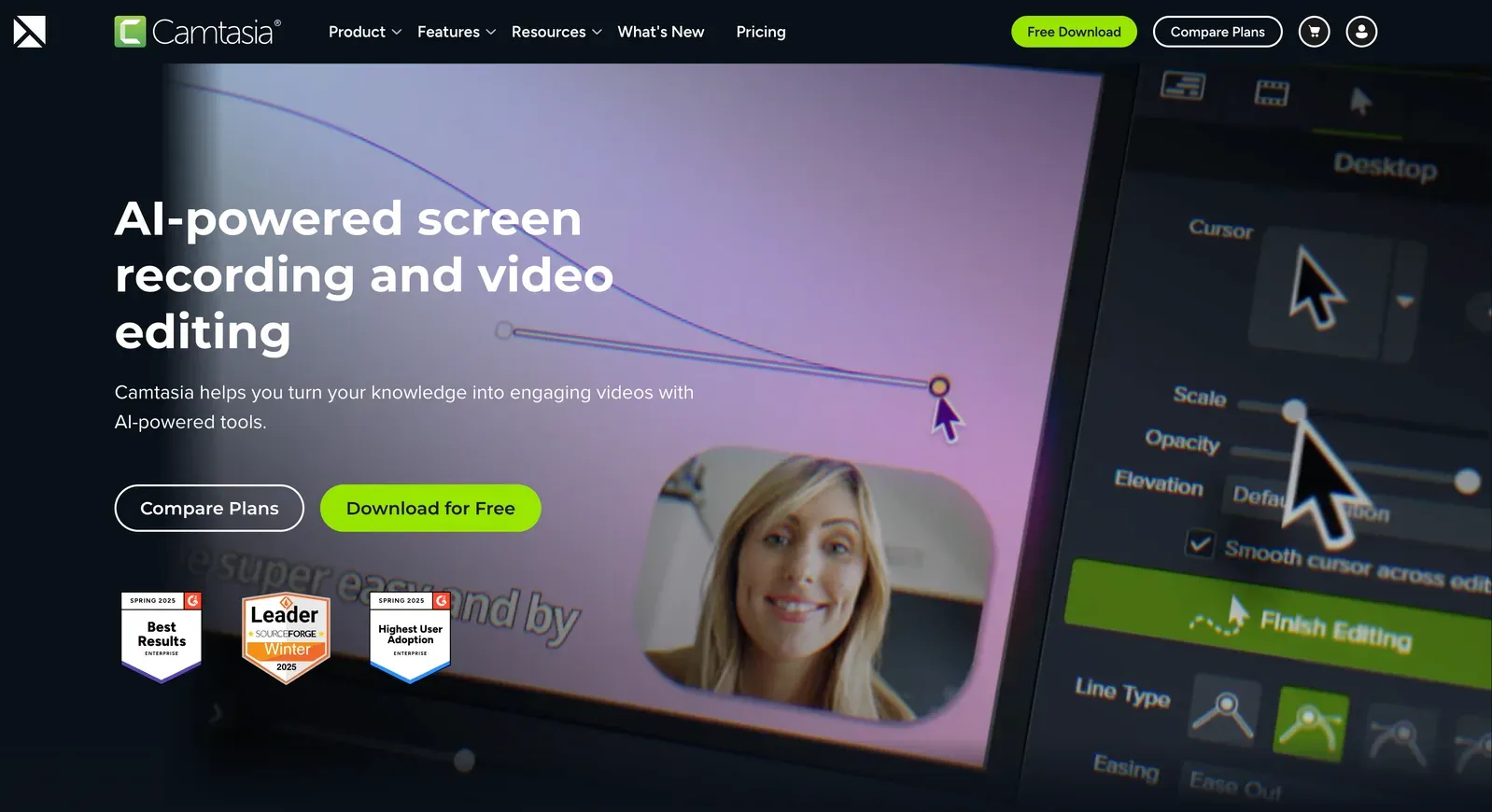
Price (checked 2 October 2026): a yearly subscription in four individual tiers. In US dollars: Starter $39, Essentials $179.88, Create $249 and Pro $599 a year. Starter includes Snagit but only a watermarked Camtasia Editor. Essentials adds the full editor, quizzes, SCORM export, transcription and caption generation. TechSmith’s own store sells no perpetual license; the Mac App Store still lists Camtasia 2024 for $199.99 once, with support and updates only until 31 December 2026. TechSmith sets prices by country, so outside the US check your own store page. Full detail: Camtasia pricing. Runs on: macOS 14 or later (macOS 26 recommended) and Windows 10 or later.
What it does well
- Quizzes, SCORM packages and caption generation for course platforms.
- SmartFocus adds zoom and pan animations to recordings made with Camtasia Recorder, and you can adjust them afterwards.
- Screen, camera, mic and system audio on separate tracks.
- Snagit included for screenshots, scrolling capture and step guides.
Where it falls short
- Subscription only from TechSmith, and the first plan without a watermark (Essentials) costs $179.88 a year, not $39.
- A heavy editor if you only want quick, polished demos.
Looking for something lighter? See Camtasia alternatives for Mac.
8. OBS Studio
OBS Studio is the free, open-source recording and streaming app used by streamers and technical creators. It gives you scenes, sources and filters with no limits, but no editor.
Best for: live streamers and anyone who wants a powerful free recorder and will spend time on setup.
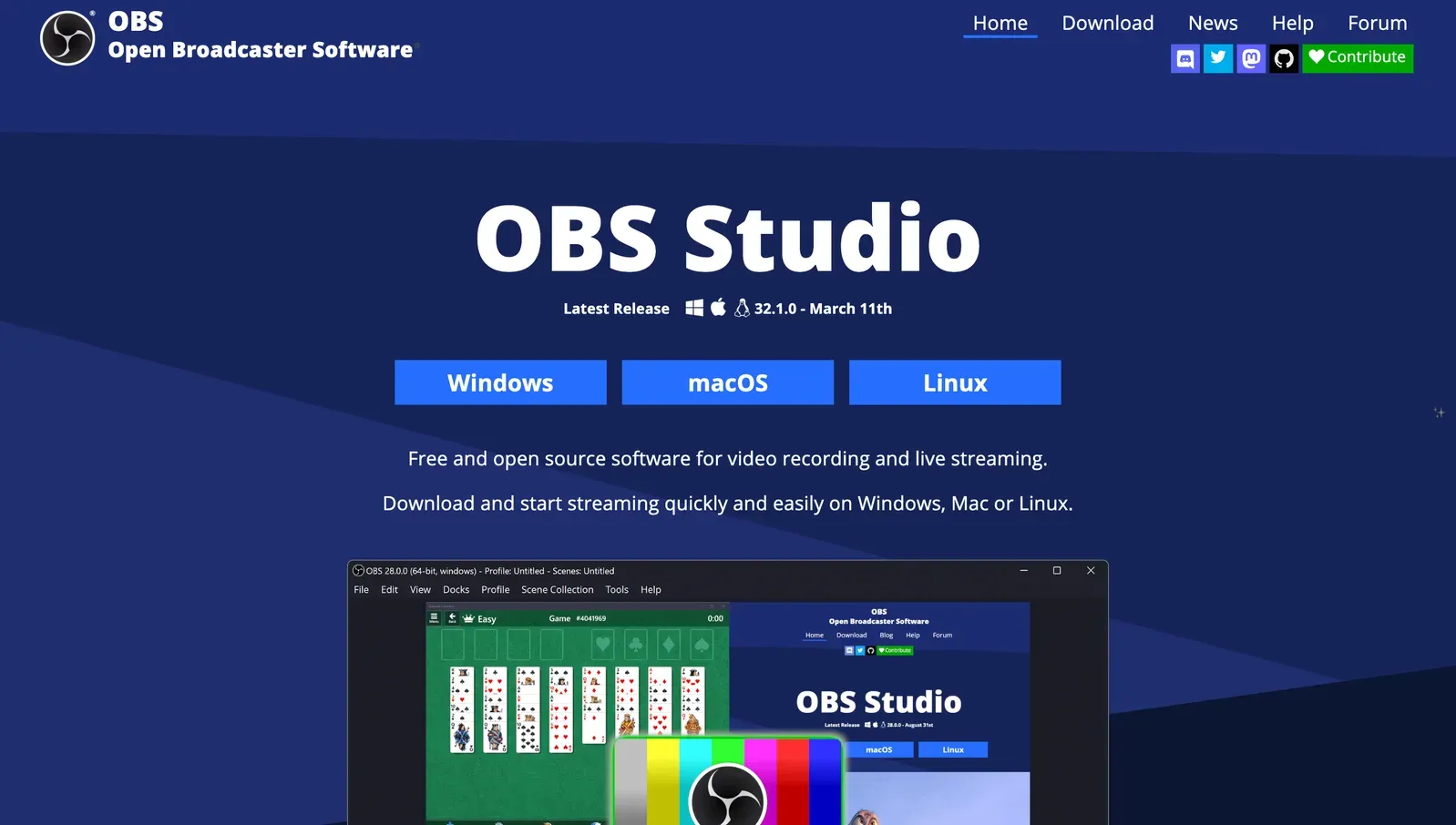
Price: free and open source. Runs on: macOS 13 or later, Windows and Linux. Latest release: 32.2.2, 14 August 2026.
What it does well
- Free with no watermark and no time limit.
- Scenes, multiple sources and live streaming.
- Captures all desktop audio or a single app on macOS 13 and later.
Where it falls short
- No built-in editor; you need another app to cut and polish.
- No automatic zoom.
- A real learning curve for first-time users.
From a CursorClip user

I’ve used OBS before. It’s powerful, but complicated and takes a long time to set up. CursorClip makes the process simple.
9. Loom
Loom, now part of Atlassian, is built for quick team updates. You record, and a share link with comments, reactions and transcripts is ready right away. For a direct comparison, see CursorClip vs Loom.
Best for: teams replacing meetings with short videos, rather than creators making polished tutorials.
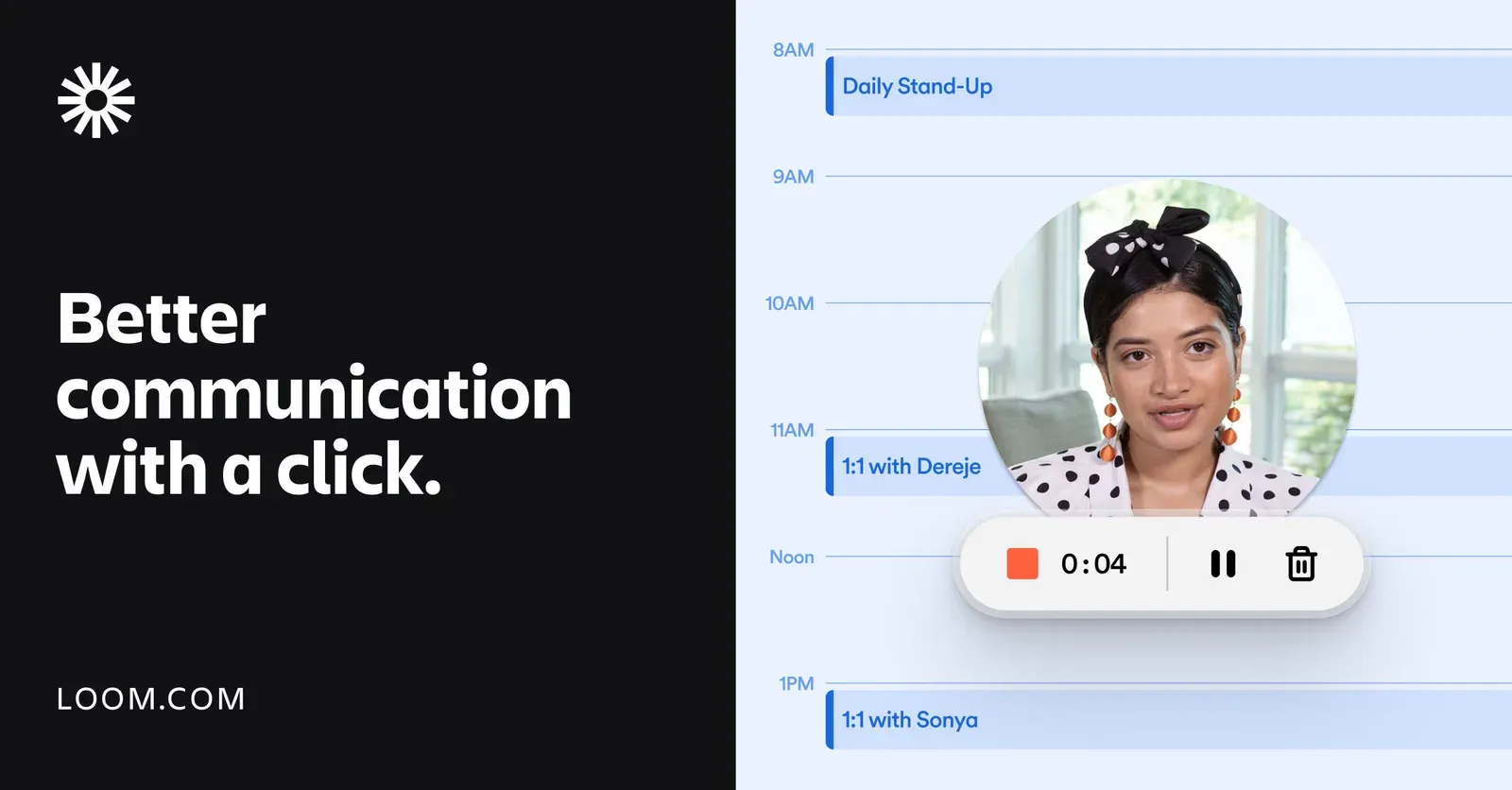
Price (checked 2 October 2026): Starter is free with 25 videos per person and 5-minute recordings. Business is $18 per user a month, or $180 per user a year billed annually. Business + AI is $24 per user a month, or $240 a year. Runs on: Mac, Windows, iOS and Android, plus a Chrome extension.
What it does well
- A link someone can watch is ready as soon as you stop recording.
- Comments, reactions and transcripts on every video.
Where it falls short
- Basic editing only; not built for polished marketing or course videos.
- Per-user pricing adds up for a team.
- Built on Electron: its 0.379.4 Mac update archive contains Electron Framework (checked 2 October 2026).
10. Descript
Descript lets you edit video by editing its transcript: delete a sentence in the text and it disappears from the video. It also records your screen and camera, and adds AI tools for filler-word removal and voice cleanup. For a Mac-focused comparison, see CursorClip vs Descript.
Best for: podcasters and long-form creators who would rather edit text than a timeline.
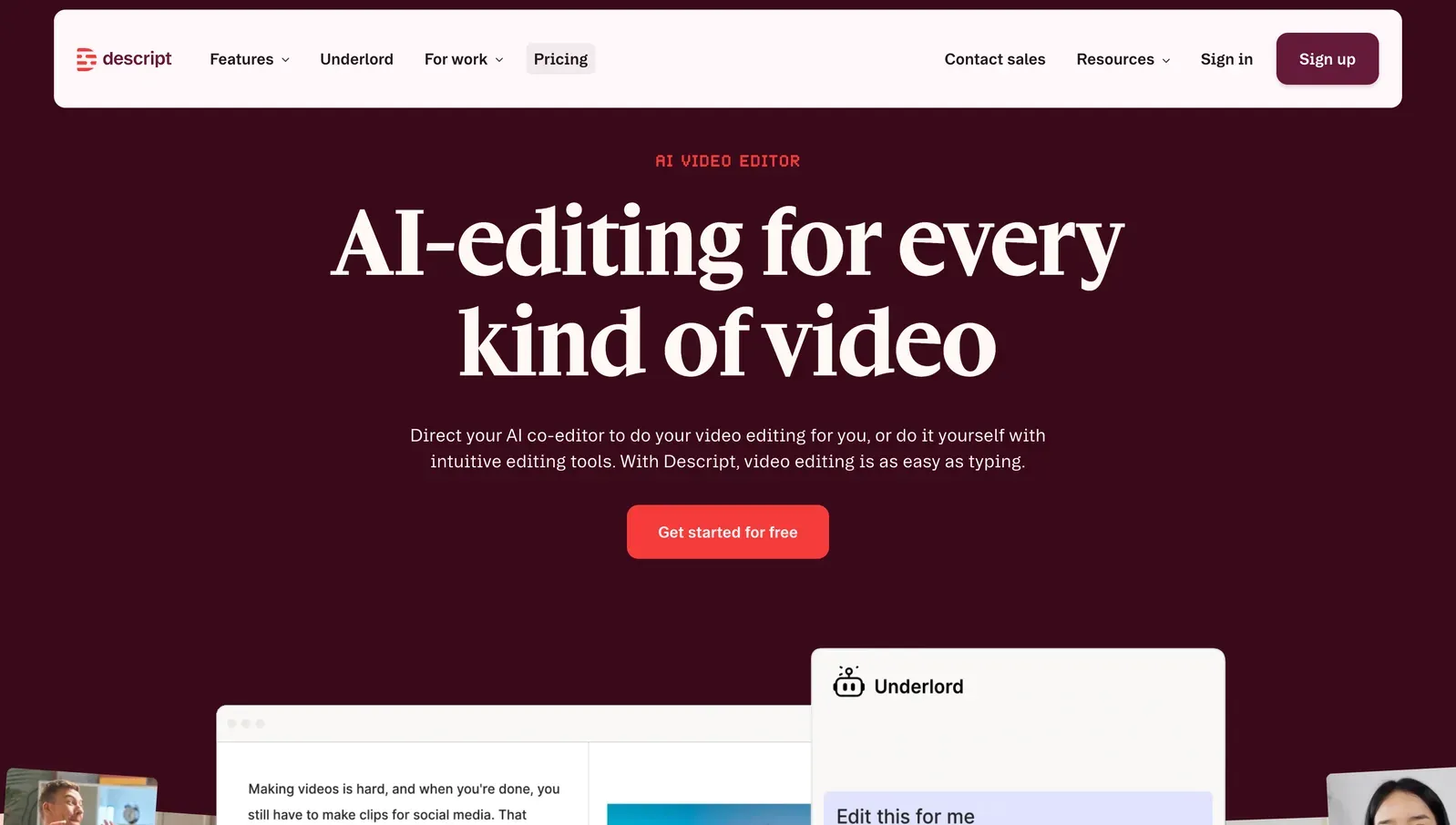
Price (checked 2 October 2026): free to start. Hobbyist is $16 per person a month billed yearly ($24 monthly) with 1080p watermark-free export. Creator is $24 ($35 monthly) with 4K export. Business is $50 ($65 monthly). Runs on: macOS 14 (Sonoma) or later, and Windows 11.
What it does well
- Transcript editing, filler-word removal and Studio Sound voice cleanup.
- AI tools for clips, voice and translation on the higher plans.
Where it falls short
- Media hours and AI credits are capped per plan.
- No automatic cursor zoom for screen demos.
- Built on Electron: the Mac build that descript.com serves for download (114.0.4) contains Electron Framework (checked 2 October 2026).
11. Filmora
Wondershare Filmora is a general video editor with a screen recorder built in. It suits YouTube creators who want effects and templates without a professional editing suite.
Best for: YouTube creators who want effects and templates more than screen-demo polish.

Price (checked 2 October 2026): Basic is US$49.99 a year and Advanced US$59.99 a year (both shown as sale prices). A perpetual license is US$79.99 once, covers Filmora 16 updates only, and is specific to Mac or Windows. Runs on: macOS and Windows. The yearly plans cover both on one license.
What it does well
- A large effects and stock library.
- Both subscription and one-time options.
Where it falls short
- Screen recording is a side feature, with no automatic zoom.
- The perpetual license stops getting new versions after Filmora 16.
12. ScreenPal
ScreenPal (formerly Screencast-O-Matic) combines a simple recorder, an editor and video hosting. It is popular in schools and support teams.
Best for: teachers and support teams who want cheap recording plus hosting.
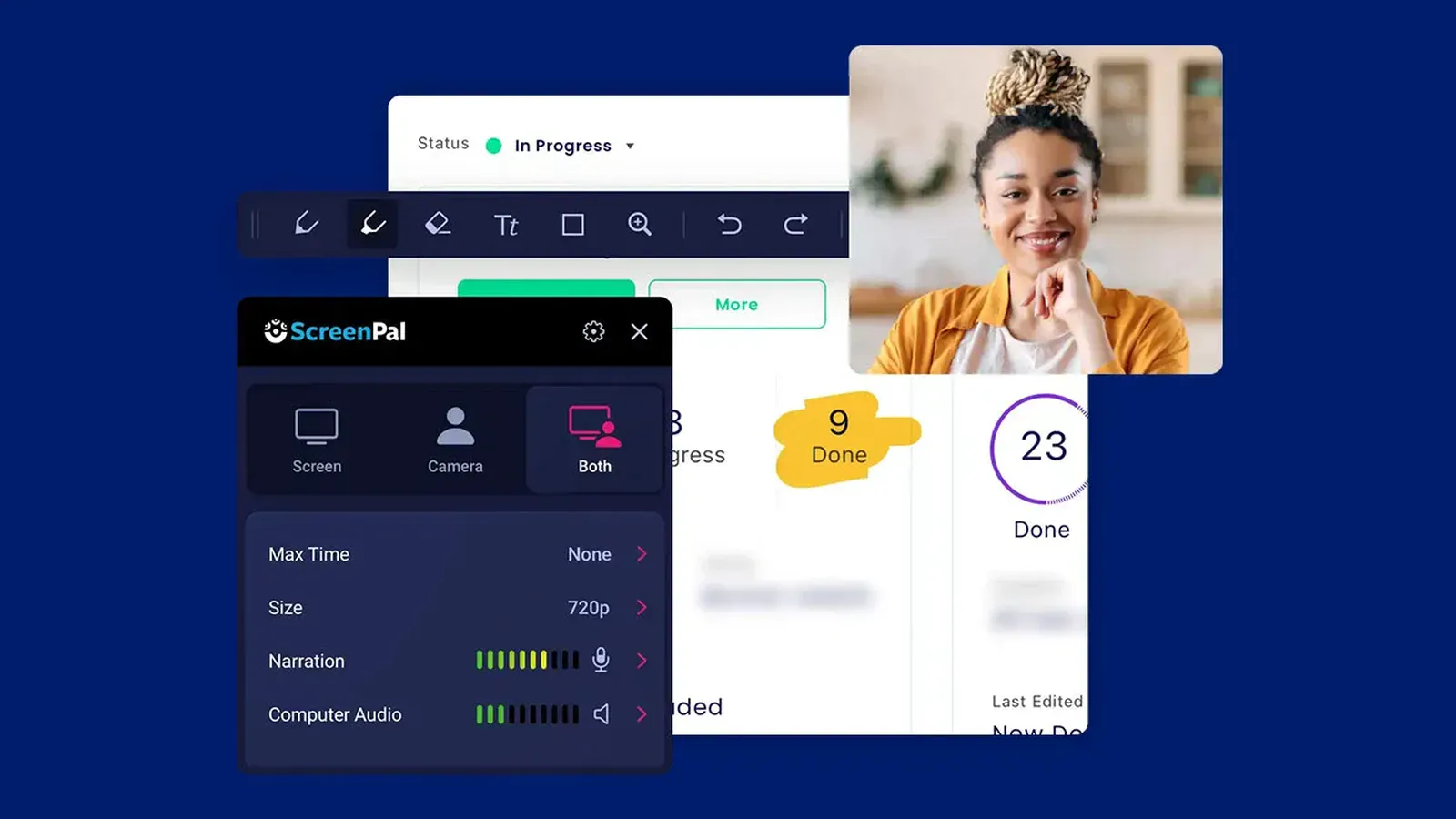
Price (checked 2 October 2026): free with a 15-minute recording limit and 10 hosted videos. Deluxe is $4 a month and Max $10 a month, billed yearly. Team Business is $8 per user a month. Runs on: Windows, Mac, Chromebook, iOS and Android.
What it does well
- Low prices, built-in hosting and quizzes for classrooms.
- AI captions on paid plans.
Where it falls short
- Basic editing compared with the dedicated Mac apps here.
- No automatic cursor zoom.
13. The macOS built-in recorder (Screenshot toolbar and QuickTime)
Every Mac can already record its screen. Press Shift + Command + 5 for the Screenshot toolbar, or open QuickTime Player and choose New Screen Recording. You can record the whole screen or part of it, with your microphone, and trim the result in QuickTime.
Best for: quick bug reports and one-off captures when you do not want to install anything.
Price: free, included with macOS. Runs on: every Mac.
What it does well
- Nothing to install, nothing to learn.
- No watermark and no time limit.
Where it falls short
- Records your Mac’s own sound only on macOS 27 or later (Options > Include System Audio); older versions need a third-party audio driver.
- No automatic zoom, camera layouts, backgrounds or real editing.
For a full walkthrough, read how to screen record on Mac.
Also considered
- Bandicam for Mac. Bandicam now has a Mac version on the Mac App Store (macOS 13.3 or later). The free version stops at 5 minutes; Pro is $9.99 a month or $39.99 a year through in-app purchase (US App Store, checked 2 October 2026). It is a straightforward recorder with a webcam overlay and a trimmer, without automatic zoom or a full editor.
- Movavi Screen Recorder. Still sold for Mac with a lifetime option, but Movavi showed us Indian-rupee prices only, so we left it out rather than guess a US price.
How to choose the right Mac screen recorder
1. What is your budget?
- Nothing: OBS Studio for power, the built-in recorder for speed, or Cap for personal videos.
- Pay once: Cap ($58, commercial license), CursorClip ($70), Screen Charm ($79), ScreenKite Pro ($79.99) or ScreenFlow (from $199).
- Subscription is fine: Screen Studio, Camtasia (from $39 a year, or $179.88 without a watermark), Loom or Descript, depending on the next questions.
2. Do you want the app to zoom in for you?
- Yes: CursorClip, Screen Studio, Cap, ScreenKite or Screen Charm zoom on your clicks. Camtasia’s SmartFocus effect can add zooms after you record.
- No, I edit by hand: ScreenFlow or Filmora.
3. Do you need captions or transcript editing?
- Yes: Screen Studio, Descript, Camtasia, Cap, ScreenKite or Screen Charm. CursorClip does not do captions.
- No: any app on the list works.
4. Do you share by link or by file?
- Link: Loom, Screen Studio, Cap, Screen Charm, ScreenKite or ScreenPal.
- File (YouTube, a course platform, docs): any app here, including CursorClip.
5. Are you live streaming?
- Yes: OBS Studio.
- No: pick by polish and price instead.
Mac screen recorder FAQ
What is the best screen recorder for Mac in 2026?
It depends on the job. For polished demos and tutorials you pay for once, CursorClip ($70 one-time). For automatic zoom plus captions, transcript editing and share links, if a subscription is fine, Screen Studio ($9 a month billed yearly). For free, OBS Studio or the built-in Screenshot toolbar (Shift + Command + 5). For open source on Mac and Windows, Cap. Prices checked 2 October 2026.
What is the best free screen recorder for Mac with no watermark?
OBS Studio and the built-in macOS recorder (Shift + Command + 5) are free, with no watermark and no time limit. Cap is also free with no time limit on local recordings, but only for personal use; commercial use needs a paid Cap license.
Is the built-in Mac screen recorder good enough?
For quick captures, bug reports and basic walkthroughs, yes. It records your screen and microphone. On macOS 27 or later it can also record your Mac’s own sound (Options > Include System Audio, per Apple, checked 6 October 2026); on macOS 26 and earlier that needs an extra audio driver. It has no automatic zoom, camera layouts or editing beyond a basic trim in QuickTime Player.
Which Mac screen recorders capture system audio without extra setup?
CursorClip, Screen Studio, Cap, Screen Charm, Camtasia, OBS Studio (version 30 and later on macOS 13 or newer) and Loom all record your Mac’s sound alongside the microphone. The built-in macOS recorder does it only on macOS 27 or later, where Apple added Include System Audio to the Screenshot toolbar’s Options. On macOS 26 and earlier, the built-in recorder and QuickTime need a third-party audio driver for that.
Is there a one-time purchase screen recorder for Mac?
Yes. Cap’s desktop license ($58 once), CursorClip ($70), Screen Charm ($79), ScreenKite Pro ($79.99 founder price) and ScreenFlow (from $199) all sell a license you pay for once. Screen Studio is subscription only for new buyers, and TechSmith’s own store sells Camtasia only as a yearly subscription. Prices checked 2 October 2026.
How much does a good Mac screen recorder cost?
From free to about $200 once, or a subscription. OBS Studio and the built-in recorder are free. One-time licenses run from $58 (Cap) and $70 (CursorClip) up to about $200 (ScreenFlow, from $199). Subscriptions include Screen Studio ($108 a year or $29 a month), Camtasia ($39 to $599 a year in the US), Loom Business ($18 per user a month) and Descript (from $16 a month billed yearly). Prices checked 2 October 2026.
What is the best screen recorder for a MacBook Air?
Every app on this list runs on an Apple silicon MacBook Air. If you want a light app, CursorClip is a download under 30 MB that runs as a single process, and the built-in recorder installs nothing at all. OBS Studio is the best free choice if you are happy to spend time on setup.
Try CursorClip on your next recording
If you want demos and tutorials that look edited without editing them, and you would rather pay once than every month, try CursorClip. Recording and editing are free with no account, so you can finish a real video before you decide.
Free to record and edit. A license to export. 14-day money-back guarantee on every plan.
Related articles
- Best Screen Studio alternatives: more options if Screen Studio’s subscription is the problem
- Screen Studio pricing and CursorClip compared: plans, lifetime licenses and long-term cost
- Screen recorder for SaaS demos on Mac: picks for product demos
- Best video editors for Mac beginners: if you need editing beyond screen recording
- The Mac creator’s guide to pro video: webcam, lighting and audio setup
- How to record yourself presenting a PowerPoint on Mac: slides, webcam and a live demo in one video
- Free offline video compressor for Mac: shrink MOV and MP4 files after recording