Blur
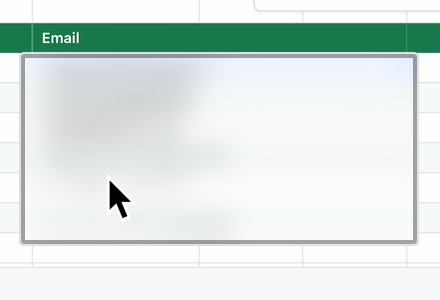
Keeps the page's own colors and shapes, softly. Pick Soft, the default, or Frosted, which adds a light veil like a macOS window. Strength runs from Light to Strong.
You nailed the walkthrough, then spotted an email address, an API key or a customer's name on screen. Don't record it again. Drag a box over it in the editor and it's hidden in every frame you export.
Free to record and edit. A license to export.
Three ways to hide it
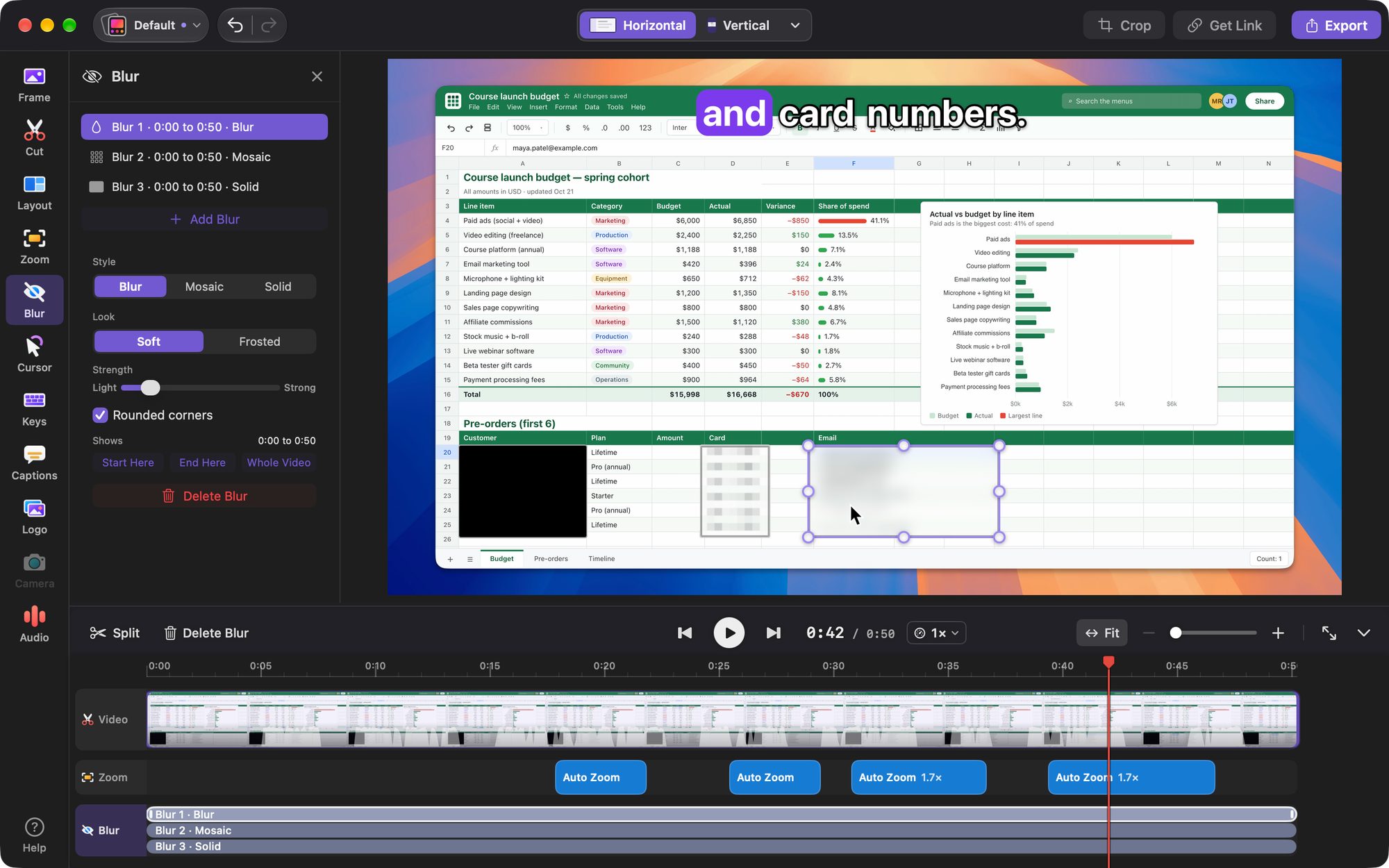
Each box has its own style, so a soft blur over a sidebar and a solid bar over a key can sit in the same video.
Keeps the page's own colors and shapes, softly. Pick Soft, the default, or Frosted, which adds a light veil like a macOS window. Strength runs from Light to Strong.
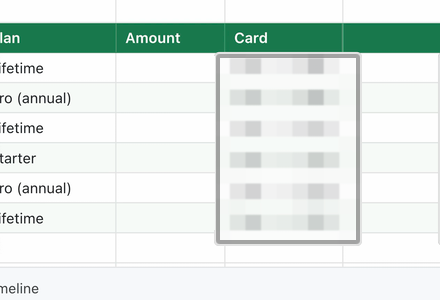
Turns the area into squares, so it reads as hidden on purpose. Block size runs from Small to Large.
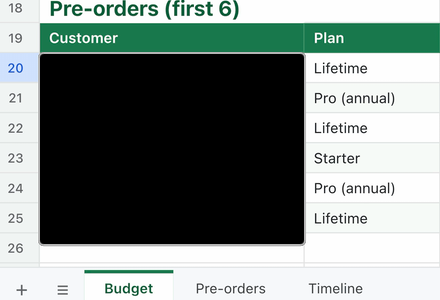
Covers the area with one flat color: Black, White, Page (the average color of the area, worked out on every frame) or any color you pick.
Close-ups from the app's preview on a sample spreadsheet.
Every style is drawn into the video itself when you export, so the original pixels are not in the file. Blur and Mosaic keep a soft impression of the colors and shapes, which looks nicer over a busy screen, and even their lightest settings hide everyday text. The higher you set them, the more they hide, so turn them up for anything sensitive. Solid covers the area with one flat color.
Draw it where it shows
Open Blur in the editor, pause where the thing shows, and drag over it on the video. Drag the box to move it, or pull any of its eight handles to resize it. Zooms stay off on this page, so you see the whole screen while you work.
A new blur covers the whole video. Hiding something too long does no harm, and hiding it too short leaks it. When you want it shorter, click Start Here and End Here, or drag the block's edges on the Blur lane.
Every blur is a block on the Blur lane, under Zoom. Drag the middle to move it in time, drag an edge to change its start or end. Overlapping blurs stack.
Start Here starts at the frame on screen, not just the playhead. A screen that sat still for a few seconds is covered from its first frame.
Rounded corners are on by default. Turn them off to cover a rectangle right to its corners. Either way, the outline you see is exactly what gets hidden.
Adding, moving, resizing, restyling and deleting are each one step. Press ⌘Z to undo and ⇧⌘Z to redo.
Hidden everywhere
Blurs are drawn into the recording before anything else touches it. Zooms, layouts, crop and Vertical only work with the picture that's already hidden, so none of them can show what's underneath.
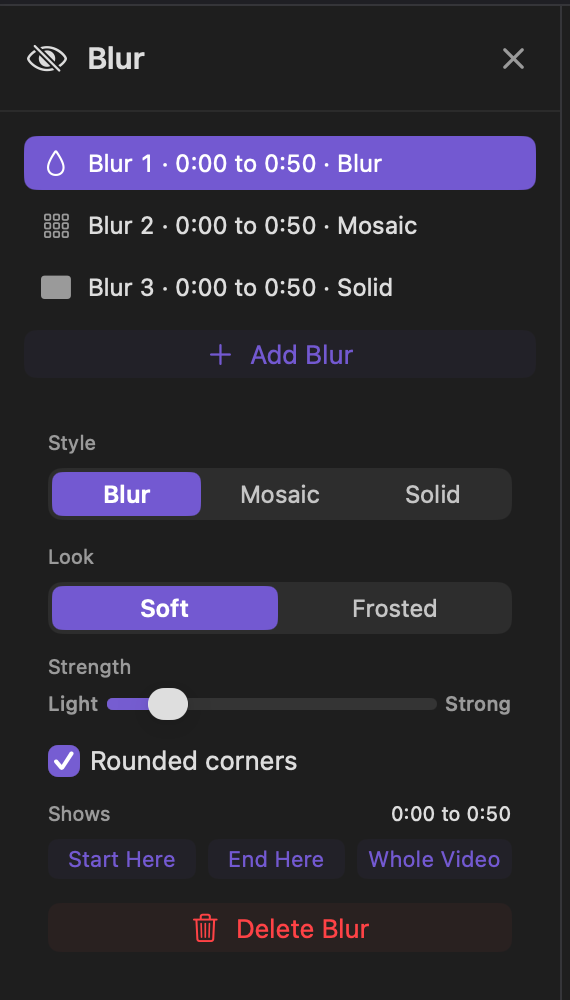
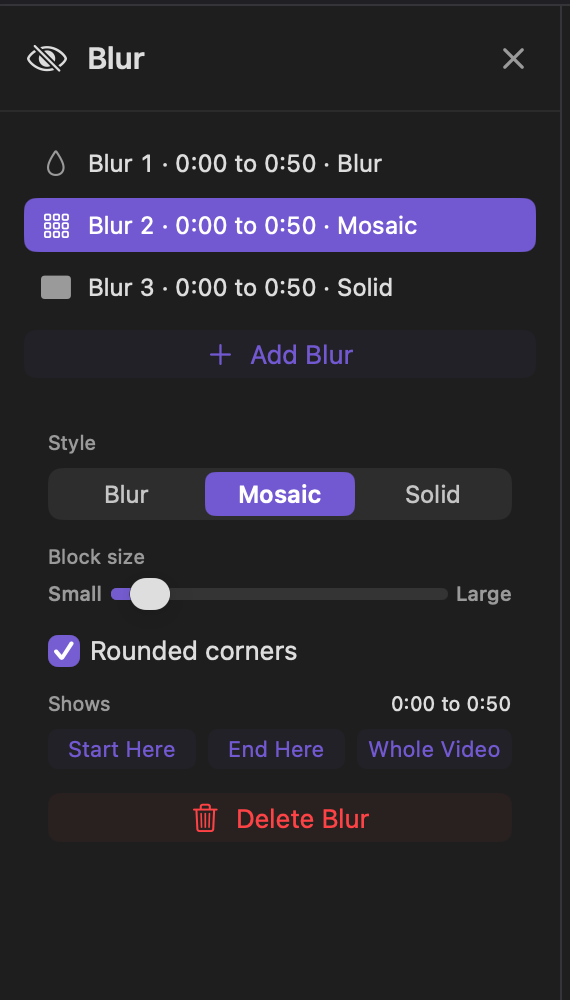
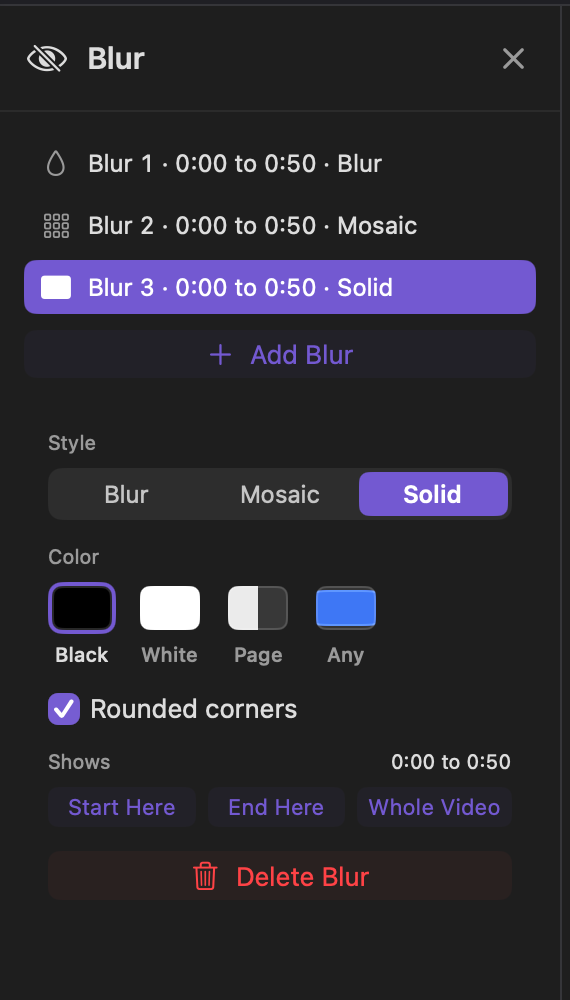
The Blur panel for each style, from the app with three sample blurs.
Blur is new in CursorClip 2.2.0. Open a recording in the editor and click Blur in the column of tools, right under Zoom.
Any of the three works. Every style is drawn into the exported video itself, so the original pixels are not in the file. Blur and Mosaic keep a soft impression of the colors and shapes, and their defaults hide everyday text well. For something very sensitive, turn up the Blur strength or the Mosaic block size to hide more, or pick Solid to cover the area with one flat color.
No. Blurs are drawn into the recording itself, before zooms, layouts, crop and Vertical are applied, so none of them can show what is underneath. The preview and the exported video use the same drawing code.
No. A blur keeps to the moment in the recording it hides, so cuts and speed changes don't shift it off the thing it covers. If you delete the whole part a blur sits in, its row says In removed time.
A new blur covers the whole video, because hiding something for too long does no harm and hiding it for too short leaks it. Use Start Here and End Here, or drag the block's edges on the Blur lane, to keep it to the moment you need.
No. Blurs go on your screen recording. On a part that shows only your camera, the video says the screen isn't shown there.
Yes. Each change is one undo step: adding, moving, resizing, changing the style, the strength, the color or the time, and deleting. Press Command Z to undo and Shift Command Z to redo.
Step by step, with every control: Blur or hide part of your screen. To keep it off the screen in the first place, use the clean-screen checklist for Mac.
Download CursorClip and hide what shouldn't be seen, without recording again.
Try it freeFree to record and edit. A license to export.