Troubleshooting · How-to
Report an issue from CursorClip
When recording, editing, or export goes wrong, report it from inside the app. CursorClip packages the diagnostics, sends them with your note, and hands you a reference number. The bundle is logs and technical metadata — never your recordings, audio, or screen content.
Older builds call this Export Diagnostics… and only save a ZIP. That still works: save the file, then email it to support@cursorclip.com.
The report card
- Send Report attaches diagnostics when collection succeeds. There is no include-diagnostics checkbox and no separate cursor-data option. If collection fails or the ZIP exceeds the upload limit, you can still send the report without an attachment.
- Review or save diagnostics… sits at the bottom-left of the card (and is the Option-key alternate of Send Report). It saves a ZIP to disk so you can review it and share it yourself by attaching it to an email to support.
- Cancel is safe. Before you send, it discards the temporary ZIP. During an upload it stops the transfer and keeps your text, with Try Again and Review or save diagnostics.
- Keep the reference. Every report gets one, in the form CC-7K3M2Q. Quote it if you write to us later.
From the control bar
Works any time — no recording needs to be open.
- 1
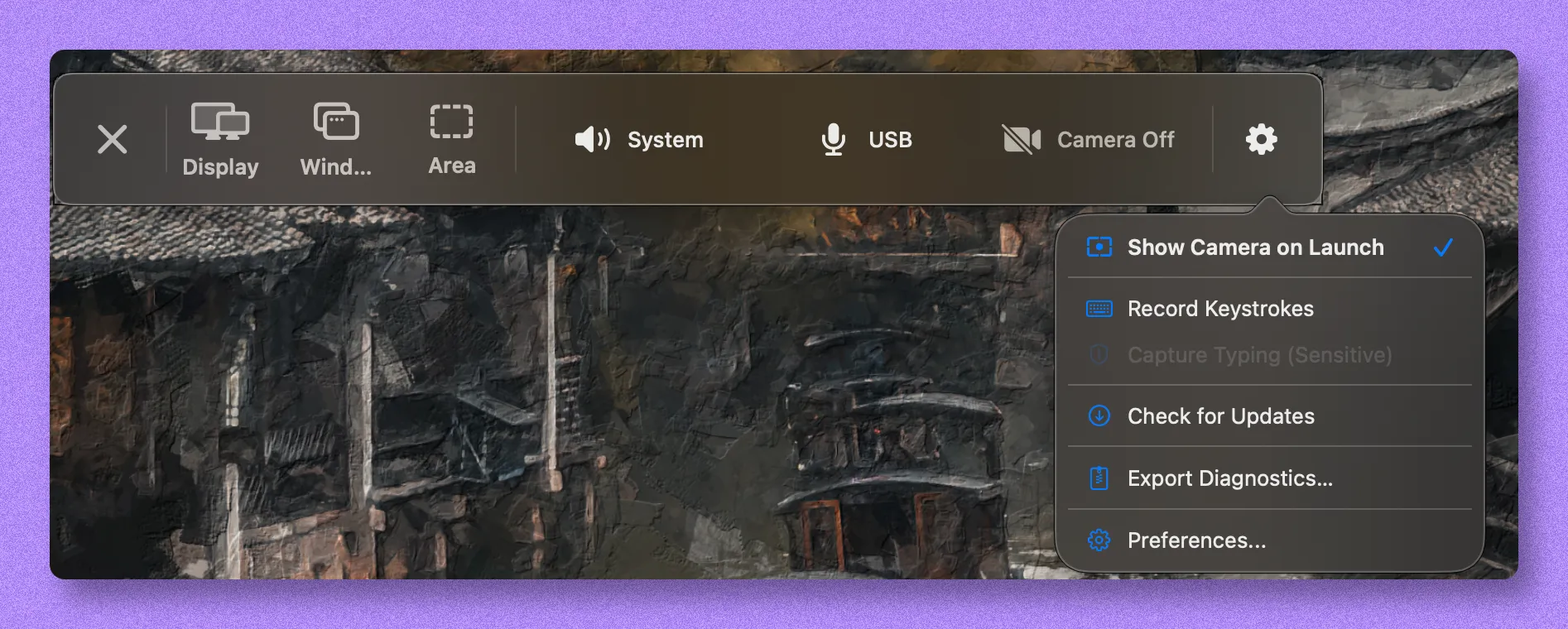
Click the gear icon
Open the settings menu from the control bar.
Available before, during, or after a recording session.
- 2
Choose Report an Issue…
Builds before this release call the same item Export Diagnostics… — it saves a ZIP instead of sending it. If that is what you see, save the file and email it to support.
- 3
Pick a category and describe what happened
One click on Recording, Cursor/zoom, Export, Audio, License, or Something else. Each one shows a tip with a Learn more link. The description is optional and the tip never blocks sending.
- 4
Click Send Report
Diagnostics are attached automatically — there is no checkbox to tick. You get a reference like CC-7K3M2Q, and a reply goes to the email on your license.
Free, unactivated, or offline? Type an email in the card if you want an answer.
From inside the editor
Use this when the issue happened during editing or export — it adds project-level context to the bundle.
- 1
Open the project in the editor
Reopen it from the library if an export already failed — the report picks up the project settings and edit history either way.
- 2
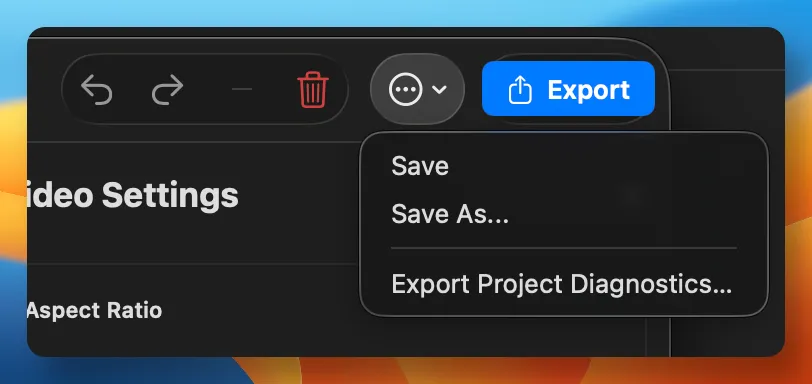
Click ⋯ (More Options)
Find it in the editor toolbar, next to the Export button.
- 3
Choose Report an Issue…
Same card, with the project and the failed export already in scope. Error dialogs like Export Failed and Cannot Start Recording carry a Report This Issue… button that opens it directly.
The bundle starts building when the report card appears, before you send.
What's in the bundle
Included
- App logs — 48 h detailed, 7 d errors
- App and macOS version
- Settings
- Device model
- Project settings and edit history
- Cursor movement data
- Recent recording health
- Crash reports for the app
- One-way license fingerprint, when available
Never included
- Screen recordings
- Camera or microphone audio
- Screen content
- Other apps’ data
Cursor movement data is included: where the pointer went and when, which is how we diagnose zoom and cursor-offset bugs. A one-way license fingerprint may also be included so we can match a report to a purchase. Reports sent through the app exclude the raw license key. Uploaded diagnostics are retained for up to three years.
Can't open the app?
Email support instead. Attach the diagnostics ZIP if you saved it. If you could not save one, send the email with what happened and when.
Rather use email? Write to support@cursorclip.com and attach the saved ZIP. A report gets you a reference number; email doesn't.