Step 1
Click Get Link
It sits just left of Export in the editor. It's also in the File menu as Get Link…, and on the Export Complete window after you export a video.

The video is done and it's too big to attach. Click Get Link. CursorClip uploads it and copies a link anyone can open in a browser, so you can paste it into Slack, an email or a course page before the upload has even finished.
Three clicks
No upload page, no second app, no waiting around for a progress bar before you can reply to anyone.
Step 1
It sits just left of Export in the editor. It's also in the File menu as Get Link…, and on the Export Complete window after you export a video.
Step 2
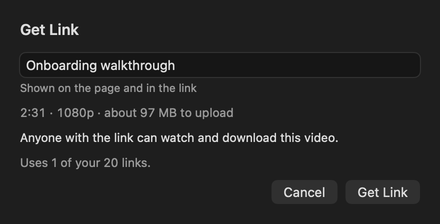
The title starts as your project name. It shows on the page and in the link. The window tells you the length, the size and about how much will upload.
Step 3
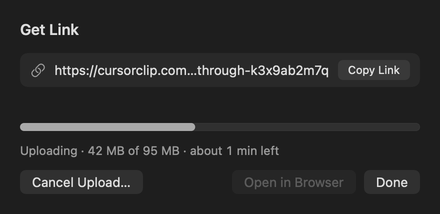
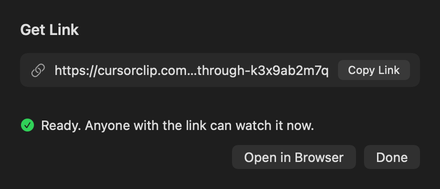
Click Get Link again. From the toolbar or the File menu, CursorClip first prepares a copy for the link. The link is copied to your clipboard as soon as it exists. Click Done and keep working while it uploads.
Step by step, with every message the app can show: Share a video with a link in the Help Center.
Uploads that look after themselves
A big course module on hotel Wi-Fi shouldn't need babysitting. The upload runs in the background and picks up where it stopped.
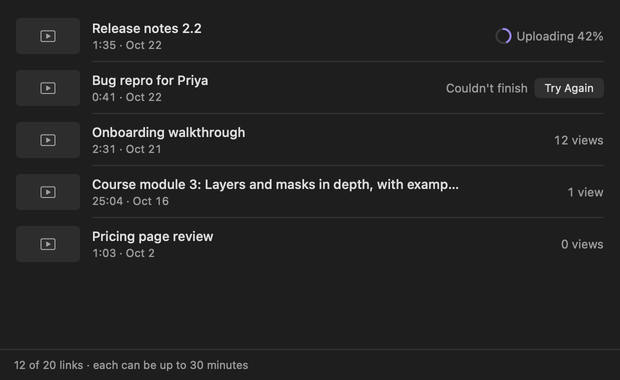
The Get Link button shows a ring and the percent while your project uploads. Click it to see the link again.
Quitting mid-upload asks first. Every finished piece is saved, and the upload carries on the next time you open CursorClip.
Lose the connection and the upload waits, then starts again by itself when you're back online.
If an upload can't finish, Try Again carries on with the same link, so the one you already sent still works.
Changed your mind? Cancel Upload stops it and the link stops working. CursorClip keeps your Mac awake only while it is sending, never while it waits for a connection.
What they see
Your student, client or teammate clicks the link and presses play. No app, no account, no sign-up wall.
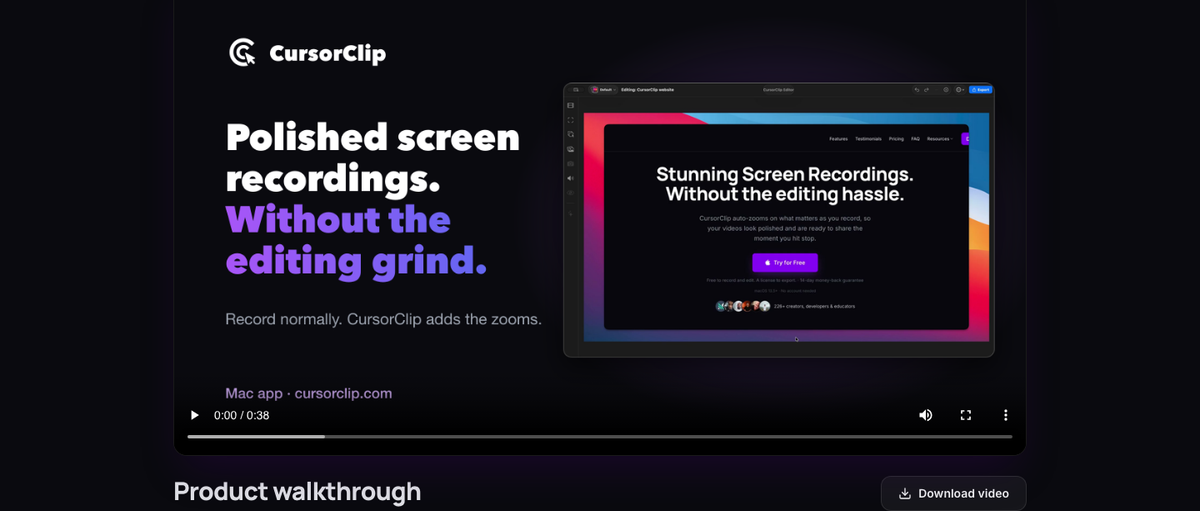
The page has the player, your title, the length and the date, and a Download video button for anyone who wants the MP4.
The page carries your title and a still from the video, so link previews in chat apps like Slack can show them instead of a bare URL.
Link pages are kept out of search engines. People find your video because you sent them the link.
Each page ends with a small "Recorded with CursorClip" line and a "Report this video" link. Until the upload finishes, the page says the video is almost ready.
File > Links
See what you sent, how many times it was watched, and what's still uploading.
Links on each plan
A link keeps working until you delete it, as long as your license or subscription is active.
20 active links, each up to 30 minutes. Delete an old link to make room for a new one.
No fixed limit on links, under fair use.
Compare plans on the pricing page.
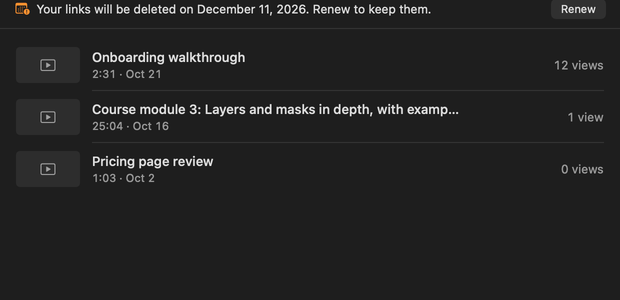
Your links keep working for at least 30 days. After that they may stop working and their videos may be deleted. If the Links window shows a date with a Renew button, click Renew, with the same email address, and everything stays as it is.
Your recordings
That's what Get Link uploads, with your blurs and any captions you show in the video. Every other recording stays on your Mac.
Every link is H.264, so it plays in every modern browser. When your export is HEVC, a .mov file or larger than 2560 pixels on its long side, CursorClip prepares an H.264 copy for the link first.
A deleted link's page stops working at once, and the video is erased from our storage within 24 hours.
You see how many times a link was watched, not who watched. We don't store viewers' IP addresses, and link pages run no session recordings.
The details are in our privacy policy.
No. Anyone with the link opens a page on cursorclip.com and watches the video in their browser. They can also download it with Download video.
Yes. CursorClip copies the link as soon as it exists. Until the upload finishes, the page tells people the video is almost ready and checks again on its own.
If you quit, CursorClip asks first, then picks the upload up the next time you open it. If you go offline, the upload waits and carries on when you are back online. If it stops, Try Again carries on with the same link.
A Lifetime license has 20 active links, each up to 30 minutes. Delete an old link to make room. Yearly and monthly plans have no fixed limit on links, under fair use.
They keep working for at least 30 days. After that they may stop working and their videos may be deleted. If the Links window shows a date with a Renew button, renew with the same email address and nothing changes.
Links always use H.264 MP4, the format every modern browser plays. From Export Complete, if your export is HEVC, a .mov file or larger than 2560 pixels on its long side, CursorClip first prepares an H.264 copy for the link. From the toolbar or the File menu, it always prepares a copy for the link, at up to 1080p.
Only the video you click Get Link on, a still image from it and the title you give it. The video carries what an export carries: its sound, any captions shown in it and your blurs. Your other recordings stay on your Mac. Link pages are not listed in search engines.
Open File > Links, select the link and choose Delete Link. The page stops working right away and says the video was removed. The video is erased from our storage within 24 hours. The video on your Mac stays.
Download CursorClip, record your walkthrough, and send it as a link anyone can watch.
Try it free