Descript is impressive software. Text-based video editing, AI voice cloning, filler word removal, Studio Sound. If you produce a podcast or edit YouTube content with heavy narration, it genuinely does things no other tool does as well.
But a lot of people looking for a Descript alternative for Mac screen recording got there the same way: they signed up hoping it would solve their screen recording problem, and discovered they were paying for a podcasting suite that happened to have a recorder bolted on. The subscription is steep. The interface is built around a workflow they don’t use. And when all they want is to record their product and ship it, Descript adds steps instead of removing them.
That’s what this comparison is about. Descript is a full AI video and audio editing suite that also records screens. CursorClip is a screen recorder, that’s the entire product, and while you record, it automatically zooms in on wherever your cursor is, so the output already looks edited by the time you stop.
If you need podcast editing, transcript-based cutting, or voice cloning, CursorClip can’t help with that and it’s not trying to. But if you want polished screen recordings of software demos without a complex editor and a monthly bill, read on.
Side-by-Side Comparison
| Feature | Descript | CursorClip |
|---|---|---|
| Price | $24/month Hobbyist · $35/month Creator | $70 one-time |
| Primary use case | Podcast/video editing, transcription | Screen recording |
| Screen recording | Available (secondary feature) | Core feature |
| Auto-zoom | None, zoom added manually in the editor | Cursor-follow auto-zoom |
| AI editing | Yes, transcript editing, filler removal, voice cloning | No |
| Included usage | Free: 1 media hour/month · Hobbyist: 10 media hours/month · Creator: 30 media hours/month | No transcription layer |
| Works offline | No, Descript does not support offline editing | Fully offline |
| Direct GIF export | Yes, local GIF export supported | Yes (optimized) |
| Video export | Up to 4K on Creator and above | Up to 4K 60fps |
| Mac app | Desktop app built on Electron (its Mac download contains the Electron framework, checked 2 October 2026) + standalone screen recorder shortcut | Native macOS app |
| Learning curve | Steep, editor-first workflow | Minimal |
| Free option | Free plan: 720p export, 1 media hour/month, watermark on exports | Free to record and edit; license to export |
| Refund policy | 48-hour refund window from invoice date | 14-day money-back |
What You’re Actually Paying For
Descript’s pricing is built around media hours and AI credits, because that’s what the product runs on.
| Plan | Monthly | Annual cost |
|---|---|---|
| Descript Hobbyist | $24/month | $288/year |
| Descript Creator | $35/month | $420/year |
| CursorClip | None | $70 once, total |
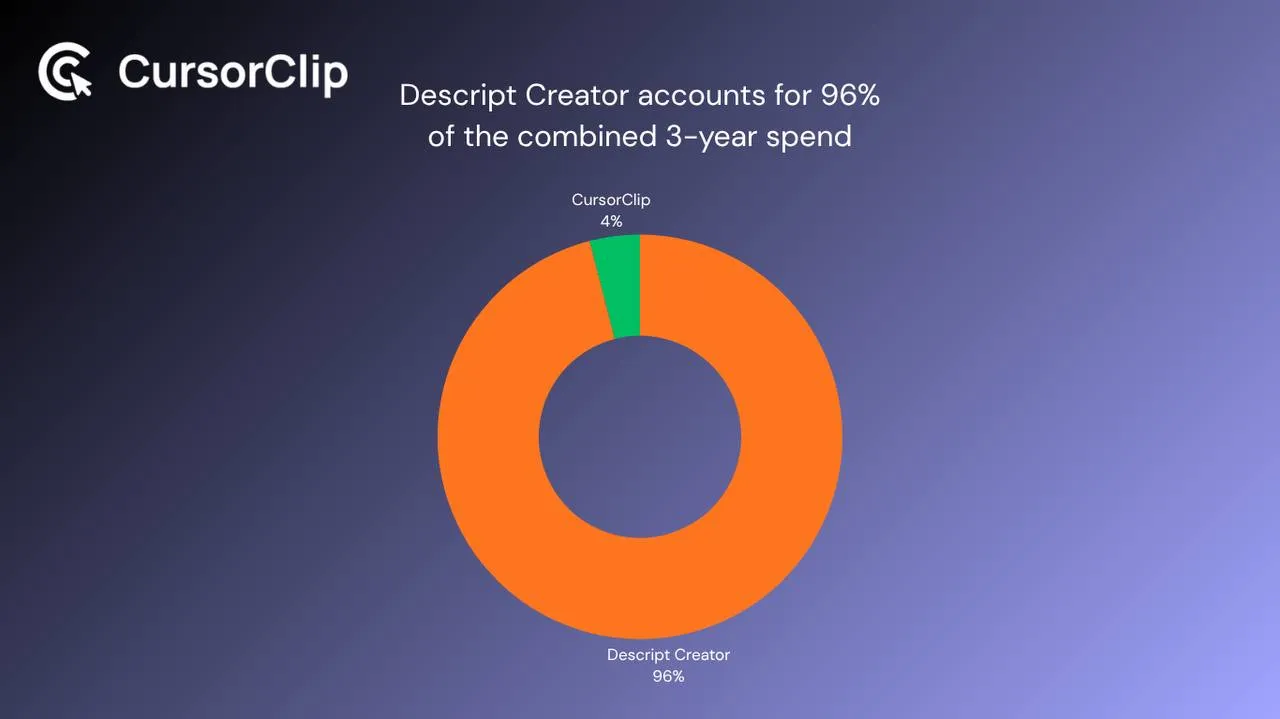
If you’re on Creator and using Descript mainly for screen recording, you’re paying $420 a year for 30 media hours, 800 AI credits, AI voice features, Studio Sound, and the rest of Descript’s editing suite. Those features are genuinely useful for podcasters and YouTubers. For someone who wants clean product demos, they’re line items on a bill for things they’re not touching.
Three years on Creator is $1,260. CursorClip is $70. The math only makes sense if you’re actually in Descript’s editing suite regularly.
Descript’s Editing Workflow vs CursorClip’s Recording Model
This is the core difference between the two tools, and it determines whether Descript is worth the subscription.
Descript’s workflow is built around the transcript. You record, the audio gets transcribed, and you edit by deleting sentences and words from the text. The corresponding video gets cut automatically. Silences get removed, filler words get flagged, and AI can regenerate words you flubbed using your cloned voice. It’s a genuinely different editing paradigm, and for narration-heavy content it’s fast once you’re inside it.
For screen recording specifically, that workflow adds friction rather than removing it. Footage drops into a project timeline. If you want zoom effects on key interactions, you add them by hand. Descript has no cursor tracking and no automatic focus. You’re doing manual zoom for every button click, every menu, every modal. The whole workflow assumes you’ll be editing afterward, which works for long-form content and doesn’t work for “record a demo and send it.”
CursorClip’s model is the opposite. The recording itself produces the polished result. Cursor-follow auto-zoom tracks every click and interaction during recording, so when you stop, the output already looks like someone spent time adding zoom keyframes. There is no transcript to edit and no separate post-production step. The timeline is there for cuts, trims and speed changes if you need them.
These two approaches serve completely different outputs. Descript is a post-production tool that happens to have a recorder. CursorClip is a recorder built so that post-production isn’t a step.
Descript’s AI Features: What They Are and Who They’re For
Descript’s AI editing suite is the reason the product exists. The key features:
- Transcript-based editing: cut video by deleting text; the timeline updates automatically
- Filler word removal: AI detects and removes common filler words across the recording
- Voice cloning and regenerate speech: fix botched words without a full re-record
- Studio Sound: AI audio cleanup that removes background noise and improves mic quality
- Silence removal: automatically trims dead air from recordings
These features are genuinely differentiated. For podcast editors and YouTubers who record hours of narration, Descript’s AI pipeline saves meaningful time per episode.
For screen recording of software demos, a lot of this simply doesn’t apply. There’s less narration to clean up, no need for transcript-first editing, and no automation that improves UI legibility during recording. CursorClip has no AI editing features. The only automated behavior is cursor-follow zoom during recording. That’s intentional. The product is built to eliminate post-production, not improve it.
The Learning Curve Gap
Descript’s interface is genuinely unlike most video tools. The text-based editing paradigm is clever and powerful once you understand it, but it asks you to learn a very different workflow from a traditional screen recorder.
For someone who just wants to record a software demo and send it to a customer, that learning curve pays off nowhere. There’s no part of Descript’s unique interface that makes the recording itself easier to follow. It’s complexity you have to push past to reach the recorder.
Cloud-Dependent vs Local-First: What It Means in Practice
Descript is cloud-dependent by design. It saves and syncs your work to the cloud while you edit, does not support offline editing, and uploads content in the background during recording. That’s what makes the shared, AI-assisted workflow possible.
For screen recording specifically, that means your workflow has an internet dependency. If you record demos regularly and want a process that works the same offline as online, on a plane, at a client site, anywhere, that’s worth factoring in.
CursorClip processes and saves everything locally. No internet required at any point, no cloud sync step, no servers involved. The file is on your drive the moment you stop recording.
Who Each Tool Is Actually For
Stay on Descript if…
- You produce podcast episodes and rely on transcript editing to cut conversations quickly
- You use AI voice cloning to fix botched words without re-recording
- You clean up audio with Studio Sound on a regular basis
- Screen recording is one part of a broader Descript workflow that earns the subscription
Switch to CursorClip if…
- You signed up for Descript mainly for screen recording and barely touch the AI or transcription features
- You’ve been manually adding zoom effects after every recording
- You want a Descript alternative for Mac screen recording that costs $70 once instead of $35+ every month
- Your typical output is product demos, onboarding walkthroughs, feature GIFs, or customer-facing recordings where the UI needs to be clearly visible
Use Case Breakdown
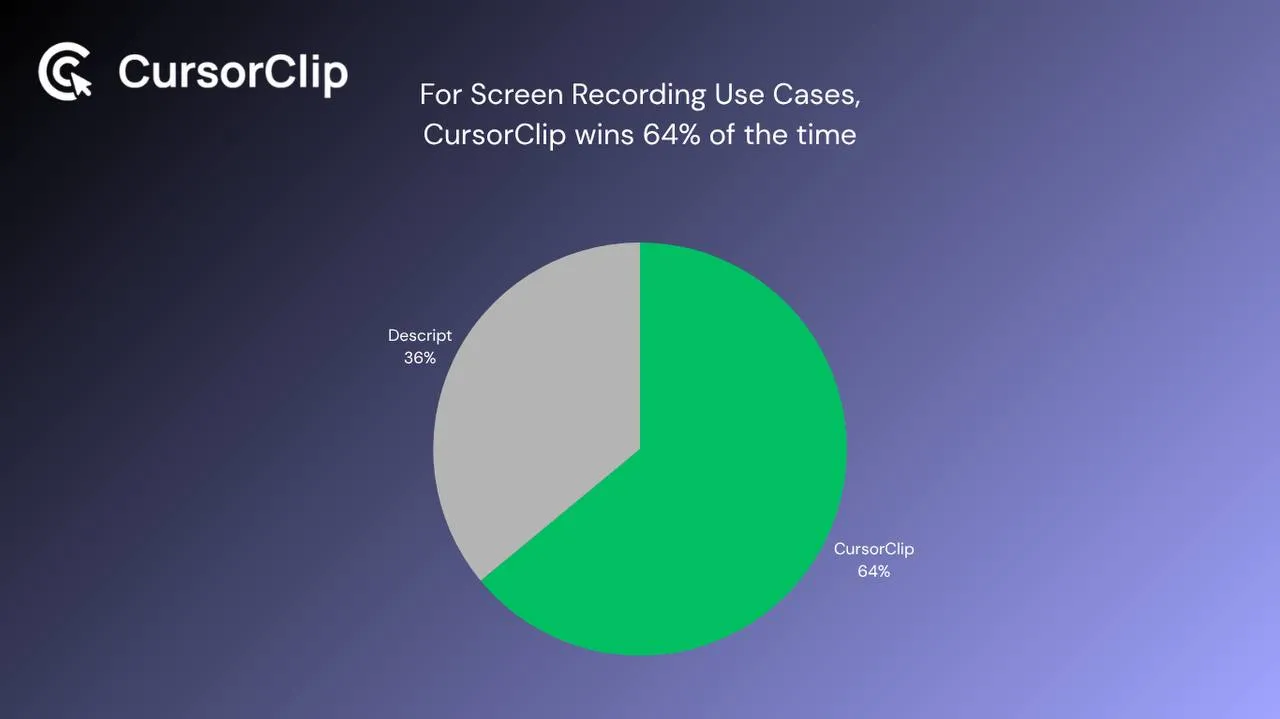
| Use case | Better pick | Why |
|---|---|---|
| Podcast editing | Descript | Transcript editing is genuinely unmatched |
| Filler word removal from narration | Descript | Core AI feature; CursorClip has nothing like it |
| Product demo for landing page | CursorClip | Auto-zoom keeps UI legible; no editing required |
| Feature announcement GIF | CursorClip | Native GIF export with cursor-follow zoom |
| Software walkthrough with UI interactions | CursorClip | Auto-zoom handles every click automatically |
| YouTube video editing with voiceover | Descript | Text-based editing was built for this |
| Onboarding video for SaaS product | CursorClip | Clean one-take, no editing required |
| Voice cloning for audio fixes | Descript | Nothing else comes close |
| Changelog screen recording | CursorClip | Optimized GIF output, no upload required |
| Offline recording | CursorClip | Descript is cloud-dependent throughout |
| Fast desktop screen recorder on Mac | CursorClip | Native app, no editor-first workflow |
Frequently Asked Questions
Can Descript zoom in on UI elements automatically when recording?
No. Descript has no cursor tracking and no automatic zoom. You can add zoom effects manually after recording, but you have to do this for every interaction. For a demo with ten or fifteen key clicks, that’s a significant amount of time per recording. CursorClip handles this automatically during the recording itself.
Does CursorClip have any of Descript’s AI features?
No, and it’s not trying to. CursorClip doesn’t transcribe, doesn’t remove filler words, and doesn’t clone your voice. If Descript’s AI editing is part of your actual workflow, CursorClip can’t replace it. The tools are built for different outputs.
Is Descript’s screen recording reliable for professional work?
For many workflows, yes. But Descript’s recording and editing model is still cloud-synced, and the company has official recovery docs for interrupted or lost recordings. If you want the simplest local-first path for client-facing demos, CursorClip removes more moving parts because the file is written directly to your Mac.
What happens to my Descript projects if I cancel?
Canceling moves you to the Free plan at the end of your billing cycle. Your existing projects remain accessible, but features from your paid plan will no longer be available. Before switching, export anything you want to keep in a specific format. CursorClip recordings are already local files on your drive, so uninstalling the app changes nothing about them.
Does CursorClip work offline?
Completely. Everything processes and saves locally with no internet required at any point. Descript does not support offline editing, so connectivity is part of that workflow.
What if I need both tools?
Use both. Descript for podcast episodes and narration-heavy video where the AI editing earns its keep. CursorClip for screen recording where cursor-follow zoom and fast export matter. At $70 once for CursorClip, running both costs less than six months of Descript Creator alone.
Descript only makes sense if you’re actually using its editing, transcription, or AI features. Otherwise you’re paying for tools you’re not touching.
If you’re primarily recording screens, CursorClip is the more focused and significantly cheaper choice, built for exactly that output, with nothing else in the way.
Links, you may find useful:

