For YouTube tutorials on a Mac, CursorClip is the best fit when you want readable software walkthroughs with click-triggered automatic zoom and very little editing afterwards. Screen Studio is stronger when you want transcript generation that can be added as subtitles, share links, or to edit video recorded elsewhere. ScreenFlow and Camtasia win when the video needs a real multi-track timeline and closed captions. OBS Studio is the strongest free choice, Cap is the flexible open-source option, and QuickTime Player plus iMovie is the zero-cost built-in path. Vendor facts below are dated 10 August 2026 unless marked as checked 2 October 2026, and none come from hands-on testing.
Key takeaways (prices and capabilities checked 10 August 2026; CursorClip’s own prices as of 16 September 2026):
| Tool | Best YouTube tutorial job | Price | YouTube-specific strength |
|---|---|---|---|
| CursorClip | Walkthroughs that must stay readable on a phone | $70 one-time (also $29/yr, $9/mo) | Zooms in where you clicked, then follows the cursor inside the zoom |
| Screen Studio | Polished tutorials with captions and share links | $29/mo, or $9/mo billed annually | Vendor states transcript generation that can be added as subtitles |
| ScreenFlow | Long-form courses needing a real timeline | $199 one-time | Vendor states multi-track editing and closed captions |
| Camtasia | Cross-platform training teams | USD price not quoted in this comparison | Stated to run on macOS 14+ and Windows 10/11 |
| OBS Studio | Free capture, multi-source scenes, live streams | Free | Native macOS desktop audio on macOS 13+ with OBS 30+ |
| Cap | Open-source or self-hosted workflows | Free tier (personal use), $29 Desktop License, $12/user/mo Pro | Vendor states mic and system audio together with no virtual driver |
| QuickTime + iMovie | A first tutorial at zero cost | Free | Already on the Mac, plus a free editor download |
What a YouTube tutorial recorder actually needs
A YouTube tutorial recorder is judged on the path from capture to upload, not on capture quality alone. Seven criteria decide it, and they are deliberately YouTube-shaped. For general Mac recorder verdicts use the roundup of the 13 best screen recorders for Mac; for how to plan and record a tutorial video once you have chosen, use the workflow guide.
1. Readability at a reduced player size
Most YouTube tutorial viewers are not watching full screen. A 13-inch Mac UI recorded at native scale and watched in a phone-sized player turns menu labels into gray smudges. It is fixable at capture time by zooming into the region you are working in, not at export time by cropping.
2. Narration plus system audio, captured together
Narration is the baseline; system audio matters when the app makes noises the lesson depends on. Apple’s macOS guide documents a Microphone selection in the Screenshot toolbar’s Options menu (captured 10 August 2026). On macOS 27 or later the same menu also offers Include System Audio (Apple Support, published 14 September 2026, checked 6 October 2026). On macOS 26 and earlier the built-in path is narration-only.
3. Facecam where the lesson benefits from it
A talking-head corner is a YouTube convention, not a technical requirement. What varies is whether the camera is a genuine second track you can reposition afterwards, and at what capture quality. For the free built-in way to record your screen and webcam at the same time, and its limits, see how to record yourself on a Mac.
4. Retakes and trimming without a full edit
Tutorials are recorded in imperfect takes. The question is whether the recorder can cut a fumbled sentence without exporting into another application.
5. Captions and transcripts
Some recorders generate a transcript locally and attach subtitles; others hand you a bare video file to caption after upload.
If you are uploading a caption file, check the format your tool writes against YouTube’s list. YouTube recommends SubRip (.srt), SubViewer (.sbv or .sub), MPsub (.mpsub), LRC (.lrc) and Videotron Lambda (.cap) as basic formats, and supports SAMI, RealText, WebVTT (.vtt), TTML and DFXP as advanced formats that carry styling and positioning. The two most creators hit are both narrower than they look: for SubRip, YouTube states “Only basic versions of these files are supported. No style info (markup) is recognized. The file must be in plain UTF-8”, and for WebVTT, “In initial implementation. Positioning is supported, but styling is limited to <b>, <i>, <u> since CSS class names are not yet standardized.” iTunes Timed Text (.itt), which Final Cut Pro and similar Mac tools export, is supported as a subset of TTML 1.0 (YouTube Help, checked 10 August 2026).
Automatic captions are a draft, not a deliverable. YouTube says it “can use speech recognition technology to automatically create captions for your videos” and that “You should always review automatic captions and edit any parts that haven’t been properly transcribed.” It also lists conditions where they do not appear at all, several of which describe tutorial footage exactly: audio still processing because it is complex, a video that is too long, “A long period of silence at the beginning”, and “Multiple speakers whose speech overlaps or multiple languages”. For live streams, automatic captions are English only (YouTube Help, checked 10 August 2026). YouTube enumerates its automatic-caption languages by name rather than publishing a total, so no language count appears on this page.
6. Repeatable settings across a series
Episode 12 needs to look like episode 1. Saved projects, reusable export presets and a fixed aspect ratio matter more for a series than for a one-off.
7. An export that matches YouTube’s recommended encoding
A recorder that hits MP4 with H.264 video, progressive scan and 16:9 at a sensible bitrate removes a step from your workflow. Specifics are in the export section below.
How these tools were compared, and what is missing
This comparison is based on vendor documentation rather than hands-on testing. No tool here was run, timed or benchmarked for this article, and every competitor statement is written as what the vendor’s own page says, with its 10 August 2026 capture date attached. CursorClip’s capabilities come from a static audit of its source code on the same date, which establishes what the application implements, not how reliably it behaves on every Mac.
CursorClip’s published version is confirmed. The live appcast serves 1.5.7 (sparkle:version 28), published 21 July 2026 (cursorclip.com/appcast.xml, checked 10 August 2026), so that is the newest build any existing user can receive. Everything described below is scoped to 1.5.7: the source tree is ahead of the appcast, and nothing that exists only in the tree is described here as shipping.
Two tools could not be documented to the same depth. Camtasia’s system-requirements page carries no feature statements and its store rendered Indian Rupee pricing on every attempt, so this comparison does not quote a USD price or infer missing feature detail. Cap and Screen Studio publish marketing pages rather than specifications, so several cells read “not stated by the vendor” rather than “no”.
Decision matrix for YouTube tutorial work
The matrix splits into capture and finishing, because those are the two decisions that change which tool you buy. Every cell is a vendor statement captured 10 August 2026 unless marked as checked 2 or 3 October 2026, or for CursorClip a finding from its source code.
Capture and readability
| Tool | Automatic zoom | Manual zoom correction | System audio + mic | Facecam | Platform |
|---|---|---|---|---|---|
| CursorClip | Yes, triggered by clicks | Yes, add, remove or adjust after recording | Yes, with a frame-rate cost on large captures | Yes, medium-quality preset | macOS 13.5+, Apple silicon and Intel |
| Screen Studio | Yes, on screen actions | Yes, drag zooms on a timeline | Listed together with webcam | Yes, overlay zooms out to avoid the cursor | macOS, “Ventura 13.1+ is recommended” |
| ScreenFlow | Not stated | Not stated | Yes, screen, camera and mic in sync | Yes, plus iPhone and iPad capture | macOS only |
| Camtasia | Yes, SmartFocus (checked 2 October 2026) | Yes, adjust SmartFocus zoom and pan points (checked 2 October 2026) | Not stated | Not stated | macOS 14.0+ and Windows 10/11 |
| OBS Studio | No | No | Implied by the audio mixer, not stated outright | Yes, webcams listed as a source | macOS 13.0 or newer (checked 3 October 2026) |
| Cap | Yes, generated from clicks (checked 2 October 2026) | Yes, draw your own zooms (checked 2 October 2026) | Yes, both at once in one recording | Yes, separate tracks in Studio Mode | macOS, Windows, Linux |
| QuickTime + iMovie | No | No | macOS 27+ only, via the Screenshot toolbar’s Include System Audio | Not documented for screen recordings | macOS |
Finishing and export
| Tool | Trim and cut | Captions or transcript | Multi-track timeline | Stated export ceiling | Bad fit for |
|---|---|---|---|---|---|
| CursorClip | Yes, trim, cut and speed | No | No | Presets to 4K and 60fps, 50 Mbps bitrate cap | Captions, editing other apps’ footage |
| Screen Studio | Yes, trim, cut, speed | Yes, transcript and subtitles | Timeline for zooms | Up to 4K 60fps and GIF | Windows teams, no free tier stated |
| ScreenFlow | Implied by the editor | Yes, closed caption support | Yes, multi-channel audio and animation | ProRes and MP4, “higher resolutions, 60fps” | Cheap entry, computer audio needs a driver |
| Camtasia | Not stated | Not stated | Not stated | Not stated | Old Macs, vendor recommends M1 Pro and 16GB RAM |
| OBS Studio | No, vendor claims none | No | No | Not enumerated, set per user | Finishing the video in one app |
| Cap | Not stated | Yes, AI transcription, Pro-gated | Auto-segmented chapters | 4K, 60fps, “export to any format” | Commercial use on the 5-minute free tier |
| QuickTime + iMovie | Yes, both document trimming and splitting | No | iMovie is a timeline, not multi-track | Export menus documented without their values | Zoom, captions, or system audio before macOS 27 |
The seven recorders reviewed
Each entry uses the same template and is scoped to YouTube tutorial production. For general reviews of these apps, use the Mac screen recorder roundup.
CursorClip
Summary. A macOS recorder built around one idea: zoom in automatically where the viewer needs to look, so a walkthrough stays readable in a small player. It records, edits its own recordings, and exports. It does not caption, and it cannot open video created by anything else.
Key features. Automatic zoom generated from your clicks with cursor-following pan inside each zoom; zoom points you can add, remove or adjust afterwards; system audio, microphone or both; camera picture-in-picture; trim, cut and speed changes; aspect ratio, background and cursor controls; motion blur on zooms, pans and the pointer; keyboard-shortcut overlays (keystroke capture is opt-in); click ripples; MP4 (H.264), MOV and HEVC export plus GIF.
Pros. The automatic zoom is the readability fix YouTube tutorials most often need, with no keyframing. Projects save as self-contained packages, so a series stays reproducible. Recordings never leave your Mac, because no upload path for media exists.
Cons. No transcription, subtitles, captions, noise removal, multi-track editing or YouTube publishing, and no way to import an externally recorded file. GIF export is blocked at 10 minutes. The camera runs at a medium quality preset, so it is not an HD webcam. Export needs a paid license and one online activation, and the app contacts licensing, update, crash and analytics endpoints, so “fully offline” would be wrong.
Pricing. $70 one-time, $29 per year, or $9 per month, each with a 14-day money-back guarantee (checked 16 September 2026). Recording and editing are free; a paid plan unlocks export. See CursorClip pricing.
Best for. Mac creators publishing recurring software walkthroughs who want them readable at phone size without learning an editor.
Screen Studio
Summary. The closest competitor on automatic polish, and it goes further on finishing. Its homepage advertises what a YouTube creator often asks for after readability: captions generated on your Mac, plus share links and importing video recorded elsewhere (checked 2 October 2026). Subscription-only and macOS-only, and an Electron app with an Apple-silicon build: its 4.0.1 Mac update archive contains Electron Framework (checked 2 October 2026). Our Screen Studio alternatives roundup covers the switching cases.
Key features. Per the vendor homepage (captured 10 August 2026): automatic zoom on screen actions, cursor smoothing, motion blur, keyboard-shortcut display, trim, cut and speed, drag-to-adjust zooms on a timeline, transcript generation with subtitles, webcam, microphone and system audio including per-app selection, and export up to 4K 60fps or GIF.
Pros. Its vendor advertises both automatic zoom and transcript-to-subtitle generation, covering two YouTube requirements in one app (Cap now advertises both as well, checked 2 October 2026). Its homepage now says captions are generated on your Mac, with cloud transcription optional (checked 2 October 2026). Its homepage also stated per-app system audio selection on 10 August 2026; OBS Studio documents per-app capture too (checked 2 October 2026).
Cons. macOS only, Ventura 13.1 or later recommended, with no free tier stated. Trial and refund terms appear on no page captured, and the pricing URL returns a 404.
Pricing. $29 per month billed monthly, or $9 per month billed annually (screen.studio homepage, checked 2 October 2026). The annual total is not displayed; twelve months at that rate is $108, which is our arithmetic, not a vendor figure.
Best for. Creators who want automatic polish plus captions and share links in one macOS app and accept a subscription.
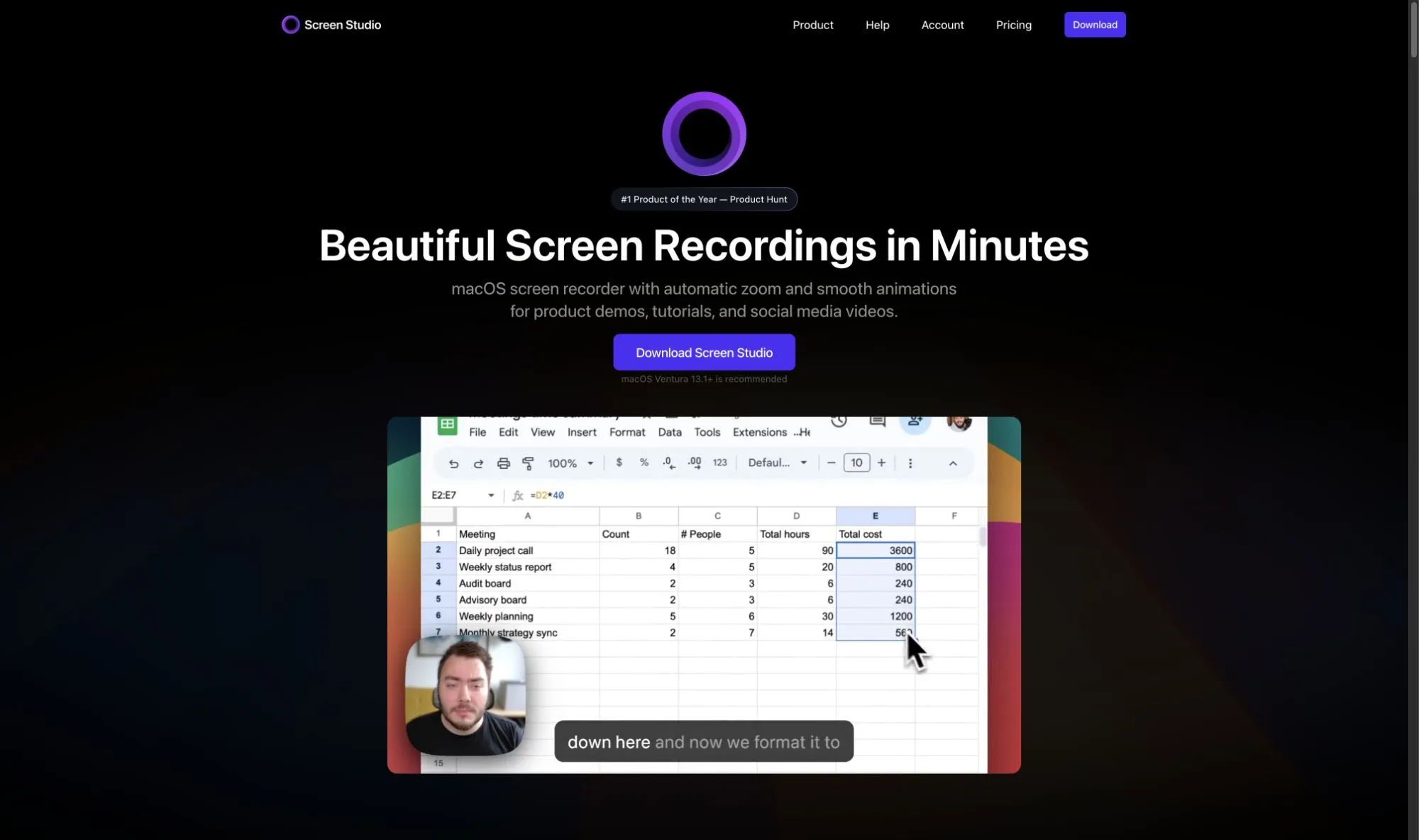
Screen Studio holds 4.9/5 from 180 reviews on Product Hunt (checked 10 August 2026).
Camtasia
Summary. The cross-platform deep editor in this set, and for a team split between Mac and Windows it is the obvious pick on that basis alone. It is also the tool documented least well here, because TechSmith’s system-requirements page carries no feature statements. See our CursorClip vs Camtasia comparison and the Camtasia alternatives roundup.
Key features. TechSmith markets Camtasia as AI-powered screen recording and video editing across four annual tiers (Starter, Essentials, Create, Pro). PowerPoint import is stated, as is that Camtasia 2022.4.0 and later on macOS 13 or later do not require the separate System Audio extension.
Pros. Genuinely cross-platform, which matters for training teams that cannot standardize on macOS. The version-conditional system-audio extension no longer applies to currently supported macOS versions.
Cons. A high floor: minimum macOS 14.0, with macOS 26.0 or later, M1 Pro or newer and 16GB of RAM recommended. This comparison does not rely on feature detail beyond the vendor statements cited above.
Pricing. Four annual per-user plans, Starter through Pro. This article does not quote a US dollar price because the store page reviewed on 10 August 2026 returned regional pricing.
Best for. Mixed Mac and Windows training teams that need one editor across both platforms.
Camtasia holds 4.5/5 from 452 reviews on Capterra (checked 10 August 2026). TechSmith’s Trustpilot profile shows 4.2 from 308 reviews, but that is a company-level score covering every TechSmith product and its customer service, so it is not a Camtasia rating and is not used as one here.
ScreenFlow
Summary. The macOS deep editor, and on stated capability it wins the long-form course category outright. Telestream describes a multi-track timeline, closed captions and ProRes delivery in the same application that does the recording, which is what a 40-minute tutorial needs and what CursorClip does not attempt.
Key features. Per Telestream (captured 10 August 2026): simultaneous screen, camera and microphone recording in sync; iPhone and iPad screen recording; transitions, text animations, video animations, freehand annotations and multi-channel audio; closed caption support; ProRes and MP4 export with presets.
Pros. The most complete single-app path from capture to a captioned, edited tutorial here. A perpetual license rather than a subscription. Built-in iPhone and iPad capture is useful for mobile app tutorials (Screen Studio now advertises device recording too, checked 2 October 2026).
Cons. A Telestream help page dated February 2012 says computer audio requires its Audio HAL virtual driver, but it names no current macOS or ScreenFlow version. Confirm the requirement against the current installer. The Stock Media Library is a recurring cost on top of the app.
Pricing. $199 one-time. Super Pak bundles were shown at $298 reduced to $275 and $357 reduced to $325, both promotional, and the Stock Media Library renews at $99 per year (telestream.net store, captured 10 August 2026). The tech-specs page lists macOS Tahoe 26 and Sequoia 15 as supported; no minimum version was stated.
Best for. Long-form macOS course production needing a real timeline, closed captions and ProRes in one tool.
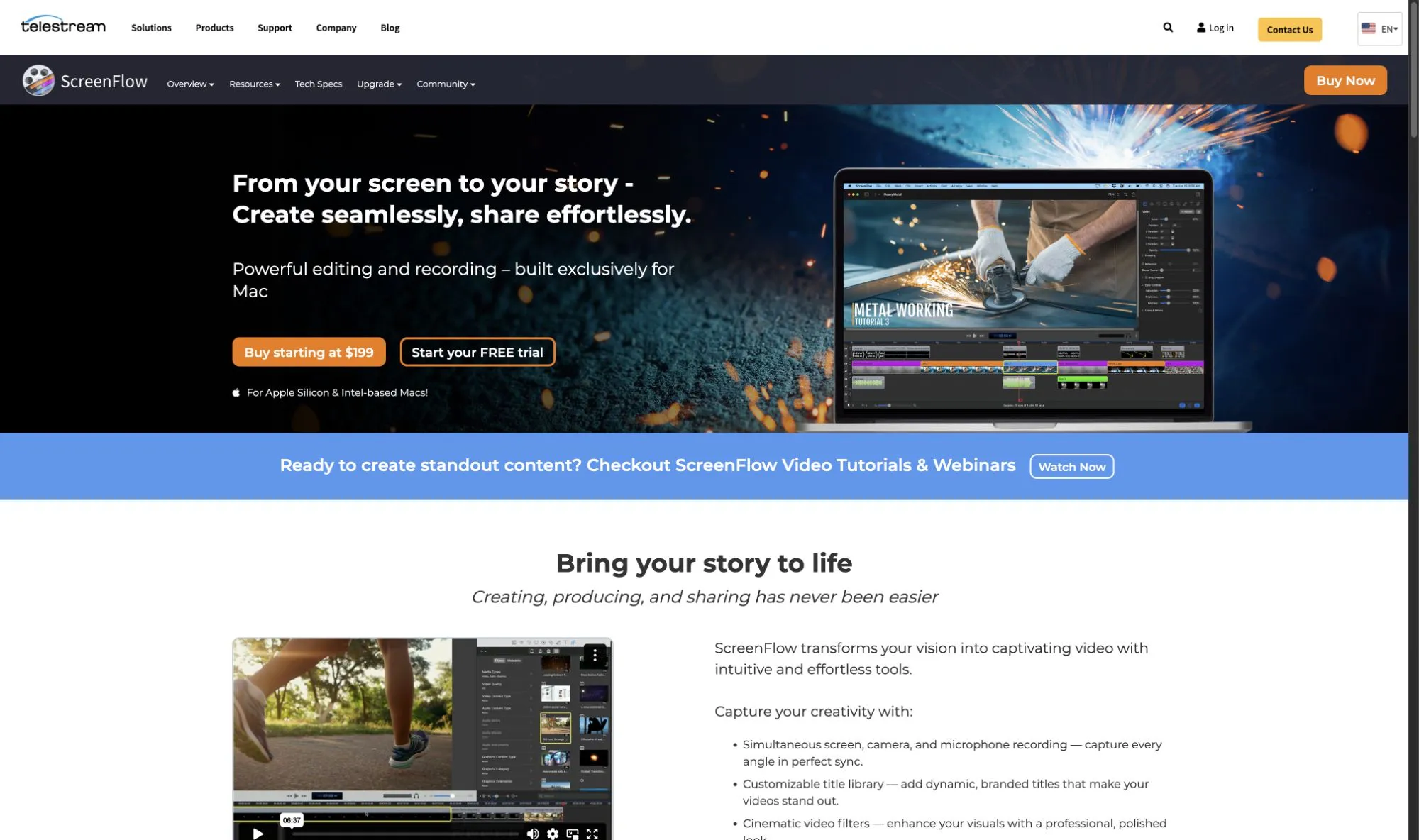
ScreenFlow holds 4.8/5 from 24 reviews on Capterra (checked 10 August 2026). Twenty-four reviews is a thin base, and its Mac App Store listing shows no aggregate rating because Apple states the app “hasn’t received enough ratings or reviews to display an overview”.
OBS Studio
Summary. The strongest free option and the weakest finishing tool. It captures anything, mixes any number of audio sources, and hands you a file. What happens next is another application’s problem, which is a real cost when your output is a weekly tutorial.
Key features. Per obsproject.com (captured 10 August 2026): scene composition from window captures, images, text, browser windows, webcams and capture cards; an audio mixer with per-source noise gate, noise suppression and gain plus VST support; the native macOS Audio Capture Source on macOS 13 or later with OBS Studio 30 or later; local recording and live streaming.
Pros. Free and open source with no recording limits. The most controllable audio mixer here, which matters when app sound and narration need different levels. Native desktop audio on current macOS needs no third-party driver.
Cons. The vendor claims no trim, timeline, captions, motion blur or shortcut overlays, so OBS is not a one-stop tutorial tool, and there is no zoom or readability assistance at all. Export formats and resolution ceilings are not enumerated because they are per-user settings. Current OBS needs macOS 13.0 or newer (checked 3 October 2026); its 32.2.0 release notes point macOS 12 users to OBS 32.1.2, which still needs a virtual audio device for desktop audio there.
Pricing. Free. OBS Studio 32.2.1 was the version stated on the vendor homepage on 10 August 2026.
Best for. Zero-budget capture, complex multi-source scenes, and creators who already own an editor.
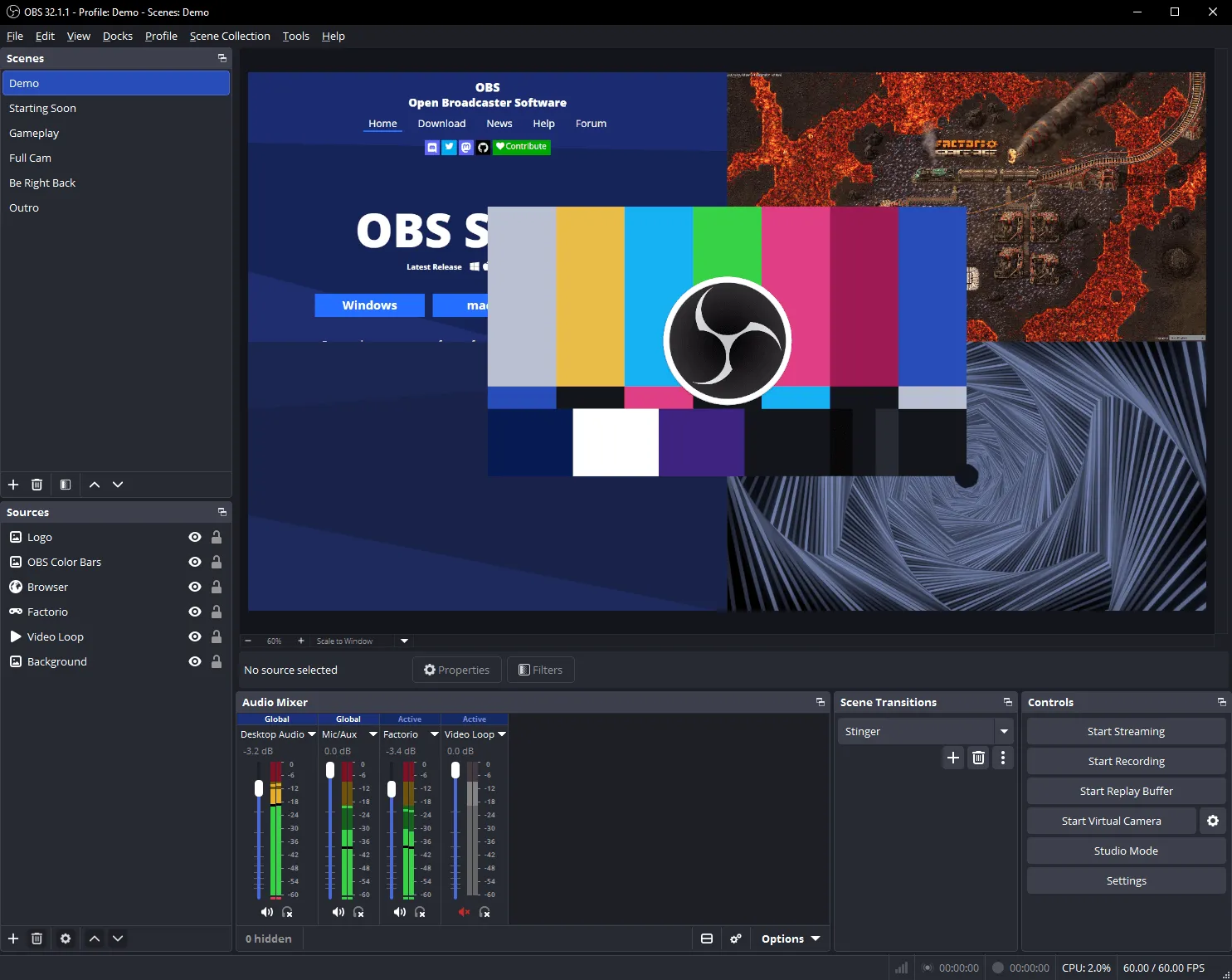
OBS Studio holds 4.7/5 from 1,075 reviews on Capterra and 4.6/5 from 137 reviews on G2, both checked 10 August 2026.
Cap
Summary. The cross-platform, open-source option, with a free tier that includes local recording and editing. Its constraint is licensing rather than capability: the free tier is personal use only with a five-minute limit, which rules it out for a monetized channel.
Key features. Per cap.so (captured 10 August 2026): microphone and system audio recorded at the same time in one recording with no virtual audio driver; floating webcam overlay, with separate screen and webcam tracks in Studio Mode; motion blur; cursor sizing, smoothing and click effects; AI transcription for captions; auto-segmented chapters; independent audio levels; 4K at 60fps; self-hosting.
Pros. Desktop apps for macOS, Windows and Linux. An explicit vendor statement that no BlackHole, Loopback or virtual audio driver is required. Open source with a free self-hosted path.
Cons. The free tier is personal use only and capped at five minutes, so commercial work needs a paid license. No minimum macOS version is stated anywhere. The homepage shows a Lifetime toggle for the Desktop License while the pricing page reviewed here showed only an annual $29, so confirm the license term at checkout.
Pricing. Free tier at $0 (personal use, 5-minute limit); Desktop License $29, shown as annual on the pricing page; Cap Pro $12 per user per month billed monthly, or $8.16 per user per month billed annually (cap.so/pricing, captured 10 August 2026).
Best for. Creators who need Windows or Linux alongside Mac, or who want an open-source and self-hostable stack.
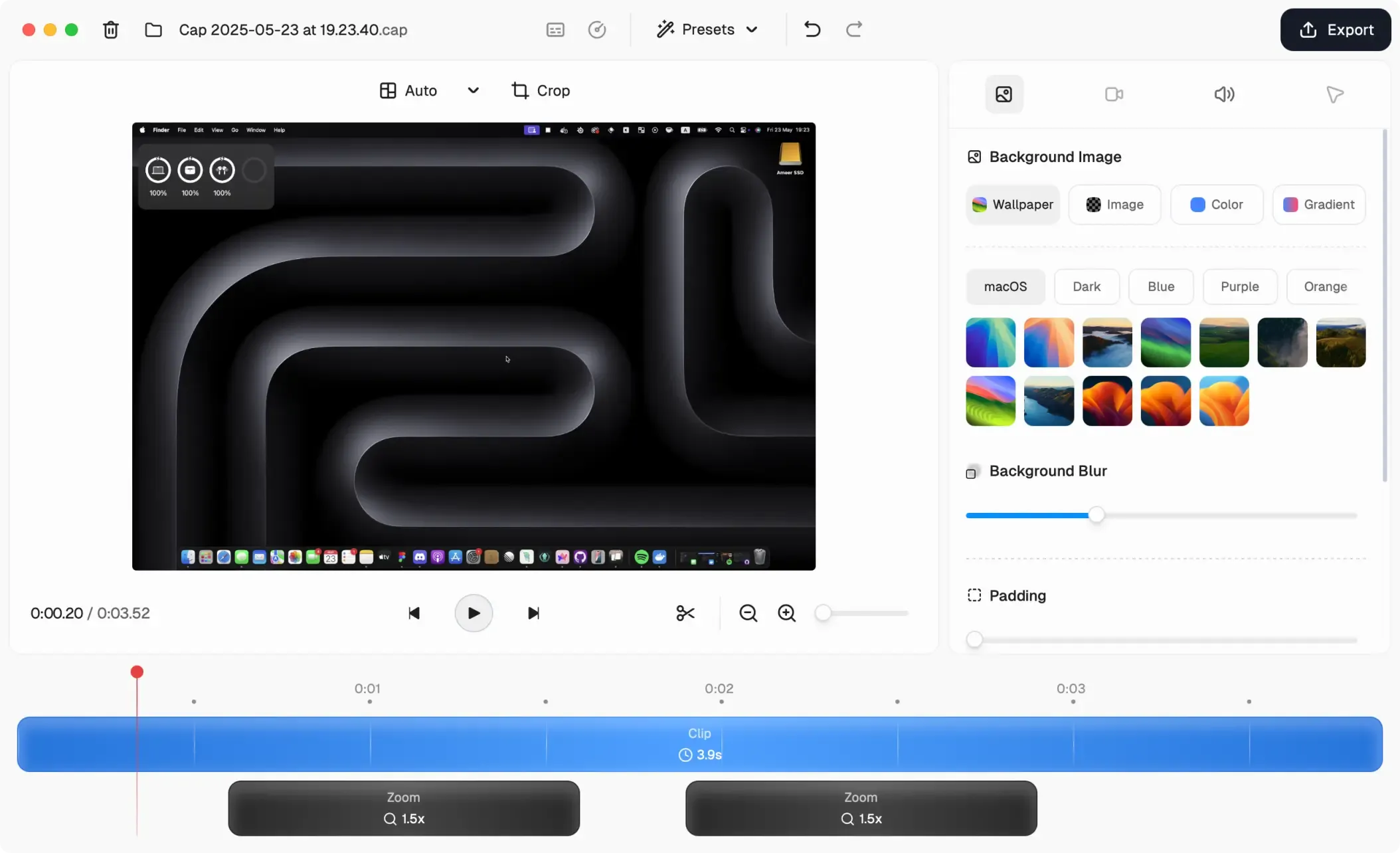
Cap holds 3.9/5 from 8 reviews on Product Hunt (checked 10 August 2026). Eight reviews is too small a base to read as a verdict, which is why the count sits next to the score. Cap has no Trustpilot profile.
QuickTime Player plus iMovie
Summary. The honest starting point for a first tutorial, at no cost. QuickTime Player records the screen with optional microphone audio and trims and splits the result; iMovie handles ordering, cropping, speed and titles. What it cannot do is system audio before macOS 27, or any readability assistance.
Key features. Per Apple’s documentation (captured 10 August 2026): QuickTime Player records via File > New Screen Recording, trims via Edit > Trim with the yellow handles, splits via View > Show Clips then Edit > Split Clip, and rearranges clips by dragging. The Screenshot toolbar (Shift-Command-5) exposes a Microphone selection and saves recordings as .mov files. iMovie documents splitting at the playhead, trimming, crop and Fit, speed with Preserve Pitch, titles, audio volume, and File > Share > File export.
Pros. Free, and adequate for a narrated walkthrough. Apple documents each editing step, so the workflow is reproducible.
Cons. Apple documents a system-audio option only on macOS 27 or later, so on older versions app sound needs a different tool. No zoom, captions, motion polish, or documented webcam overlay for screen recordings. Apple names the export menus but never lists the values inside them, so the right YouTube export preset cannot be looked up in Apple’s own documentation.
Pricing. Free. iMovie is a free Mac App Store download, listed at version 10.4.4, 3.2 GB, requiring macOS 15.6 or later (apps.apple.com, captured 10 August 2026). Apple lists iMovie among the apps included with a Mac but qualifies the entry itself, “(If iMovie isn’t installed on your Mac, you can get it from the App Store.)” (Apple Support, checked 10 August 2026), so treat it as a download rather than a guaranteed pre-install. The macOS 15.6 floor also rules out Macs left on an older system.
Best for. Your first tutorial, or any narration-only walkthrough where the budget is zero.

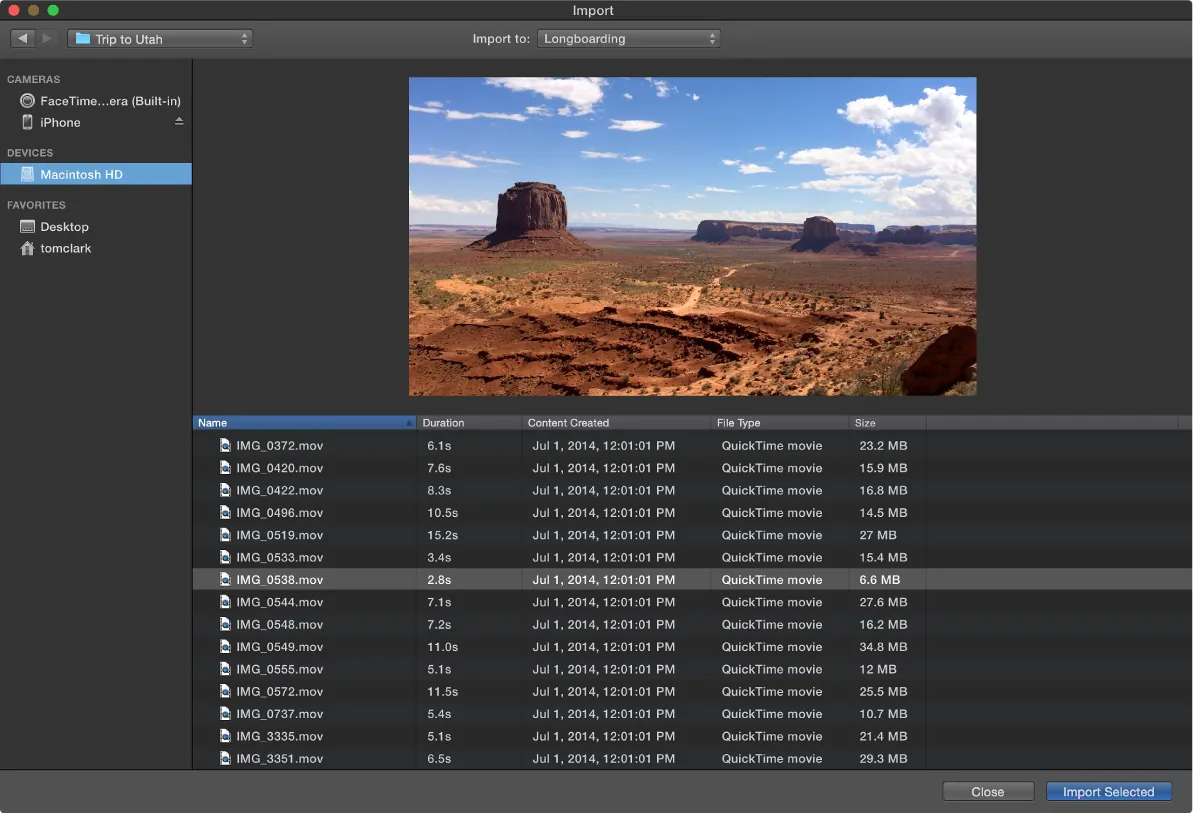
There is no iMovie star rating to quote. Apple’s listing displays no rating overview, stating “This app hasn’t received enough ratings or reviews to display an overview”, and Apple’s own lookup data returns a rating count of zero (Mac App Store, checked 10 August 2026).
YouTube export settings that matter
YouTube publishes recommended upload encoding settings, and matching them removes guesswork from your export dialog. Per YouTube Help’s “Recommended upload encoding settings” page (support.google.com/youtube/answer/1722171, captured 10 August 2026), YouTube states: an MP4 container with the moov atom at the front of the file and no Edit Lists; H.264 video with High Profile, two consecutive B frames, Closed GOP, CABAC and 4:2:0 chroma subsampling; progressive scan with no interlacing; AAC-LC, Opus or Eclipsa Audio at 48 kHz; and 16:9 as the standard aspect ratio for YouTube on a computer. YouTube also states that content should be encoded and uploaded at the same frame rate it was recorded in.
YouTube’s recommended SDR video bitrates
| Resolution | Standard frame rate (24, 25, 30fps) | High frame rate (48, 50, 60fps) |
|---|---|---|
| 2160p (4K) | 35 to 45 Mbps | 53 to 68 Mbps |
| 1440p (2K) | 16 Mbps | 24 Mbps |
| 1080p | 8 Mbps | 12 Mbps |
| 720p | 5 Mbps | 7.5 Mbps |
These are recommendations, not hard upload limits: not enforced ceilings, not minimum requirements, and not the bitrate viewers receive. Nothing on that page states that YouTube prefers 4K or that 4K performs better in search or recommendations, and this article makes no such claim.
Three consequences for a Mac tutorial workflow:
- Readability beats resolution. A 1080p recording zoomed into the region you are working in is more watchable on a phone than an un-zoomed 4K recording, and it uploads faster. At YouTube’s recommended rates, 1080p at 8 Mbps is roughly 60 MB per minute while 4K at 35 to 45 Mbps is roughly 263 to 338 MB per minute. That is our arithmetic from YouTube’s figures, not a YouTube statement; check your own with the video bitrate and file size calculator.
- Match the frame rate you captured. Exporting a 30fps capture at 60fps does not create motion that was never recorded, and this bites on Mac specifically. CursorClip’s recording frame rate is limited by your display refresh rate and reduced further on large captures, dropping to 30fps when both system audio and microphone are on above a certain capture size. A 4K or 5K capture with dual audio is a 30fps recording.
- Check your export ceiling against the high-frame-rate row. CursorClip’s presets reach 4K and 60fps but cap video bitrate at 50 Mbps, which sits above YouTube’s 35 to 45 Mbps recommendation for standard-frame-rate 4K and below its 53 to 68 Mbps recommendation for high-frame-rate 4K. At 1080p the cap is irrelevant.
Which recorder should you choose?
Answer four questions in order.
1. Does the tutorial need captions or a transcript inside the recorder? Yes, macOS only: Screen Studio or ScreenFlow. Yes, free or open source: Cap, whose transcription is Pro-gated. No, you will caption after upload: go to question 2.
2. Is the finished video longer than about 15 minutes, or does it need multiple tracks, annotations and transitions? Yes: ScreenFlow on Mac, or Camtasia if part of your team is on Windows. Neither CursorClip nor Screen Studio is the right shape for a 40-minute multi-track course. No: go to question 3.
3. Is it a software walkthrough where small UI is the whole problem? Yes, and you want to pay once: CursorClip. Yes, and you also want captions and share links and accept a subscription: Screen Studio. Either way, the auto-zoom explainer covers how cursor-aware zoom works before you commit.
4. Is the budget zero? You already own an editor, or need multi-source scenes or streaming: OBS Studio. You want a polished editor cross-platform, personal use only: Cap’s free tier. You want the shortest path to a first upload: QuickTime Player plus iMovie.
Use-case cheat sheet
| Scenario | Best choice | Why |
|---|---|---|
| Weekly software walkthrough on a 13-inch Mac | CursorClip | Click-triggered zoom keeps small UI readable at phone player size |
| Same series, every episode needs burned-in captions | Screen Studio | Vendor states transcript generation that can be added as subtitles |
| A 45-minute paid course with chapters and annotations | ScreenFlow | Vendor states multi-track timeline, transitions and closed captions |
| Training produced on both Mac and Windows | Camtasia | Stated to run on macOS 14+ and Windows 10/11; Cap and OBS Studio also run on both |
| Tutorial about an iPhone app | ScreenFlow | Vendor states iPhone and iPad screen recording |
| Tutorial demonstrating audio software or notification sounds | Cap or Screen Studio | Both vendors state simultaneous system audio and microphone capture |
| Live-streamed tutorial or multi-camera scene | OBS Studio | Free, with scene composition and streaming built in |
| Contributor on Linux or Windows in a Mac-led channel | Cap | Native desktop apps across macOS, Windows and Linux |
| First tutorial ever, zero budget | QuickTime plus iMovie | Free, and documented by Apple step by step |
| Short looping clip for a community post | CursorClip | GIF export, if the recording is under 10 minutes |
| Editing footage recorded in another app | ScreenFlow, Camtasia or iMovie | CursorClip cannot open video it did not record |
Three-year cost, one seat, list prices checked 10 August 2026 and CursorClip’s own prices as of 16 September 2026, excluding tax and future price changes:
| Tool and plan | Year 1 | 3-year total | Versus CursorClip lifetime |
|---|---|---|---|
| CursorClip lifetime | $70 | $70 | Baseline |
| CursorClip annual | $29 | $87 | $17 more, so lifetime pays off in year 3 |
| Screen Studio, annual billing | $108 (arithmetic from $9/mo) | $324 | $254 more, CursorClip about 78% cheaper |
| Screen Studio, monthly billing | $348 | $1,044 | $974 more, CursorClip about 93% cheaper |
| Cap Desktop License | $29 | $87 | $17 more |
| Cap Pro, annual billing | $97.92 | $293.76 | $223.76 more |
| ScreenFlow | $199 | $199 | $129 more, CursorClip about 65% cheaper |
| OBS Studio | $0 | $0 | $70 less |
| Camtasia | Not quoted in USD | Not quoted | Not quoted |
Cheaper is not better. ScreenFlow at $199 buys a multi-track editor with closed captions that CursorClip does not have at any price, and OBS at $0 buys capture flexibility none of the paid tools match.
Frequently asked questions
Choosing a tool
What do YouTubers use to record screens on Mac?
There is no single answer, and any market-share figure without a survey behind it is a guess. The Mac tools built for this job fall into three groups: automatic-polish recorders (CursorClip, Screen Studio, Cap), full timeline editors (ScreenFlow, Camtasia), and free capture tools (OBS Studio, QuickTime Player plus iMovie). Pick by the edit you are willing to do afterwards, not by popularity.
Is OBS good for tutorial videos?
OBS Studio is good for capturing tutorial footage and bad for finishing it. The vendor describes scene composition, multiple sources, an audio mixer with per-source filters, and native macOS desktop audio on macOS 13 or later with OBS Studio 30 or later. The vendor claims no trimming, timeline, captions or zoom, so you will need a separate editor before the video is uploadable.
Resolution and export
Should tutorials be 1080p or 4K?
Record at whatever keeps your UI readable at a small player size, then export to match. YouTube publishes recommended upload bitrates for both (1080p at 8 Mbps for 24, 25 or 30fps and 12 Mbps for 48, 50 or 60fps; 2160p at 35 to 45 Mbps and 53 to 68 Mbps) and states that content should be encoded at the frame rate it was recorded in. Those are recommendations, not upload requirements, and YouTube does not state that 4K is preferred or ranked better.
Audio and camera
Do I need system audio and microphone together?
Only if the app you are demonstrating makes sounds the lesson depends on. Narration alone needs a microphone; a tutorial covering notification sounds, video playback or audio software needs both at once. On macOS 27 or later, Apple’s built-in Screenshot toolbar adds an Include System Audio option to its microphone selection (Apple Support article 102618, checked 6 October 2026). On macOS 26 and earlier the built-in path covers narration only.
For the full macOS picture, including the macOS 27 steps and a system-audio comparison, see how to screen record on a Mac with audio.
What is the easiest workflow with facecam?
Telestream states it most plainly for ScreenFlow, describing simultaneous screen, camera and microphone recording in sync. Screen Studio’s site describes a webcam overlay that zooms out slightly to avoid covering the cursor, and Cap’s docs describe a floating webcam overlay with separate screen and webcam tracks in Studio Mode. CursorClip records a camera picture-in-picture track composited at export, but its camera session runs at a medium quality preset, so it is not the pick when facecam quality is the point.
Before you commit to a workflow
Pick the tool that matches the edit you are willing to do every week, then record one real tutorial with it before buying anything. If that tutorial is a software walkthrough and your recurring problem is that viewers cannot read your UI, CursorClip’s automatic zoom and tutorial features are the part worth trying first. If the recurring problem is captions, chapters or multi-track audio, buy ScreenFlow or Camtasia instead and do not let this page talk you out of it.
Related reading
- The production workflow, not the tool choice: how to make tutorial videos on Mac covers planning, recording and retakes end to end.
- Recording with audio specifically: how to screen record on a Mac with audio for permissions and system-audio setup on every macOS version.
- Teaching rather than publishing: the best screen recorder for educators on Mac weighs the same tools for lectures and course material.
- Before you upload: the bitrate and file size calculator checks an export against YouTube’s reference figures, and the Mac video compressor shrinks a file that came out too big.
- Presenting slides on camera: how to record yourself presenting a PowerPoint on Mac covers PowerPoint, Keynote and Google Slides, with and without a screen recorder.