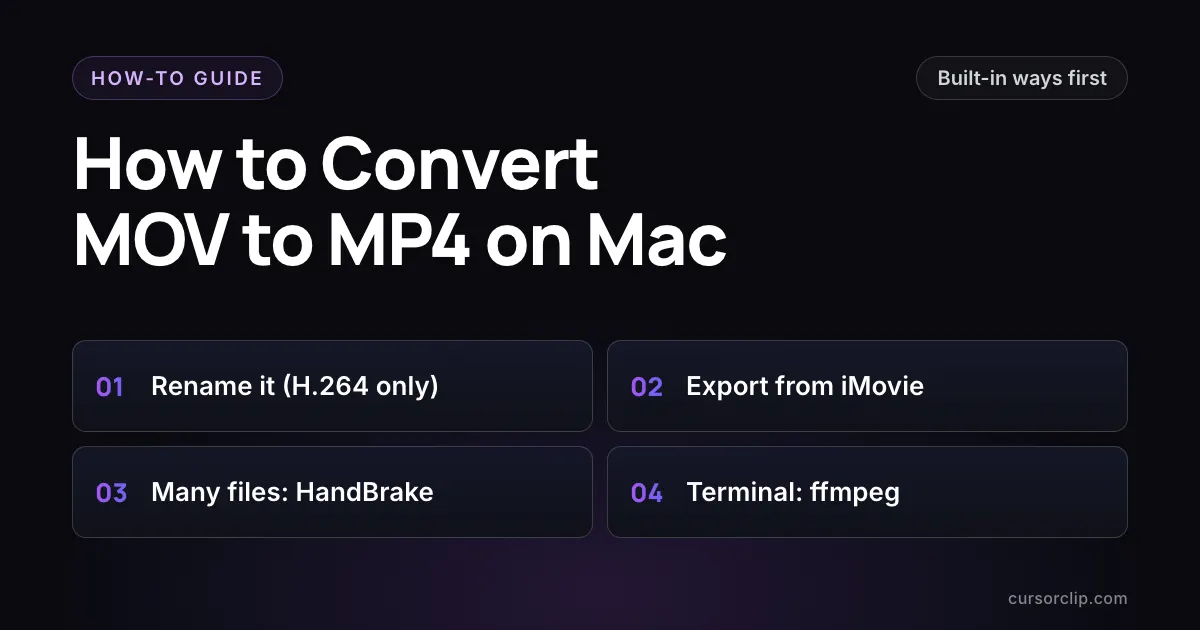
Check the codec first: select the MOV, choose File > Get Info and read Codecs. If it says H.264, Apple says renaming it to .mp4 is enough. Otherwise, export it from iMovie (free from Apple). QuickTime Player can’t save MP4. For many files, use HandBrake; in Terminal, ffmpeg rewraps a MOV as MP4 in seconds.
| Method | What you get | Best for |
|---|---|---|
| Rename to .mp4 (built in) | The same video, new extension | H.264 MOVs, per Apple |
| iMovie (free) | An MP4, re-encoded | Other codecs, or a smaller file |
| QuickTime Export As (built in) | A .mov only | Not an MP4 converter on its own |
| HandBrake (free) | An MP4, re-encoded | Many files at once |
ffmpeg -c copy (free) | The same video in a standard MP4 | The fastest route, in Terminal |
| ffmpeg re-encode (free) | An H.264 MP4, re-encoded | A file that still won’t play or upload |
MOV vs MP4: what actually changes
MOV and MP4 are both containers: a wrapper around the video, the audio, and the information about them. The video inside a Mac screen recording is usually H.264 or HEVC, and either can sit in a MOV or an MP4. Apple’s support article on this exact task frames the reason to convert simply: so you can upload the video to websites, or open it in other apps that don’t support MOV files.
That gives you two kinds of conversion, and it helps to know which one you are doing:
- Rewrap (or rename). The video stays exactly as it is. A rewrap writes it into a new MP4 wrapper; a rename changes only the file name. Either takes seconds, the file stays about the same size, and nothing is lost.
- Re-encode. The video is compressed again into a new file. It takes longer and loses a little detail, but you can make the file much smaller or switch an HEVC video to H.264.
First, check which codec your MOV uses
This decides which method fits, so it is worth ten seconds.
- In the Finder, select the MOV file.
- Choose File > Get Info (or press Command-I).
- Open More Info and read the Codecs line.
If it lists H.264, the rename method below works, per Apple. If it lists HEVC or anything else, go to iMovie, HandBrake or ffmpeg.
For screen recordings, Apple’s article How to record the screen on Mac (Apple Support 102618, published 14 September 2026, checked 14 October 2026) says that on supported Macs running macOS Tahoe 26 or later, SDR (Most Compatible) records H.264 and HDR records HEVC. The setting is under Options in the Screenshot toolbar (Shift-Command-5).
Can you just rename .mov to .mp4?
Yes, if the video is H.264. Apple’s support article Convert a MOV file to MP4 on Mac (published 25 April 2025, checked 14 October 2026) gives these steps:
- Check that one of the codecs is H.264 (see above).
- To keep the original, Control-click the MOV and choose Duplicate.
- Control-click the MOV, choose Rename, select the
movextension and typemp4after the period. Press Return. - Choose Use .mp4 in the window that appears.
Apple notes that the resolution and file size stay the same as the original. If the video won’t upload to a website or app after you change the extension, Apple says to convert the original MOV with iMovie instead.
What a rename does not change. For this guide, a 64-second H.264 screen recording from a Mac running macOS 27.0 was copied and renamed to .mp4, then checked on 14 October 2026. It opened and decoded with Apple’s AVFoundation, and it played in a Chromium-based browser (Chrome 152 engine). But the file still describes itself as a QuickTime movie inside (its brand reads qt), where a file rewrapped with ffmpeg reads isom, the standard MP4 brand. A checker that reads the file rather than its name could treat the two differently. If an upload still fails, Apple’s answer is iMovie; ffmpeg’s rewrap (below) is a faster route that writes a standard MP4 without re-encoding.
Convert MOV to MP4 with iMovie (free, from Apple)
iMovie is Apple’s free video editor, in the Mac App Store. Apple recommends it for MOVs that aren’t H.264, and its article says it saves an MP4. Its steps, from the same article:
- In iMovie, click Create New in Projects view, then choose Movie.
- Click Import at the top of the window, find the MOV, select it and click Import Selected.
- Select the clip in the browser, then choose Edit > Add to Movie (or press E).
- Click the Share button and choose Export File. (The iMovie User Guide gives the menu route as File > Share > File.)
- To make the file smaller, set Quality to Medium or Low, or choose a lower resolution. The estimated size appears below the thumbnail.
- Click Next, choose where to save the MP4, and click Save.
Two things to know. iMovie exports one item at a time, per its user guide, so it is slow for a folder of files. And it re-encodes, so for an H.264 file the rename above is faster and keeps the original quality.
Does QuickTime Player convert to MP4?
No. Apple’s QuickTime Player User Guide (Export movies to other file formats and resolutions, macOS 27 version, checked 14 October 2026) says that File > Export As saves a QuickTime movie (.mov) using H.264 or HEVC, and states that QuickTime Player doesn’t export movies as MP4 videos.
It can still help when your MOV is HEVC and you don’t want to install anything:
- Open the MOV in QuickTime Player and choose File > Export As.
- Pick 720p or 480p (always H.264), or 1080p or 4K and set Format to Greater Compatibility, which Apple says exports H.264. Smaller File Size exports HEVC.
- Save, then rename the exported
.movto.mp4as above, since it is now H.264.
This re-encodes, so it takes a while on long recordings. Window > Show Export Progress shows how far along it is.
What about Finder’s Encode Selected Video Files? It is still on macOS 27. Control-click a video in the Finder and choose it from the shortcut menu. It saves a new .mov, not an MP4: on macOS 27.0 the action’s own script names every video output .mov (H.264 480p to 2160p, HEVC, or ProRes), checked 14 October 2026. If you pick an H.264 setting, Apple’s rename method then works on the new file.
Convert many files at once with HandBrake
HandBrake is a free, open-source video converter. On 14 October 2026 its site listed version 1.11.2 for macOS 10.13 or later, as a Universal download (Apple silicon and Intel), and its download page notes it runs entirely on your computer with no account.
For one file, per HandBrake’s quick start guide:
- Click Open Source (or drag the MOV onto the window).
- Pick a preset. The default, Fast 1080p30, is one of HandBrake’s General presets, which all save MP4.
- Check Save As (the file name) and To (the folder), so you know where the new file goes.
- Click Start.
For a folder of files, HandBrake’s queue guide says you can open a folder as one source, then on a Mac choose File > Add Titles to Queue…, select the files, and start the queue. Give each output a unique name, or turn on automatic file naming.
One catch for screen recordings. HandBrake’s documentation says presets scale anything larger down to the preset’s maximum resolution and cap the frame rate. Fast 1080p30 turns a Retina-size recording into 1080p at up to 30 fps, which can soften small text. HandBrake’s H.264 General presets go up to 1080p30; its 2160p60 presets use HEVC or AV1. To keep the full size and every frame, set the Resolution Limit in HandBrake’s picture settings to cover your recording’s size (HandBrake’s Resizing video guide), and set the frame rate to Same as Source with Variable Frame Rate (its Frame rate guide). Or use the ffmpeg re-encode below.
Convert with ffmpeg in Terminal
ffmpeg is a free command-line tool. It is not part of macOS. The copy used for this guide (ffmpeg 8.1.2) was installed with Homebrew, using brew install ffmpeg. Every command below was run on 14 October 2026 on a Mac running macOS 27.0 (M5 Pro), on a copy of a 64-second, 75 MB screen recording made with Shift-Command-5 (H.264, 3962 by 2614 pixels).
In Terminal, cd into the folder with your file first, or drag the file onto the Terminal window to paste its full path.
Rewrap without re-encoding
ffmpeg -i input.mov -c copy output.mp4-c copy copies the video and audio into an MP4 wrapper unchanged. On the test recording it finished in under a second, the MP4 was within 3 KB of the original’s size, and the video stream was byte-for-byte identical to the original (matching MD5 checksums). The new file is a standard MP4 (brand isom), and it played with AVFoundation and in the Chromium-based browser. An HEVC MOV with AAC audio rewrapped the same way kept both its HEVC video and its audio.
To do a whole folder of MOVs at once in the default shell (zsh):
for f in *.mov; do ffmpeg -i "$f" -c copy "${f%.mov}.mp4"; doneThat writes each MP4 next to its MOV and leaves the originals alone. It worked on file names with spaces, including the narrow space macOS puts before “PM” in screen recording names.
Re-encode when the rewrap won’t play or upload
ffmpeg -i input.mov -c:v libx264 -crf 23 -pix_fmt yuv420p -c:a aac -fps_mode passthrough -movflags +faststart output.mp4What each part does:
-c:v libx264 -crf 23re-encodes to H.264 at a balanced quality. A lower number (such as 18) looks better and makes a bigger file.-pix_fmt yuv420puses 8-bit 4:2:0 color, the format most players expect.-c:a aacmakes the audio AAC.-fps_mode passthroughkeeps every frame. Screen recordings use a variable frame rate, and without this option ffmpeg 8.1.2 dropped 791 of the test recording’s 2,194 frames. With it, all 2,194 were kept.-movflags +faststartputs the file’s index at the front, so a browser can start playing before the whole file downloads.
On the test recording this took about 10 seconds and turned 75 MB into 6 MB at the full 3962 by 2614 size. How small yours gets depends on what is on screen: a mostly still screen compresses far more than video playing inside the recording.
Make the file smaller while you’re at it
If the real problem is size rather than format, two free tools of ours do both jobs at once:
- The MOV compressor runs in your browser with no upload and exports MP4 (the default) or MOV. Its FAQ gives typical limits of about 200 MB per file on most devices.
- The free Video Compressor for Mac is a separate Mac app that saves MP4, MOV, MKV, WebM or AVI, for bigger files or repeated jobs.
Screen recordings: skip the conversion
If most of your MOVs are screen recordings, the conversion step comes from the recorder. The Screenshot toolbar and QuickTime Player save recordings as .mov (Apple’s Mac User Guide, Take screenshots or screen recordings on Mac, checked 14 October 2026). QuickTime Player’s File > New Screen Recording opens the same Screenshot tools, per the QuickTime Player User Guide. If you are not sure where yours went, see where screen recordings go on Mac.
CursorClip is a Mac screen recorder that exports MP4 directly. In CursorClip 2.0.4, the current release, the export dialog offers MP4 (the default) or MOV, H.264 or HEVC, Original, 720p, 1080p or 4K size where the recording is large enough, and 24, 30 or 60 fps, or a GIF for recordings of 10 minutes or less.
To be plain about the limits: CursorClip is not a converter. It exports only recordings it made itself and cannot open a MOV you already have. For those files, use one of the methods above. Try it free: recording and editing are free, and a license unlocks export. It runs on macOS 13.5 or later.
Frequently asked questions
How do I convert a MOV to MP4 on a Mac for free?
Check the codec first: select the file in the Finder, choose File > Get Info and look at Codecs under More Info. If it says H.264, Apple says you can rename the file from .mov to .mp4 and choose Use .mp4. For any other codec, or if a site still rejects the file, Apple recommends iMovie, which is free: add the clip to a movie, click Share, choose Export File and save the MP4. For many files at once, use HandBrake, which is also free.
Can QuickTime Player save a video as MP4?
No. Apple’s QuickTime Player User Guide says File > Export As saves a QuickTime movie (.mov) using H.264 or HEVC, and that QuickTime Player doesn’t export movies as MP4 videos. If you export with H.264 (Greater Compatibility, or 720p and 480p, which are always H.264), Apple’s rename method then works on the exported file.
Is it safe to rename .mov to .mp4?
For a MOV that uses H.264, Apple documents renaming as a way to convert it, and the video inside does not change. Duplicate the file first so you keep the original. If the renamed file still won’t upload, Apple says to convert the original MOV with iMovie instead. For HEVC or other codecs, convert rather than rename.
Does converting MOV to MP4 lose quality?
Renaming the file or rewrapping it with ffmpeg’s -c copy keeps the same video, so nothing is lost. iMovie, QuickTime Player’s Export As, HandBrake and an ffmpeg re-encode all compress the video again, which can soften fine detail such as small text, in exchange for a smaller file. Keep the original until you have checked the new one.
Why are Mac screen recordings saved as MOV?
That is how macOS saves them. Apple’s Mac User Guide says screen recordings made with the Screenshot toolbar (Shift-Command-5) are saved as .mov files. On macOS Tahoe 26 or later, Apple says the SDR (Most Compatible) option records H.264 and HDR records HEVC, which decides whether the rename method applies.
Is CursorClip free?
Recording and editing in CursorClip are free; exporting needs a license, with plans on the CursorClip pricing page ($70 once or $29 a year). Exports can be MP4, MOV or GIF. CursorClip is a screen recorder, not a converter: it exports only recordings it made itself and cannot open an existing MOV.
Sources and dates
All pages were read on 14 October 2026.
- Apple Support 120755, Convert a MOV file to MP4 on Mac (published 25 April 2025): checking the codec, the rename method for H.264, iMovie export steps, the iMovie fallback when an upload fails.
- QuickTime Player User Guide (macOS 27), Export movies to other file formats and resolutions: Export As saves .mov with H.264 or HEVC; no MP4 export. Automation tips: Encode Selected Video Files. Record your screen: File > New Screen Recording opens Screenshot.
- macOS 27.0 Encode Media Automator action script (used by Encode Selected Video Files), read 14 October 2026: every video setting saves .mov, audio only saves .m4a.
- iMovie User Guide, Export a movie, trailer, or clip as a file: File > Share > File, one item at a time. Mac App Store listing: iMovie is free.
- Apple Support 102618, How to record the screen on Mac (published 14 September 2026): SDR records H.264, HDR records HEVC. Mac User Guide, Take screenshots or screen recordings on Mac: recordings are .mov.
- HandBrake: handbrake.fr home and downloads pages (version 1.11.2, macOS 10.13 or later), and the HandBrake documentation pages Quick start, Official presets, Using the queue, Resizing video and Frame rate.
- ffmpeg results: run on a copy of a Shift-Command-5 recording, macOS 27.0, ffmpeg 8.1.2 (Homebrew), Apple M5 Pro. Playback checked with AVFoundation and a Chromium 152 browser engine.
- CursorClip facts: the CursorClip 2.0.4 (build 40) export dialog, and the CursorClip tool pages for the compressor formats.
Related reading
- Find the recording first: where screen recordings go on Mac.
- Trim it before you convert: how to edit a screen recording on Mac with QuickTime Player and iMovie.
- Too big to send: compress it on your Mac or in your browser, with no upload either way.
- Record a new one: the complete Mac screen recording guide.