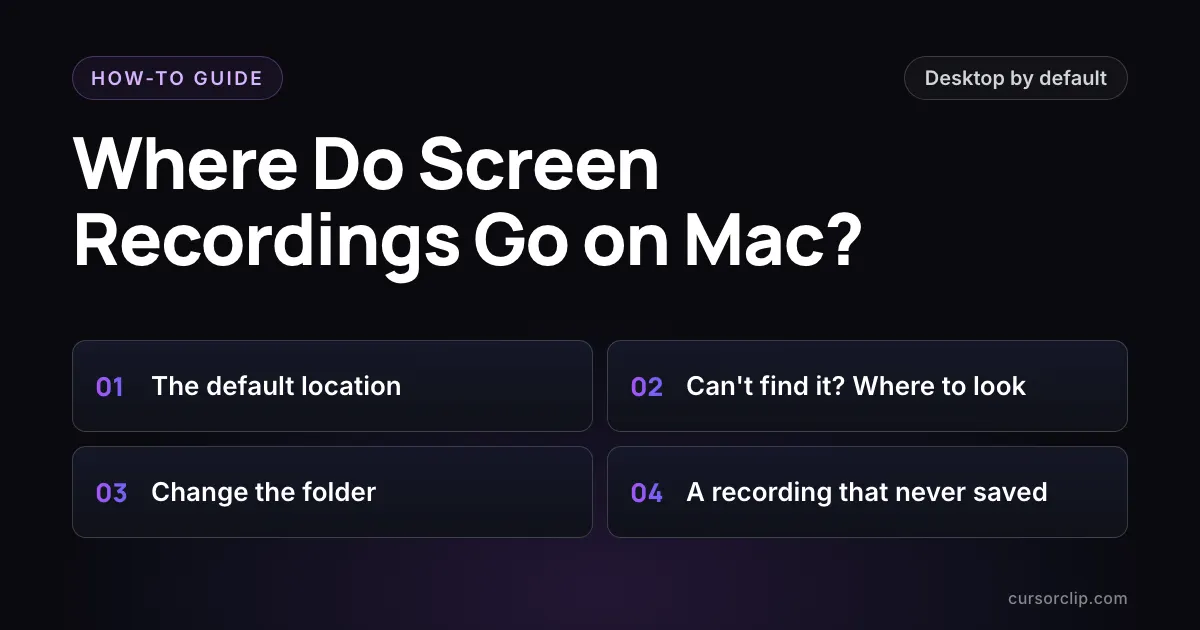
Mac screen recordings save to your Desktop by default, as a .mov file named “Screen Recording [date] at [time].mov”. If it is not there, press Shift-Command-5, click Options and see which location is ticked under Save to. Or press Command-Space and search Spotlight for “Screen Recording”.
That covers the Screenshot toolbar and QuickTime Player on current macOS. The rest of this guide is for when the file is not where it should be, how to make new recordings save somewhere else, and what to do if a recording never saved at all.
| Your situation | Where to look | What to do |
|---|---|---|
| You just stopped a recording | The Desktop, a few seconds later | Wait for the thumbnail in the corner to go away, or swipe it right to save now |
| It is not on the Desktop | Shift-Command-5 > Options > Save to | The ticked location is where it went |
| Your Desktop looks empty | iCloud Drive > Desktop | Desktop & Documents Folders may be on, or was turned off |
| You have no idea where it went | Spotlight (Command-Space) | Search “Screen Recording” |
| It never saved | The Trash, then Time Machine | Apple documents no recovery folder for interrupted recordings |
The default location: your Desktop
Apple’s own article on recording the screen states it plainly: “By default, recordings are saved to your desktop” (Apple Support 102618, published 14 September 2026, checked 14 October 2026). The same article gives the name a recording gets when it saves automatically: “Screen Recording [date] at [time].mov”.
A few details explain why a recording can seem to be missing for a moment:
- It saves after you stop, not while you record. Stop with the Stop button in the menu bar, or press Command-Control-Esc. Until you stop, there is no file to find.
- The floating thumbnail comes first. Apple’s Mac User Guide says the thumbnail floats in the bottom-right corner “for a few seconds” so you can drag it, mark it up or share it, “before it’s saved to the location you specified” (Mac User Guide: Take screenshots or screen recordings, checked 14 October 2026). Swipe the thumbnail to the right to save it straight away.
- It is a
.movfile. The same guide says screen recordings are saved as.movfiles and their names begin with “Screen Recording” and include the date and time. On supported Macs running macOS Tahoe 26 or later, Apple 102618 adds that Options > SDR (Most Compatible) records H.264 and HDR records HEVC. The extension is.moveither way, and you can change a MOV into an MP4 if a site won’t take it.
Can’t find your screen recording? Check these places
Work down this list in order.
The Save to setting you (or someone) changed
Press Shift-Command-5 and click Options. Under Save to, the ticked item is where new recordings go. Apple’s guide describes it as a choice between “one of the preset locations” and Other Location, which lets you pick any folder.
If Save to names an app rather than a folder, look in that app. Apple notes that “depending on where you chose to save the screenshot or recording, an app may open” when you finish.
Opening Options does not start a recording. Press Esc to close the toolbar; Apple 102618 says Esc cancels a recording before you click Record.
Desktop & Documents in iCloud Drive
If Desktop & Documents Folders is turned on in iCloud settings, your Desktop folder is stored in iCloud Drive, and new files you create there are stored in iCloud. Apple’s support article Add your Desktop and Documents files to iCloud Drive (published 14 September 2026, checked 14 October 2026) gives two places to find it in the Finder:
- macOS Tahoe 26 or later: iCloud Drive’s Desktop folder is in the Finder sidebar under Favorites, with a cloud icon next to its name.
- Earlier macOS: look in the iCloud section of the Finder sidebar.
Two cases catch people out:
- It was turned off. Apple says that when you turn Desktop & Documents Folders off, “your files stay in iCloud Drive”, and a new Desktop folder is created on your Mac. Older recordings are still in iCloud Drive > Desktop, not on the Desktop you see now.
- You use more than one Mac. Apple says a second Mac’s Desktop files go into a folder inside iCloud Drive’s Desktop folder, named after that Mac.
The same article notes you can open iCloud Drive’s Desktop folder in the Files app on an iPhone or iPad, or on iCloud.com, if the Mac is not to hand.
Search with Spotlight
Because every recording’s name begins with “Screen Recording”, Spotlight can find it by name in whatever folder it landed, even if your desktop icons are hidden. Press Command-Space, type Screen Recording, and the newest one is usually near the top.
You clicked or dragged the thumbnail
The floating thumbnail is a shortcut, and it changes where the file ends up. Apple’s guide lists what you can do while it is on screen:
- Drag it into a document, an email, a note or a Finder window. The recording goes where you dropped it.
- Click it to open a window where you can trim the recording or share it.
If you dragged it into an email or a message, that copy is in the email or message. If you are not sure where you dropped it, Spotlight (above) is the fastest way back.
How to change where screen recordings save
Change it once and every new recording goes there. Recordings you already made stay where they are, so drag them to the new folder in the Finder if you want them together.
In the Screenshot toolbar
- Press Shift-Command-5.
- Click Options.
- Under Save to, choose one of the listed locations, or click Other Location and pick a folder.
- Press Esc to close the toolbar, or start your recording.
Apple’s screenshot article (Apple Support 102646, published 14 September 2026, checked 14 October 2026) calls this changing “the default save location in the Options menu”.
You do not need Terminal for this. Options > Save to is the route Apple documents for screen recordings.
In QuickTime Player
On current macOS, QuickTime Player’s File > New Screen Recording opens the same Screenshot toolbar. Apple’s QuickTime Player User Guide says you can “click Options to control what you record”, including “the location where you want to save your screen recording” (Record your screen in QuickTime Player on Mac, checked 14 October 2026). So the steps above apply.
Apple 102618 also covers Macs where QuickTime Player shows its own Screen Recording window instead. There, QuickTime opens the recording automatically when you stop. Apple’s QuickTime guide says it gives recordings a placeholder name, such as Untitled, and saves them to a default location; choose File > Save to name the recording and pick the folder it goes in (Save or rename a recording in QuickTime Player on Mac, checked 14 October 2026).
A recording that never saved
This is the hard case, and Apple’s documentation is short on it. Here is what can be said for certain.
- Is it still recording? If the Stop button is still in the menu bar, the recording is still running. Click it, or press Command-Control-Esc, and the file saves.
- Is it open in QuickTime Player as “Untitled”? Choose File > Save to give it a name and a folder you will remember.
- Was it deleted after it saved? Look in the Trash. If you back up with Time Machine, a file that saved before your last backup can be restored from it.
- Did the Mac shut down, crash or run out of power mid-recording? Apple documents no autosave or recovery folder for an interrupted Screenshot recording. Some third-party guides point to a hidden folder at
~/Library/ScreenRecordings. Apple does not mention it, and it was not present on a Mac running macOS 27.0 checked for this guide on 14 October 2026, so treat it as a long shot.
For a long recording you cannot redo, such as a lecture or a two-hour session, record ten seconds first, stop, and confirm the file appears where you expect. Plug in the charger before you start.
Where CursorClip saves your recordings
CursorClip is a Mac screen recorder that works differently. It keeps each recording as an editable project rather than one finished movie, so it saves in two places: the project, and the video you export from it. (Facts in this section are from CursorClip 2.0.4, the current release, and its export guide.)
- The project saves itself. When you start recording, CursorClip creates a project in Documents > CursorClipRecordings and records straight into it. Each recording is one
.cursorclipproject, named with the date and time it started, in UTC. You do not have to remember to save it. - Getting back to it. File > Open Recent lists your recent projects, and File > Reveal in Finder (Shift-Command-R) shows the open one in the Finder. If you used File > Save As, the project is wherever you saved it; Open Recent still lists it.
- Why a project, not a
.mov. Inside the project, your screen, camera, microphone and cursor are stored as separate files. That is what lets you change the zooms, the camera layout or the cursor after you record, which a single movie file cannot do. - The video you share goes where you choose. Click Export to file…, pick a folder and a file name, then click Save. When it finishes, Show in Finder takes you straight to the file.
Two limits worth knowing. CursorClip opens only its own projects, so it cannot open a .mov from the Screenshot toolbar. And because projects live in Documents, they are stored in iCloud Drive and use your iCloud storage if Desktop & Documents Folders is turned on.
Try it free: recording and editing are free, and a license unlocks export. It runs on macOS 13.5 or later.
Recordings filling up your Mac?
Screen recordings can be large, and they pile up on the Desktop. The free Video Compressor for Mac shrinks MOV and MP4 files on your Mac, with no uploads.
Frequently asked questions
Where are screen recordings saved on a Mac?
On your Desktop, by default. Recordings made with the Screenshot toolbar (Shift-Command-5) are .mov files named “Screen Recording [date] at [time].mov”. If you or someone else picked a different folder under Options > Save to, new recordings go there instead.
Why can’t I find my screen recording?
The usual reasons: Save to in Shift-Command-5 > Options points to another folder or an app; Desktop & Documents Folders in iCloud Drive is on, so your Desktop lives in iCloud Drive; or you dragged the floating thumbnail somewhere before the file saved. Search Spotlight (Command-Space) for “Screen Recording” to find it wherever it went.
How do I change where screen recordings save on a Mac?
Press Shift-Command-5, click Options, and under Save to choose one of the listed locations or click Other Location and pick a folder. New recordings save there from then on. Recordings you already made stay where they are, so move them in the Finder.
Where do QuickTime screen recordings save?
On current macOS, QuickTime Player’s File > New Screen Recording opens the same Screenshot toolbar, so the recording follows the Save to setting in Options, which is the Desktop unless you changed it. If QuickTime instead shows its own Screen Recording window, it opens the finished recording itself, and you choose the name and folder with File > Save.
Can I recover a screen recording that didn’t save?
Apple documents no recovery folder for a Screenshot recording that was interrupted before it saved. If the file did save and was later deleted, check the Trash, then a Time Machine backup if you have one. A recording that was never stopped and saved cannot be found by searching.
Where does CursorClip save recordings?
CursorClip saves each recording as a project in Documents > CursorClipRecordings as soon as you start recording. File > Open Recent reopens it, and File > Reveal in Finder (Shift-Command-R) shows it. Exported videos go to the folder you pick when you click Export to file…
Sources and dates
All Apple pages were read on 14 October 2026 for macOS 27, the current version in Apple’s guides:
- Apple Support 102618, How to record the screen on Mac (published 14 September 2026): default Desktop location, file name, Stop shortcut, SDR and HDR formats, QuickTime’s two recording routes.
- Mac User Guide, Take screenshots or screen recordings on Mac: Save to and Other Location, the floating thumbnail,
.movfiles. - Apple Support 102646, Take a screenshot on Mac (published 14 September 2026): changing the default save location in Options.
- Apple Support, Add your Desktop and Documents files to iCloud Drive (published 14 September 2026): where the Desktop folder goes, and what happens when the feature is turned off.
- QuickTime Player User Guide, Record your screen and Save or rename a recording.
- CursorClip facts: CursorClip 2.0.4 (build 40) and CursorClip’s own export guide.
Related reading
- Recording a new one: the complete Mac screen recording guide, and recording with audio if you need your voice or app sound.
- Found it, now fix it: how to edit a screen recording on Mac with QuickTime Player and iMovie.
- Too big to send: compress it on your Mac or convert a MOV in your browser, with no upload either way.