Quick
Fastest to start. Good on clear speech. Built into macOS on Apple silicon with macOS 26 or later. On Apple silicon with macOS 14, and on Intel, a 227 MB English-only download.
Typing captions by hand can take longer than recording the lesson. CursorClip listens to your voice and writes the captions for you, on your Mac. Fix the odd word, pick a style, and export them in the video or as a file for your course site.
Made on your Mac
Speech turns into text on your Mac. Making captions never sends your voice or your words anywhere, so a client demo or an unreleased product stays private. The details are in our privacy policy. Nothing is transcribed until you ask: open the Captions page and CursorClip starts making them while you keep editing.
Fastest to start. Good on clear speech. Built into macOS on Apple silicon with macOS 26 or later. On Apple silicon with macOS 14, and on Intel, a 227 MB English-only download.
A 220 MB download. Good quality, weaker in noisy rooms. 25 European languages. Apple silicon with macOS 15 or later.
A 632 MB download. Best with names, accents and noise. 25 European languages. Apple silicon with macOS 14 or later.
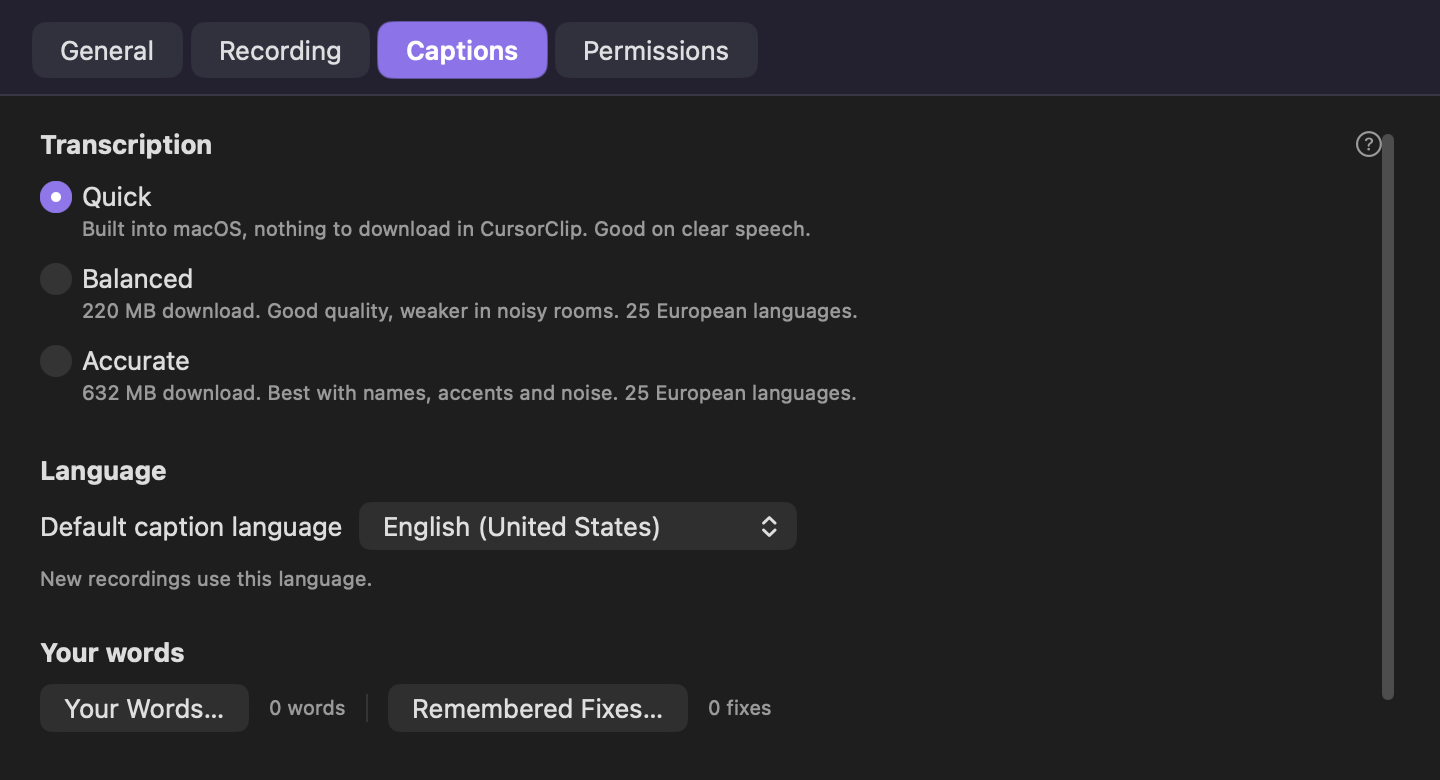
Choose Quick, Balanced or Accurate in Settings, Captions. A choice that needs a model downloads it once, when you first use it, and every recording uses it after that.
Settings shows the choices your Mac can run, and says why when one needs Apple silicon. Making captions needs macOS 14 or later. Read the system requirements for each Mac.
Words
Speech recognition gets product names and jargon wrong. The Captions list beside the video shows every caption with its time. Click a caption to jump to it, and double-click to fix a word by typing over it.
Fix a misheard name everywhere in one step. Undo puts every match back.
Add the names and terms you say often, with what captions tend to write instead. New captions spell them your way.
"Command shift four" becomes Cmd-Shift-4 and "config dot json" becomes config.json. Each change can be undone.
Right-click a word and choose Emphasize to keep it in the emphasis color while its caption is on screen.
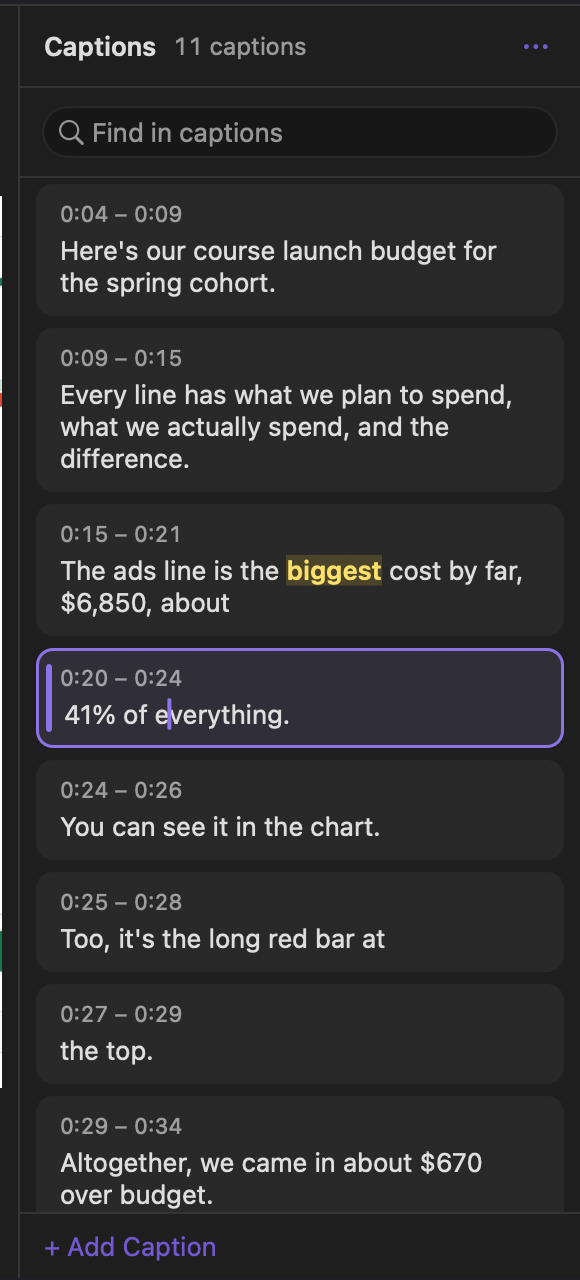
Already have captions? Import an .srt or .vtt file. Prefer to write them yourself? + Add Caption types one at the playhead, and that works on every Mac, macOS 13.5 included.
Style
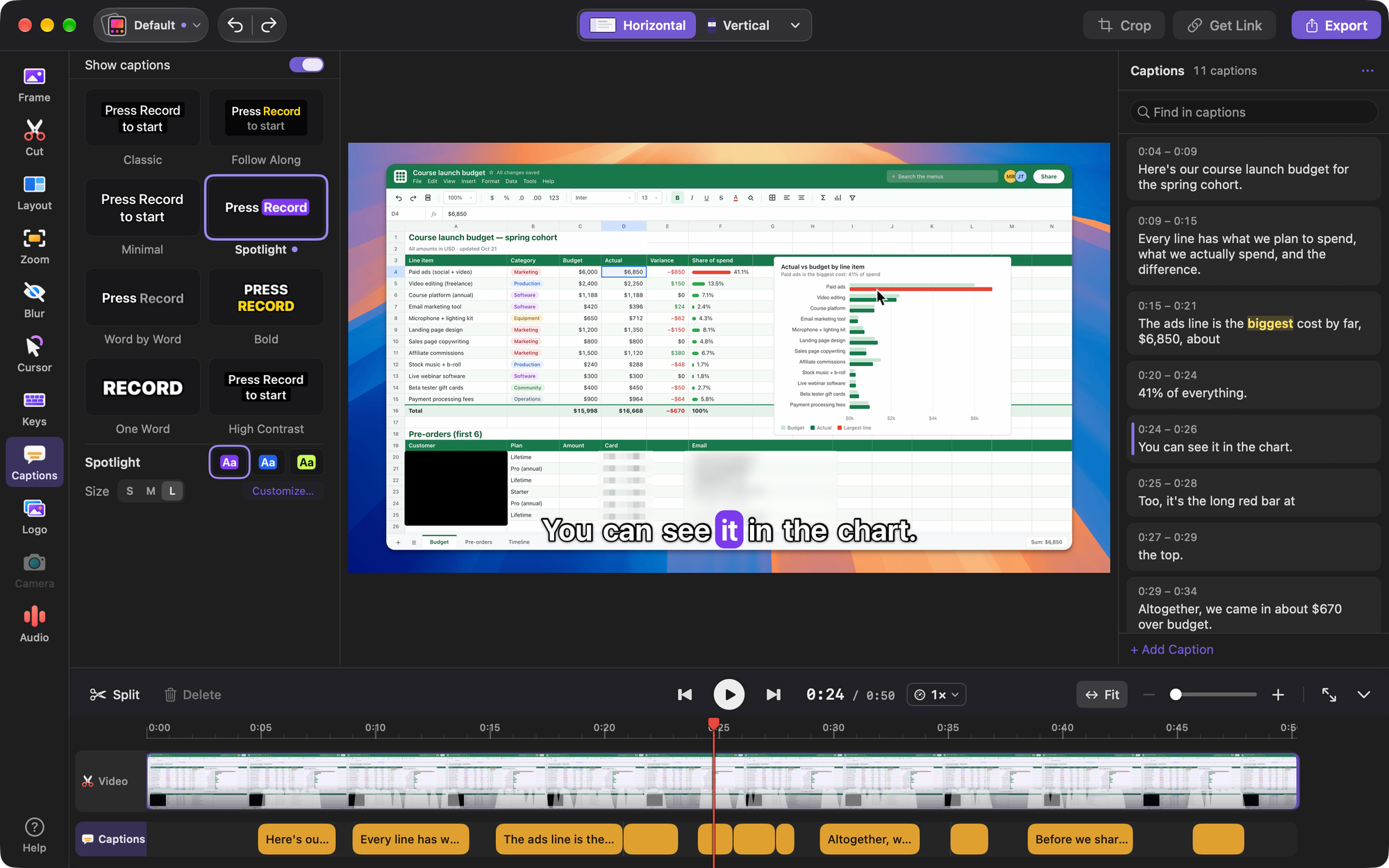
Hover over a style and it plays on your own video. Each one comes in 2 or 3 versions, such as Light or Editorial for Classic, and S, M and L set the size. Until you pick one, vertical videos use Spotlight and the rest use Classic.
Choose 1, 2 or 3 lines, any size from 70 to 150 percent, a line box, a card or no box, outline and shadow, the font, and how the spoken word shows: in its own color or on a box. Motion goes from Off to Subtle or Lively.
Click Save Style… to keep it. Your saved styles show under Your styles, above the built-in eight, in every project, and they are kept with your Looks.
Position
In a screen recording the important thing is often at the bottom of the screen, right where captions go. On Auto, captions step aside to keep your cursor, zoom and camera clear.
Only Auto moves on its own. Bottom and Top stay put. Or drag the captions on the video to place them yourself.
Move the playhead, press Option-Command-B, and captions from that caption on can sit somewhere else. Remove This Part takes a change out again.
Wide, square and vertical videos each keep their own placed spot, so your vertical version doesn't inherit the landscape one.
Export
What you see in the preview is what you export. Turn on Show captions and they go into the video, styled and animated exactly as in the preview. Make a link with Get Link and the video that goes up has its sound and any captions shown in it.
Save .srt and .vtt for YouTube and course players, and .txt as a plain transcript, next to the video.
File, Export Captions… writes the files from your current edit without rendering the video again.
Captions go into a GIF as in the preview, with simpler animation.
Making, fixing and styling captions works without a license. Exporting needs one, like any export.
Step by step, with every control named: read the captions help article.
Captions are new in CursorClip 2.2.0. Open a recording in the editor and click Captions in the tool column, or press Control-Command-C.
No. Speech turns into text on your Mac. CursorClip downloads a speech model once if your choice needs one, and sends no part of your audio or your captions to do it. Only if you choose Get Link does a copy of the video go up, with its sound and any captions shown in it.
Making captions needs macOS 14 or later. Apple silicon Macs get more choices than Intel Macs: Intel Macs get Quick, in English. On macOS 13.5 you can still import a caption file or type captions yourself.
Balanced and Accurate cover 25 European languages. Quick on macOS 26 uses the languages Apple's speech recognition offers on your Mac; on macOS 14 and on Intel Macs, Quick is English only. Pick the default language in Settings, Captions.
No. Nothing is transcribed until you ask. Opening the Captions page for a recording that has no captions starts making them, and they show on the video when they are ready. If your choice needs a one-time download first, the Captions page asks before it starts.
Yes. When you export a video, CursorClip can save .srt, .vtt and .txt files next to it. File, Export Captions writes the same files without exporting the video again. You can also import an .srt or .vtt file you already have.
Making, fixing and styling captions works without a license. Exporting the video, or exporting caption files, needs a license, the same as any export.
Download CursorClip and open the Captions page on your next recording.
Try it free