Sharing · How-to · New in 2.2.0
Share a video with a link
Click Get Link in the editor. CursorClip uploads the video and copies a link anyone can watch and download, so you can paste it into Slack, an email or a ticket. Links need CursorClip 2.2.0 or later and a license.
Get a link
- 1
Click Get Link
Open your project in the editor and click Get Link, the link button at the top right, just left of Export. You can also choose File > Get Link…. Without an active license the button shows a lock: click it to activate, and the Get Link window opens once you have.

- 2
Check the title
The title starts as your project's name and is "Shown on the page and in the link". Below it, a line shows the length, the size and about how much will upload, for example "2:31 · 1080p · about 95 MB to upload". On a Lifetime license the window also says "Uses 1 of your 20 links."
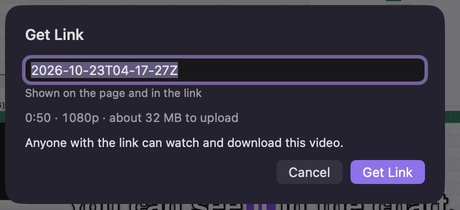
- 3
Click Get Link in the window
CursorClip first prepares a copy of the video for the link. You'll see "Preparing the video…" with a Cancel button, the same way an export runs. When it's done, the Get Link window comes back.
- 4
Paste the link
The link appears at the top of the window and is already on your clipboard (the window says "Link copied"). Paste it into Slack, an email or a course page now: the window says "You can send the link now. It plays when the upload finishes." Until then, people who open it see "This video is almost ready." Use Copy Link to copy it again.
- 5
Click Done, or wait for Ready
The window shows "Uploading · 42 MB of 95 MB · about 1 min left". Click Done and keep working: the upload carries on, and the Get Link button shows a ring and the percent. Click the button to see the link again. When the window says "Ready. Anyone with the link can watch it now.", the video plays for everyone. Open in Browser shows you the page at any point, even before then.
Other ways in
- From the Your video is ready window. After an export, click Get Link, the last button in the Your video is ready window. It isn't offered for GIF exports. If the file is an H.264 MP4 no larger than 2560 pixels on its long side, CursorClip uploads it as it is, with no preparing step. If it's HEVC, a .mov file or larger, the window says "CursorClip makes a 1080p copy of this video for the link first, so it takes a little longer." and prepares that copy when you click Get Link.
- You already made a link for this version. The window says "You already have a link for this version." Click Copy Link to use it, or Make a New Link.
- You edited the project since. The window says "Your earlier link for this project still shows the old version." A link always shows the video as it was when you made it, so click Get Link to make a new one. Open Links takes you to the old one.
While it uploads
- Quitting. If you quit while a video uploads, CursorClip asks: "CursorClip is still uploading … It will finish the next time you open CursorClip." Choose Quit or Keep Uploading. Every finished part is saved, and the upload picks up after you open CursorClip again.
- Going offline. The upload waits and starts again by itself when you're back online. CursorClip keeps your Mac awake only while it is sending, never while it waits.
- Cancel Upload…. Click it in the Get Link window and confirm "Cancel the upload? The link will stop working." with Cancel Upload, or choose Keep Uploading.
- Try Again. If an upload couldn't finish, Try Again carries on with the same link, so a link you already sent still works.
What a link does
- Who can watch. Anyone who has the link can watch the video in a browser and download it with Download video. They don't need CursorClip or an account. A link looks like https://cursorclip.com/share/product-tour-k7m2q9x4bd. Link pages are not listed in search engines.
- What they see. The player, your title, the length and the date, and Download video. If the video is gone, the page says so: "This video was removed by the person who shared it.", "This video isn't available." or "This video didn't finish uploading."
- Format. Links play as H.264 MP4, the format every modern browser plays.
- Views. Each link shows how many times it was watched. CursorClip doesn't show who watched.
- Your files. Only the video you make a link for is uploaded, with a still image from it and its title. Everything else stays on your Mac.
A link's video is made by the same kind of export as a file, so anything you blur stays hidden in it, and captions shown in the video come with it.
Your links: copy, rename, delete
Choose File > Links to see every link you've made, on all your Macs.
- Each row A still from the video, the title, the length and date, and either the view count or the status: Preparing, Uploading 42%, Waiting to retry, Couldn't finish (with Try Again) or Not available.
- Copy and open Hover over a link for Copy Link, Open in Browser and the More (⋯) menu. Double-click a link to open it in your browser.
- Rename… Right-click a link, or use ⋯, and choose Rename…. The new title changes the page and the link. A link you already sent keeps working.
- Delete Link… Right-click, use ⋯, or press Delete, then confirm "Delete this link?" with Delete Link. People who open it will see that the video was removed. The video is erased from our storage within 24 hours. The video on your Mac stays.
- On a Lifetime license The bottom of the window counts your links, for example "12 of 20 links · each can be up to 30 minutes".
- Offline The window shows your last list with "Last updated 5 min ago". Copying works; renaming and deleting need a connection.
How many links you get
- Lifetime license. 20 active links, each up to 30 minutes. Delete an old link to make room for a new one, or switch to the yearly plan, which has no fixed limit.
- Yearly and monthly plans. No fixed limit on links, under fair use.
- If your subscription ends. Your links keep working for at least 30 days. After that they may stop working and their videos may be deleted. If the Links window shows "Your links will be deleted on [date]. Renew to keep them.", click Renew, with the same email address, and everything stays as it is.
- If a purchase is refunded. Its links may stop working.
Compare the plans on the pricing page, or see what a link page looks like.
If it doesn't work
- You're offline. The upload starts when you're back online. Nothing to do. It starts by itself.
- CursorClip's link service isn't answering. We'll keep trying. Keep working, or quit: the upload carries on the next time you open CursorClip. If it still can't get through after a day, it stops with "couldn't finish" and Try Again.
- The upload of “…” couldn't finish. Click Try Again. The link stays the same.
- The upload of “…” can't be finished anymore. The upload waited too long. Click Get Link to make a new link.
- There isn't enough free space on this Mac to prepare the video. Free up some space, then click Try Again.
- Links can be up to 30 minutes on a Lifetime license. Trim the video, or export it and send the file.
- You have 20 links, the most a Lifetime license includes. Click Open Links and delete an old link, or View Plans to see the yearly plan.
- This video is too big for a link. Lower its size or quality in Export and try again.
- Links need an active CursorClip plan. Click View Plans.
- Your license isn't active on this Mac. Click Activate.
- You've made a lot of links today. Try again tomorrow, or email support@cursorclip.com.
Still stuck? Choose Help > Report an Issue… (⌥⌘I). The report includes how your uploads are doing (never your links or titles).