You just shipped something good.
It took weeks. The edge cases are handled. The interaction is clean. You are quietly proud of it.
You write the changelog entry. You post it on Twitter. You send the release email.
And then: nothing. No replies. No uptick in usage. The feature sits there, available, untouched by most of your users who either missed the announcement entirely or read it and had no idea what the feature actually did from a text description alone.
This is the most common failure mode in product development, and it has a name: the feature adoption gap. You built the thing. You told people about it. They still didn’t use it.
The fix is not a better announcement email. It is a ten to thirty second video that shows the feature doing what it does, in the context of a real workflow, so clearly that any user immediately understands both what it is and why they should care.
Why Text Announcements Fail
When you write “we’ve added bulk export to CSV,” you understand exactly what that means. You know what bulk export looks like, how to find it, when it’s useful, and what the CSV output contains.
Your users do not. Most of them will read “bulk export to CSV,” think vaguely “that sounds useful,” and go back to whatever they were doing. A fraction will go looking for the feature. A smaller fraction will actually find it. Fewer still will integrate it into their workflow.
This is not because your users don’t care. It is because text descriptions of software interactions require the reader to mentally simulate the feature, to picture the interface, imagine the click path, and construct a mental model of the interaction entirely in their head. That is a significant cognitive load for something they have not yet decided is worth their time.
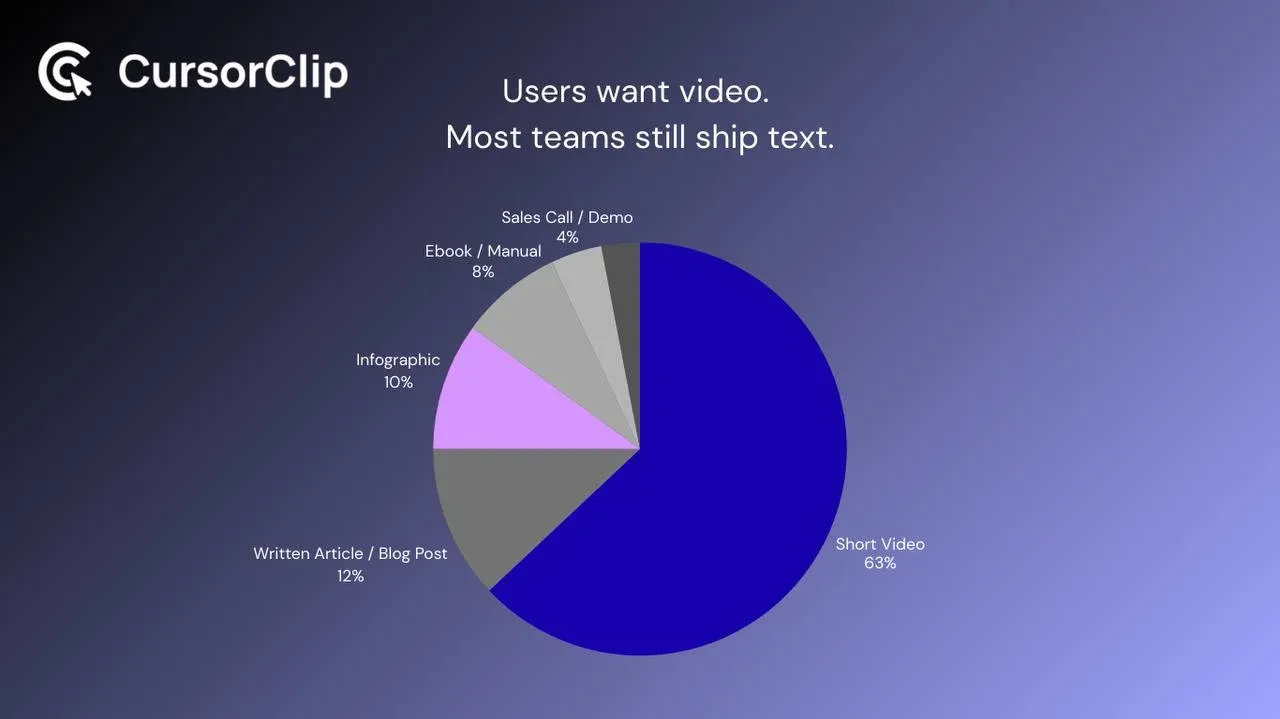
Video removes that load entirely. According to Wyzowl’s 2026 Video Marketing Report, 63% of people say they would most like to learn about a product or service by watching a short video. Text-based articles came in at 12%. That preference gap exists precisely because video makes software interactions immediately understandable in a way that prose cannot replicate.
The same report found that 57% of video marketers say video has helped them reduce support queries. That number is directly relevant to feature announcements: a user who watches a fifteen-second clip of your new feature does not need to send a support ticket asking how it works.
What a Feature Announcement Video Is (and Isn’t)
Feature announcement videos are not product demo videos. They are not tutorial walkthroughs. They are not getting-started guides. They are something more specific and more constrained than any of those.
A feature announcement video is a short, usually silent, screen recording that shows one new feature doing its thing from the moment it starts to the moment the result is visible. It lives in your changelog, your release tweet, your feature email, and wherever your existing users first hear about each release. It runs ten to thirty seconds. It loops.
The distinction from a full product demo is important. A demo is persuasive content aimed at converting strangers into users. It shows your whole product in its best light to someone evaluating whether to sign up. A feature announcement video is informational content aimed at existing users who already use your product and need to understand specifically what changed and why it helps them. The audience is different, the goal is different, and the format that serves them is different.
| Format | Audience | Goal | Length | Lives in |
|---|---|---|---|---|
| Product demo | Prospective users | Convert | 60 to 90 seconds | Landing page, ads |
| Feature announcement | Existing users | Adopt | 10 to 30 seconds | Changelog, email, social |
| Tutorial walkthrough | Onboarding users | Learn | 60 to 180 seconds | Help docs, onboarding |
| Feature spotlight | Mixed | Awareness | 30 to 60 seconds | Blog, social media |
Confusing these formats is why so many feature announcements miss. A three-minute product tour sent to existing users as a “feature update” tells them nothing they needed to know and takes three minutes they didn’t have.
How the Best Product Teams Do This
A handful of companies have made short feature videos so central to their release process that their changelogs and release posts are genuinely worth checking regularly. The common thread is not production value. It is focus and specificity.
Raycast ships every feature update with a tight GIF or short looping video showing exactly the new interaction. Nothing more. The GIF starts at the moment the feature becomes interesting, not from a home screen, not from a navigation click, and ends the moment the result is visible. Someone glancing at their changelog for thirty seconds leaves knowing precisely what changed and what to do with it.
Linear does the same. Their changelog entries combine a short text description with a direct, close-up screen recording of the new interaction. No voiceover, no intro, no feature highlights reel. The video answers one question: “what does this do?” in under twenty seconds.
Vercel regularly ships feature release clips that are barely longer than animated GIFs. Product-level changes, UI improvements, new configuration options, all shown in short, clean recordings that communicate the change completely without requiring a click-through to a longer explanation.
The pattern these teams share: they treat the video as the primary communication of what changed, not as supplementary decoration to a written changelog entry. When the video is the announcement, it has to do the whole job, so it gets designed to do it clearly.
The Anatomy of a Good Feature Announcement Video
Every effective feature video has the same three-part structure, whether it runs twelve seconds or thirty.
It starts mid-action. Not from the home screen. Not from a navigation click. From the moment the feature becomes visible or relevant. If you’re announcing a new bulk action, start with the items already selected. If you’re announcing a new export format, start at the export dialog. Viewers have five seconds of patience before they decide whether to keep watching, and starting from the beginning of a workflow burns all of it before getting to anything interesting.
It shows the full interaction through to the result. The middle of a feature video is the feature working. Every step between “feature starts” and “result appears” should be there, not abridged, not rushed, just shown at a pace that lets the viewer track each step. Move deliberately. What feels slightly slow to you reads as clear on screen.
It ends on the output. The last frame before the loop restarts should be the thing the feature produces: the exported file, the completed bulk action, the transformed state, the generated result. That is the frame that lingers in the viewer’s mind as the video loops. It answers the implicit question every user brings to a feature announcement: “what does this actually get me?”
What should not be in a feature announcement video: a logo, an intro card, narration explaining what you’re about to show, a CTA screen at the end, or any content that appears before or after the actual feature doing its thing.
You may find useful:
Recording a Feature Video in Fifteen Minutes
The reason most product teams don’t ship video with every release is that they think of video production as a significant time investment. For a polished product demo or a comprehensive tutorial, that’s true. For a feature announcement video, it’s not.
Here is the actual workflow from nothing to a published feature video.
Get the feature into its best starting state. Before recording, navigate to the point just before the feature becomes interesting. If the video is about a new bulk action, select the items. If it’s about a new keyboard shortcut, have the relevant panel open. The video should start at the last calm moment before the interesting thing happens.
Open CursorClip and select the application window. Window capture, not full screen. This keeps the recording focused entirely on your product interface with no desktop clutter visible.
Record the interaction at deliberate speed. Slow down about thirty percent from your natural pace. Before each key interaction, let your cursor rest on the target element for a beat. This is particularly important for short feature videos because auto-zoom needs a moment to settle on the element before you interact with it. CursorClip’s cursor-follow zoom will keep the viewer’s eye on exactly what you’re clicking, at a scale where they can read the label.
For longer customer-facing demos where tool choice matters more, compare the best screen recorders for SaaS demos on Mac.
Stop recording at the result. The moment the feature completes and the output is visible, stop. Do not navigate away. Do not continue to other features. Stop on the result.
Watch the auto-zoom preview. CursorClip shows you the recording immediately. Watch it once. The only question is whether the key interaction is clearly visible. If yes, export.
Export as GIF. For changelog entries, tweets, and most distribution channels, GIF is the right format. It plays without a click, it loops, and it works inline in every platform that matters for release communication: Twitter, Notion, email, GitHub, Slack. CursorClip exports optimized GIFs natively. For LinkedIn and dedicated video embeds, export as MP4 instead.
The full process, setup to exported file, takes about fifteen minutes for a feature you’ve just shipped and already understand well.
Where Your Feature Video Goes
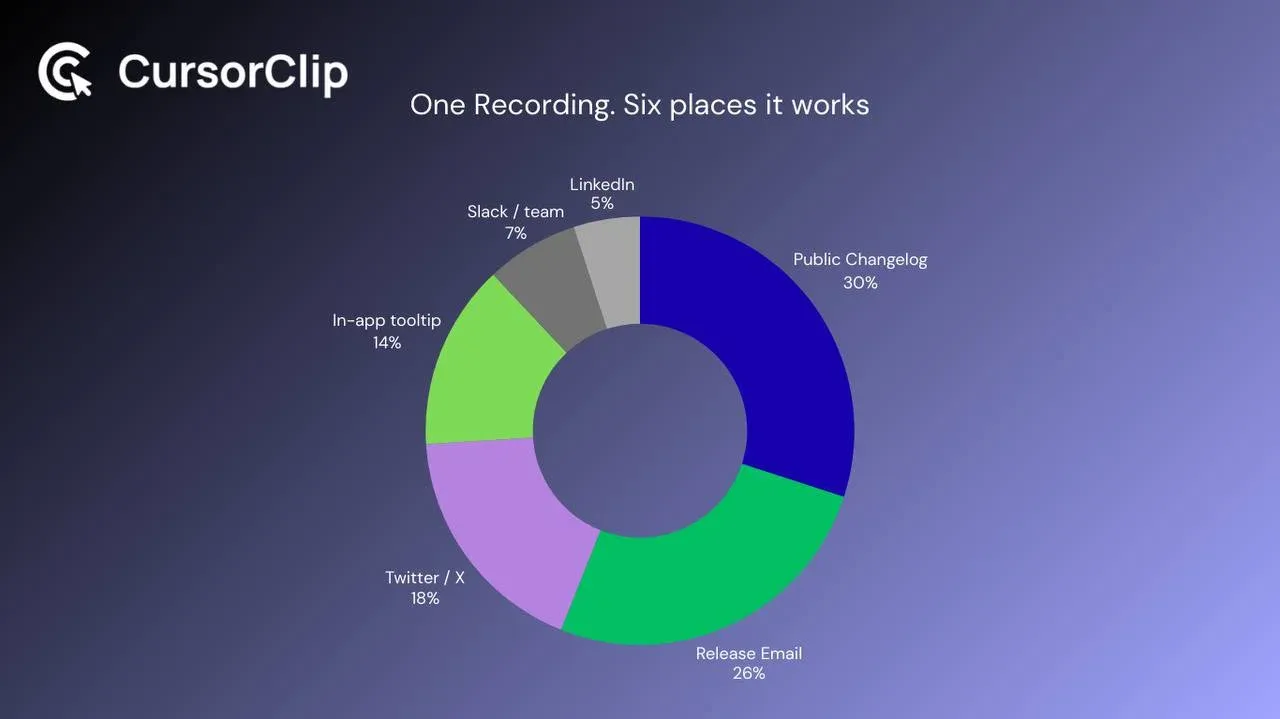
A single recording can live in multiple places, each of which reaches a different segment of your audience.
| Channel | Format | Who sees it | Why it works |
|---|---|---|---|
| Public changelog | GIF or MP4 | Existing users, researchers | Primary destination for release watchers |
| Release email | GIF (inline or thumbnail) | Subscribers | Autoplays inline; no click needed |
| Twitter / X | GIF or MP4 | Followers, potential new users | Extends release reach beyond existing base |
| MP4 | Professional audience | Wider B2B reach; captions recommended | |
| In-app tooltip | GIF | Users encountering the feature | Highest relevance, shows it at point of use |
| Slack / team channel | GIF | Internal team | Fast internal communication of what shipped |
| Product Hunt | MP4 | Evaluators | Context for feature-level updates |
| GitHub Release Notes | GIF | Developers | Inline display in markdown, no click |
The changelog is the anchor. Everything else is distribution of that same asset to where different segments of your audience spend time.
One practical note on email: most email clients play GIFs inline without any interaction. A GIF in a release email that autoplays as the user reads is significantly more likely to communicate the feature than a link to a video that requires a click to play. If your release email currently contains a “watch the video” link, replacing it with an inline GIF of the same content will almost certainly increase engagement with the announcement.
Making Feature Videos a Shipping Habit
The product teams whose feature releases consistently drive adoption have one thing in common: recording the feature video is part of their definition of done for every release. Not an optional extra, not something that happens when there’s bandwidth, but a required artifact alongside the changelog entry and the release notes.
This only works if each recording takes fifteen minutes. When each video requires setup, multiple takes, audio recording, timeline editing, and export processing, the habit breaks down immediately because the per-feature cost is too high relative to shipping pressure.
The constraint that makes the habit sustainable is making each recording fast enough that it fits into the release process rather than requiring a separate session. Record while the feature is fresh, while you still have the demo state open, while you still remember which interaction is the most compelling one to show. That is the moment with the lowest friction for making the recording.
Vidyard’s 2025 Video in Business Benchmark Report found that videos under one minute retain 65% of viewers to completion. Feature announcement videos, which run ten to thirty seconds, capture nearly the entire audience that starts watching. The viewer investment is minimal and the information transfer is immediate. That ratio, low investment, high clarity, is why short video consistently outperforms text for feature adoption.
The GIF vs MP4 Decision
For feature announcement videos specifically, GIF is usually the right choice despite being a technically inferior format.
GIFs autoplay without a click. They loop indefinitely. They display inline in GitHub issues and pull requests, Notion documents, Markdown files, Slack messages, and virtually every other platform where release communication happens. A developer reading a release note in GitHub does not need to click play. The feature just shows itself.
MP4 has better quality and smaller file sizes at equivalent resolution, but it requires explicit player support to display inline. In contexts where you control the HTML (your own changelog page, your website), MP4 with autoplay muted playsinline loop attributes is the better technical choice. In contexts where you don’t control the rendering environment, GIF’s universal compatibility wins.
| Context | Recommended format | Reason |
|---|---|---|
| Changelog page (own site) | MP4 | Smaller file, better quality, full control |
| Email (inline) | GIF | Autoplays in most email clients |
| Twitter / X | GIF or MP4 | Both work; GIF loops more reliably |
| GitHub / GitLab | GIF | Inline markdown display |
| Notion / Confluence | GIF or MP4 | Both embed natively |
| Slack | GIF | Autoplays inline |
| In-app tooltip | GIF | Lightweight, loops without interaction |
CursorClip exports both formats from the same recording. Export once in GIF for the universal distribution channels and once as MP4 for your changelog page if you host it yourself.
Frequently Asked Questions
How short is too short for a feature announcement video?
There is no minimum. If the feature is a single interaction that takes four seconds to show, the video is four seconds. Loops cleanly, communicates completely, done. Padding a four-second feature video to twenty seconds with unnecessary navigation adds nothing and dilutes the clarity. Feature announcement videos should be as short as the feature requires to show itself clearly, not a second longer.
Should feature videos have narration?
Almost never. The audience for a feature announcement video already knows your product. They do not need context about what your product is or how to find the feature interface they are watching. They need to see the feature work. A silent recording that shows the interaction clearly does that more efficiently than the same recording with narration, and it works in every context regardless of whether the viewer has sound available. The rare exception: features where the interaction has a non-obvious purpose that the visual alone cannot communicate. In that case, a single descriptive caption at the relevant moment is usually better than full narration.
What resolution should I export feature videos at?
1080p is sufficient for every use case. Unlike landing page demos where you want the highest possible resolution for a polished first impression, feature announcement videos live in changelog entries, tweets, and emails where 1080p looks excellent and loads quickly. Record at your Mac’s native resolution and export at 1080p. If you are exporting GIFs, optimize for file size over maximum resolution. A 720p GIF under 3MB is better than a 1080p GIF at 15MB in every distribution context.
How do I show a feature that takes longer than thirty seconds to demonstrate?
Edit by scope, not by speed. If the feature legitimately requires thirty seconds to show, show thirty seconds. If it requires longer, you are probably showing more than just the feature. You are showing setup, context, or related workflows that could be cut. The question to ask is: what is the minimum interaction from “feature begins” to “result appears”? Start there and build only what is necessary to make the result meaningful. Speed up nothing. Trim everything that is not the feature.
Do I need a dedicated tool for feature announcement videos or can I use QuickTime?
QuickTime records what is on screen at full size with no zoom. For feature announcement videos, where you are often showing small UI interactions, a new button, a new menu item, a new modal, the viewer needs to be able to read the element you are clicking. A QuickTime recording of a small UI feature at full resolution is often unreadable at the size it will be displayed in a changelog or tweet. CursorClip’s cursor-follow zoom keeps the viewer’s eye on exactly the element being interacted with, at a scale where it is legible, without requiring any post-production work. For features involving large, high-contrast UI elements, QuickTime is fine. For anything with small interactive elements, auto-zoom is what makes the video actually communicate.
How do I track whether my feature videos drive actual adoption?
The most direct signal is feature usage data: does the percentage of active users who engage with a specific feature change in the week following a release where you included a video versus one where you only published text? If your analytics platform tracks feature-level usage, compare releases with video announcements against releases without them over the same time period. Secondary signals: click-through rate on changelog entries, reply rate on release emails, mentions or reposts of release tweets that included a GIF versus those that did not. The comparison is rarely perfectly controlled, but the directional signal is usually clear enough to be actionable.
My product ships very frequently. How do I maintain video quality at high release velocity?
Maintain quality by narrowing scope, not by lowering standards. A high-velocity team that ships five small improvements per week should make five ten-second feature videos, not one comprehensive release video covering all five. Each video shows one thing clearly. The total production time, five videos at fifteen minutes each, is comparable to producing one comprehensive video but is more useful to your users, easier to update when any individual feature changes, and more distributable across different channels. The fifteen-minute-per-video target is what makes this sustainable at any release velocity.
Start With the Next Thing You Ship
You do not need to backfill feature videos for every past release. You do not need to announce this change internally or add it to a roadmap.
Just make a video for the next feature you ship.
When you finish building something, before you close the tab, while you still have the interface in front of you and the interaction fresh in memory, record it. Open CursorClip, select the window, record the interaction from just before the interesting moment to just after the result appears. Watch the auto-zoom preview once. Export as GIF. Drop it into your changelog entry.
Do that for the next ten releases. After ten releases, recording a feature video will take no more thought than writing the changelog entry. It will be part of how you ship things.
The features you build will get used more. The announcements will get engaged with more. Users who would have missed the update entirely will see it, understand it, and try it.
That is the entire case for feature announcement videos. They are not a marketing initiative. They are not a content strategy. They are just the clearest possible way to tell someone what changed.
If you’re also working on other video formats, these guides cover related ground: how to make a SaaS demo video, how to make tutorial videos on Mac, and the best Camtasia alternatives for Mac.
Your next release is fifteen minutes away from having a video.