Editing Project · How-to · New in 2.2.0
Captions
CursorClip listens to your recording and writes captions for it on your Mac. Making captions never sends your audio or the words it hears anywhere. You can fix any word, pick a style, place the captions, and export them in the video or as caption files. Captions are new in CursorClip 2.2.0.
Make captions
- Open a recording in the editor and click Captions in the tool column, or press ⌃⌘C (View › Captions).
- If the recording has no captions yet, CursorClip starts making them. The top of the column says Making captions… you can edit any word, and you can keep editing while it works.
- When they're ready, captions show on the video and in the Captions lane under the video on the timeline.
What captions can do, with pictures: the Captions overview.
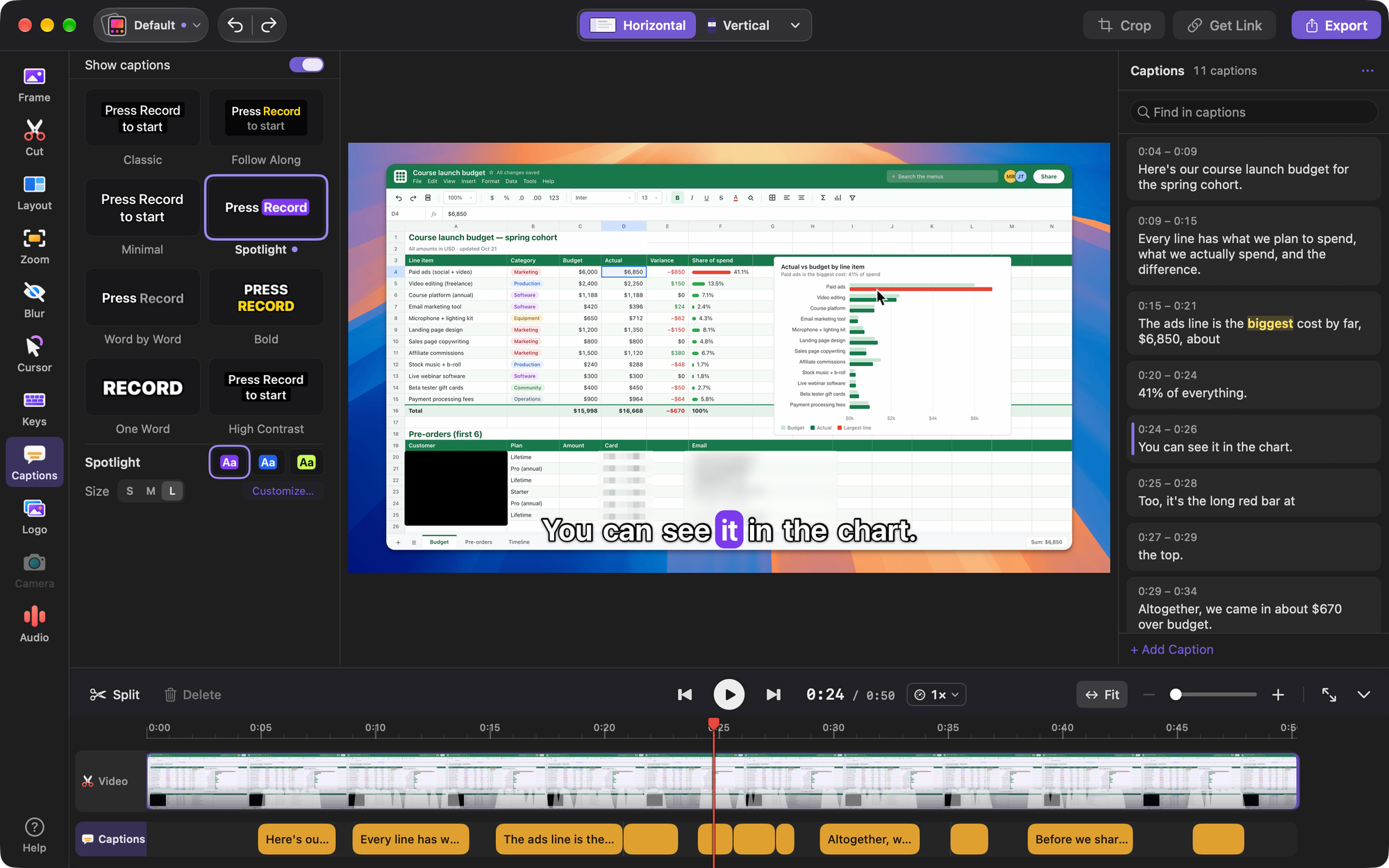
Nothing is transcribed after you stop recording. Captions are made only when you open the Captions page or click Make Captions.
A few things the Captions page may ask first:
- A one-time download. If your speech choice needs a model you don't have yet, the page says how big it is. Click Download. It downloads once and every recording uses it after that.
- Which track is your voice? If CursorClip can't tell whether your voice is on the microphone or the system audio, click Choose Your Voice and pick Microphone or System Audio.
- Speech Recognition is off for CursorClip. Quick on macOS 26 uses Apple's speech recognition. Turn it on for CursorClip in System Settings, then try again.
Already have captions? Use Import Captions… to bring in an .srt or .vtt file. To write them yourself, click + Add Caption and type a caption at the playhead. Importing and typing work on every Mac, macOS 13.5 included.
From any other page of the editor, click a caption on the video to open the Captions page with that caption selected.
Quick, Balanced or Accurate
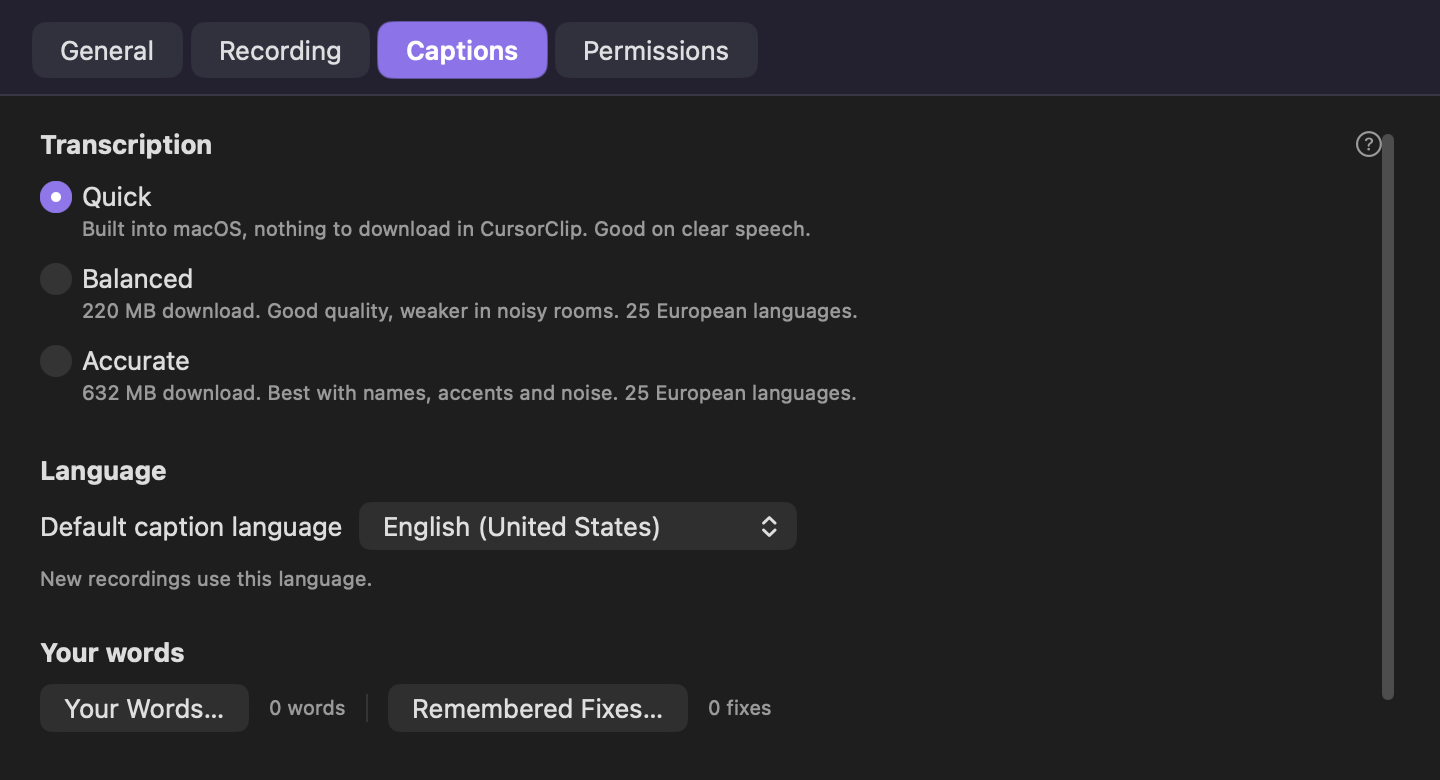
Choose how CursorClip turns speech into text in Settings › Captions › Transcription. Faster options finish sooner. Slower ones get more words right.
Quick
Fastest to start. Good on clear speech.
Balanced
Good quality, weaker in noisy rooms. 25 European languages.
Accurate
Best with names, accents and noise. 25 European languages.
Which ones you get depends on your Mac:
| Mac | Quick | Balanced | Accurate |
|---|---|---|---|
| Apple silicon, macOS 26 or later | Built into macOS, nothing to download | 220 MB download | 632 MB download |
| Apple silicon, macOS 15 | Not offered | 220 MB download | 632 MB download |
| Apple silicon, macOS 14 | 227 MB download, English only | Not offered | 632 MB download |
| Intel, macOS 14 or later | 227 MB download, English only | Not offered | Not offered |
Making captions needs macOS 14 or later. On macOS 13.5 the rest of CursorClip works as usual and the Captions page explains what's needed. If CursorClip runs under Rosetta on an Apple silicon Mac, it counts as an Intel Mac: only Quick, in English. Open the normal version to get Balanced and Accurate back.
In Settings, a choice that needs a download shows its progress, and Delete… frees its space again. Under Language, the Default caption language is the language new recordings use. Quick on macOS 14 and on Intel Macs is English only.
To make one recording's captions again with another choice or language, click … at the top of the Captions list and choose Re-transcribe. Your fixes stay.
Fix words
The Captions page has two columns: the styles on the left of the video, and the Captions list on the right, with every caption on its own card under its start and end time. In a narrow window they share one column, with Captions and Style tabs at the top.
- Click a caption to jump to it and select it. Double-click it, or press Return, to type over it. Every change can be undone.
- Press ⌘E while you watch: playback pauses and the caret lands on the word playing, so you can fix it there.
- Type in Find in captions, then Replace with and Replace All to fix a word everywhere it appears. Undo puts every match back.
- Under Suggested spellings, CursorClip groups words that sound like a name from your word list, your script or notes, or the words on your screen. Pick the right spelling to fix them all, or click Keep.
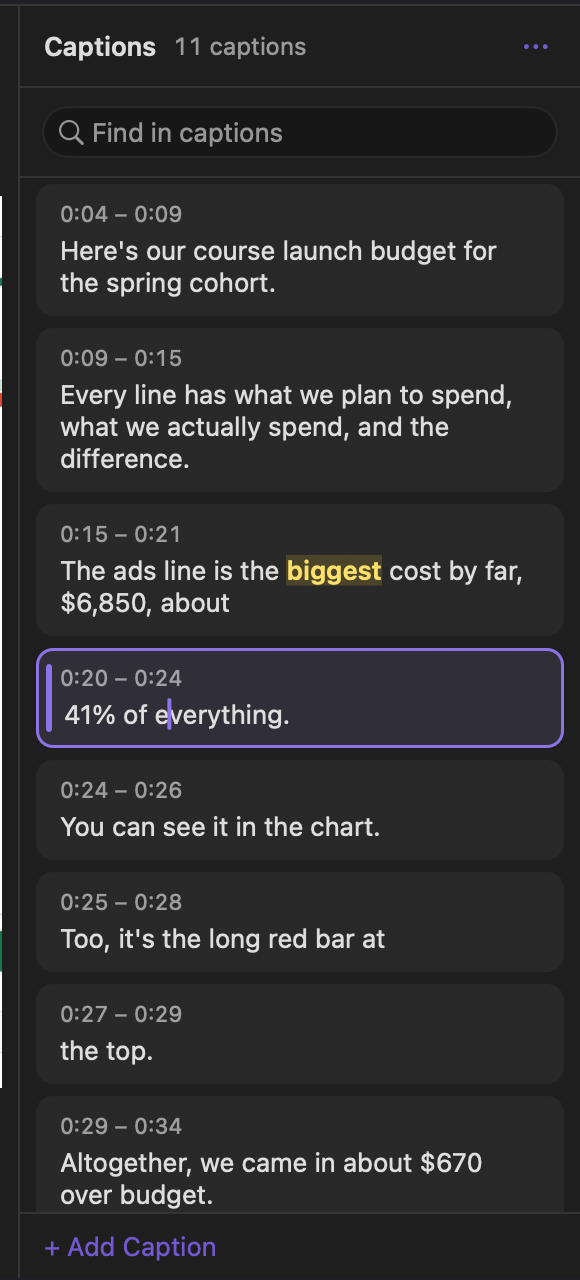
Right-click a word for more:
- Hide from Captions
- Keeps the word in the list, greyed, and leaves it out of the captions. Restore brings it back.
- Undo Auto-correction
- Puts back what was heard, when CursorClip corrected a word for you.
- Emphasize (⇧⌘E)
- Keeps the word in the emphasis color while its caption is on screen. Choose it again to remove it.
- Fix All Like “…”
- Fixes every other caption with the same mistake in one step.
- Always Fix This
- Fixes that mistake by itself in future recordings too. You see these under Remembered Fixes… in Settings › Captions.
- Edit Text
- Opens the caption for typing.
- Start Here and End Here
- Moves the caption's start or end to the playhead.
⇧⌘E also emphasizes the word playing while you watch. You can change the emphasis color in Customize….
The … menu at the top of the Captions list (at the bottom of the Captions tab in a narrow window) has the rest:
- Re-transcribe, with each choice and a Language menu.
- Import Captions… and Export Captions…
- Shift All Captions… moves every caption earlier or later, in seconds. A negative number shows them earlier.
- Script or Notes…: paste your script or notes, and the names and terms in it become suggested spellings. What you said is never changed to match.
- Show Captions Where Sound Is Muted appears when a part you muted has words in it.
- Your Words…: names and terms captions should spell your way. Under Also heard as, add what captions write instead, separated by commas. The same list is in Settings › Captions.
CursorClip also writes spoken shortcuts, file names and web addresses the way people read them: "command shift four" becomes Cmd-Shift-4 and "config dot json" becomes config.json. Right-click one and choose Undo Auto-correction to put back what you said.
Pick a style
At the top of the styles column, Show captions turns captions on or off in the preview and in exported videos. Below it are 8 built-in styles. Hover over one to see it on your video, and click it to use it. Press Esc to stop the preview. Until you pick one, vertical videos use Spotlight and the rest use Classic.
- Classic
- Whole sentences on a dark box. Versions: Dark, Light, Editorial.
- Follow Along
- The spoken word lights up. Versions: Yellow, Midnight, Code.
- Minimal
- Outlined text, no box. Versions: White, Black, Serif.
- Spotlight
- A box jumps to each word. Versions: Violet, Blue, Lime.
- Word by Word
- Words appear as you say them. Versions: White, Yellow, Handwritten.
- Bold
- Big caps, a few words at a time. Versions: Yellow, Clean, Headline.
- One Word
- One word at a time. Versions: White, Yellow, Impact.
- High Contrast
- Solid box, clear font, no motion. Versions: White on black, Yellow on black.
Under the styles, the "Aa" buttons switch between the chosen style's versions, and Size with S · M · L sets the size. If your Look has its own color, an extra "Aa" uses it.
Customize a style
Click Customize…. Every change shows on the video straight away. ‹ Styles or Esc takes you back.
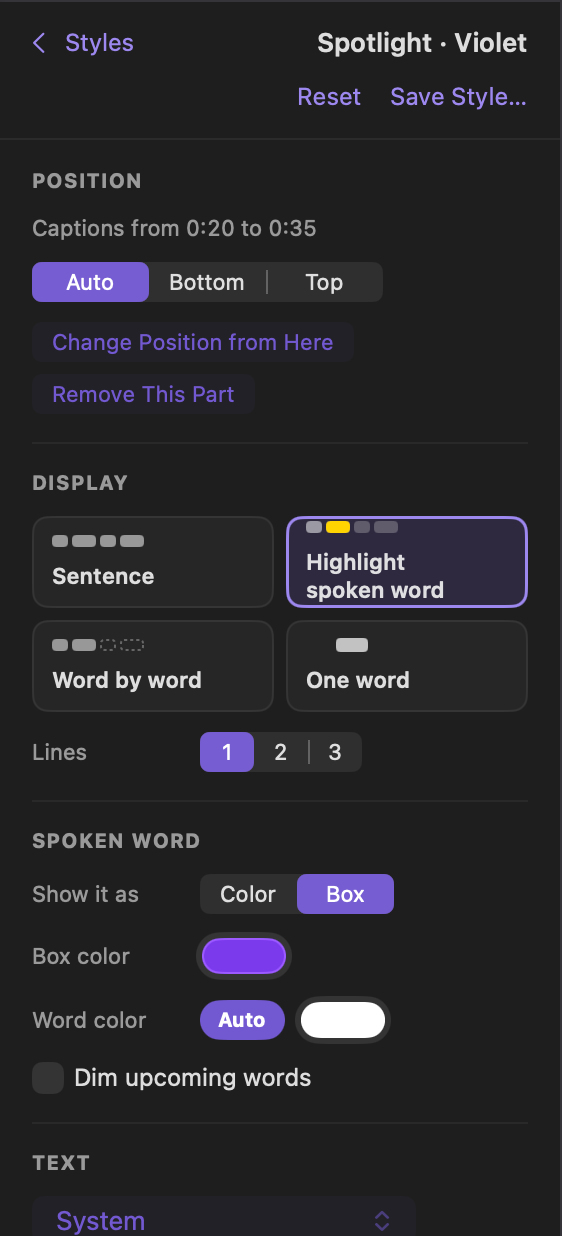
- Position: see Place captions below.
- Display: Sentence, Highlight spoken word, Word by word or One word, and Lines 1, 2 or 3.
- Spoken word: show it as a Color or on a Box, pick its color, and Dim upcoming words.
- Motion: Off, Subtle or Lively.
- Background: Line box, Card or None, plus Outline and Shadow.
- Text: the font, Weight (Regular, Bold, Heavy), Size from 70 to 150 percent, and Case (As spoken or UPPERCASE).
- Colors: text, background and its opacity, outline, and the Emphasis color. If a color is hard to read, Fix adjusts it.
Once you change something, Reset and Save Style… appear. Reset goes back to the style as it ships. Save Style… asks for a name and saves it as your own style. It shows up under Your styles, above the built-in ones, in every project. Saved styles are kept with your Looks.
The font list has a Library of free, open-licence fonts, each downloaded the first time you use it, and the fonts On this Mac. The fonts the style versions use (about 1.5 MB) download in the background shortly after you open CursorClip on a Mac that can make captions. Until a font arrives, captions use the system font and switch when it lands.
Place captions
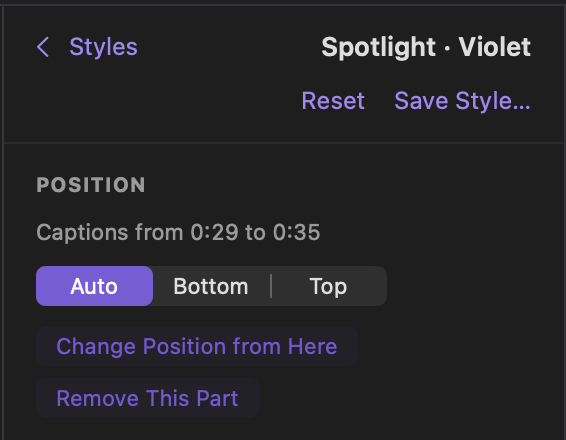
In Customize… › Position, pick Auto, Bottom or Top. Auto moves on its own to keep the cursor, zoom and camera clear, and keeps away from your watermark and keystrokes. Bottom and Top stay exactly where they are.
To place captions yourself, drag them on the video. Arrow keys nudge them. A placed caption shows Back to Auto to undo the drag. Wide, square and vertical videos each keep their own placed spot. If a placed caption covers the camera, the video says so, with Use Auto Here.
To change the spot partway through, move the playhead to where it should change and choose Change Position from Here (⌥⌘B). It's in the View menu, in the Position section of Customize…, and when you right-click a caption in the Captions lane or on the video. The new part starts with the caption at the playhead, so nothing jumps mid-caption. Then drag the captions or pick a position for the new part.
With more than one part, the Position section names the part at the playhead, such as "Captions from 0:20 to 0:41", and dragging moves only that part. Remove This Part takes it out: the position before it carries on, and if it was the first part, the next part's position starts at 0:00. Every step can be undone.
Export
What you see in the preview is what you export. With Show captions on, captions go into the video, styled and animated exactly as in the preview. The Captions part of the export window says which: "Captions in the video" or "No captions in the video". To leave them out, turn off Show captions on the Captions page first. For the rest of the export window, see the export guide.
For a video, Save caption files (under Options) writes .srt and .vtt for YouTube and other players, and .txt as a plain transcript, next to the video. A GIF gets the captions in the picture only, with simpler animation.
If something may still look wrong, such as a placed caption over the camera or a color that's hard to read, the export window shows Review with a list you can jump to. It never stops the export.
To get only the files, choose File › Export Captions…. It writes them from your current edit without rendering the video again, and adds the language to each file name.
Making, fixing and styling captions works without a license. Exporting the video or the caption files needs one, like any export.
Privacy
- Speech turns into text on your Mac. Making captions never sends your recordings, audio or transcripts anywhere.
- If you choose Get Link to share a video, the copy that goes up includes its sound and any captions shown in it. See how Get Link works.
- To spell names right, CursorClip may read words shown on screen in your recording with Apple's on-device text recognition. That text stays on your Mac.
- Speech models download from Hugging Face at a fixed version. CursorClip's server sends the app a small signed list of the model's files first, and the app checks every file against it.
- Caption fonts download from Google Fonts' public repository on GitHub, also at a fixed version.
- These downloads send no part of your audio, captions or recording.
- If a download fails, the app tells us which step failed so we can fix it. Crash and usage reports say things like how long captions took. None of them include your audio or the words in your captions.
Details are in the privacy policy.